How to enable Peppol e-invoicing in Apollo
Peppol is an international network for sending structured e-invoices to business customers, and in Slovenia to public-sector budget users through UJP. In Apollo, you manage Peppol enrollment from the E-invoicing settings page, available for entities in countries where Apollo supports sending over Peppol, Slovenia included. This guide covers enrollment, enrollment states, auto-send, customer Peppol IDs and per-invoice sending.
- 1
Open the E-invoicing settings#
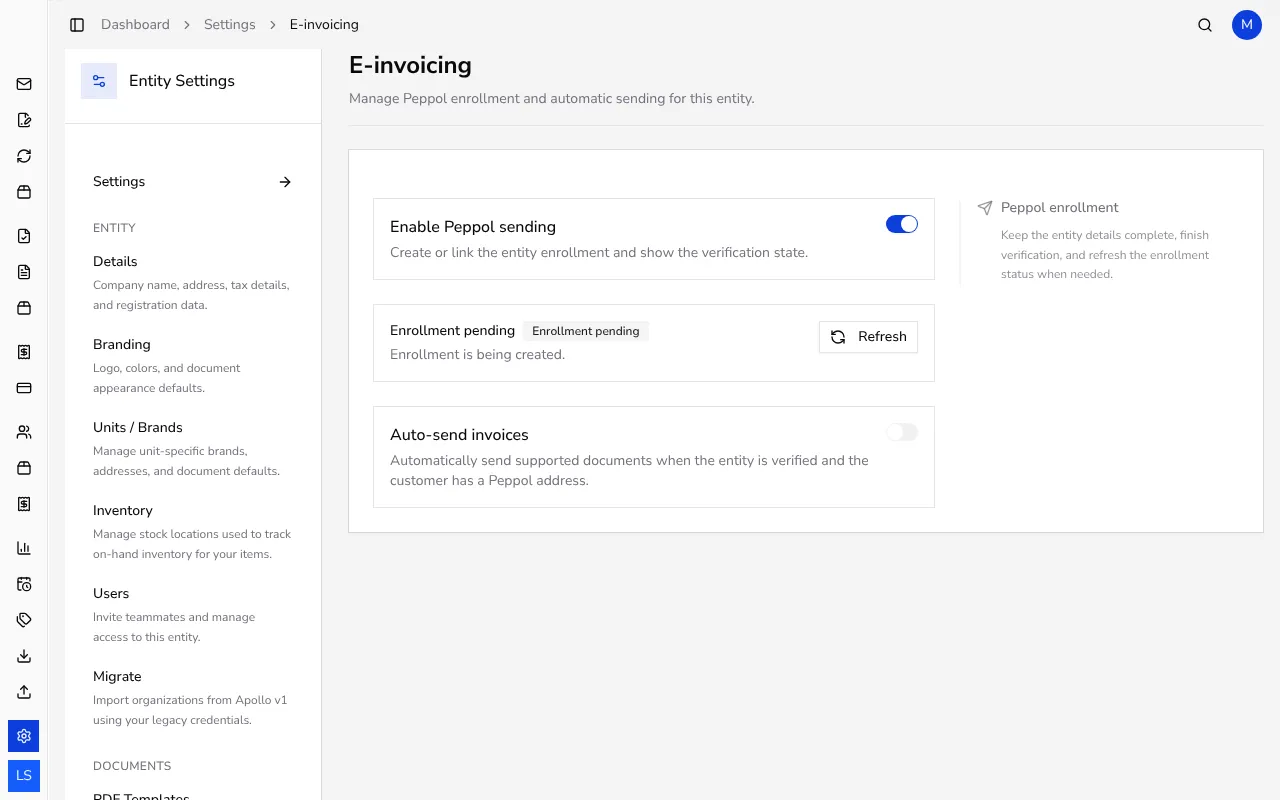
In the sidebar, click Settings, then choose E-invoicing under Compliance. Peppol enrollment is created per entity and environment; Apollo needs a complete company address and a Peppol identifier it can derive from your details; for a Slovenian company, that's scheme 9949 and the tax number prefixed with SI. The Enable Peppol sending switch at the top of the page shows whether enrollment is currently on for this entity.
![E-invoicing settings page with the Enable Peppol sending switch on and a status card showing Enrollment pending]()
- 2
Enable Peppol sending#
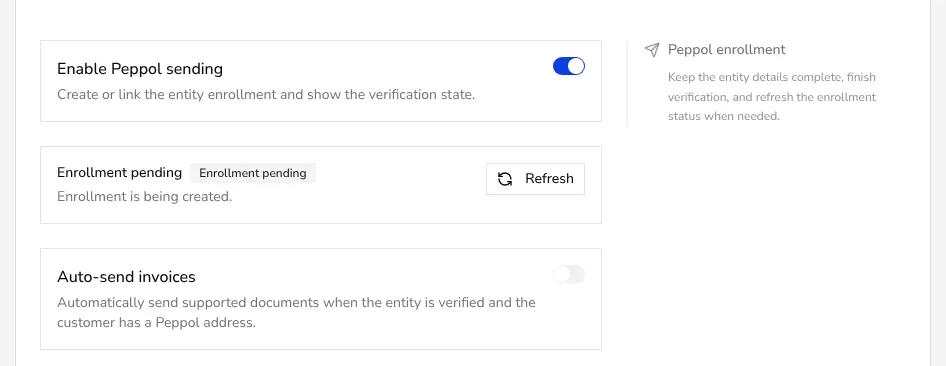
The Enable Peppol sending switch creates or links the entity enrollment. The card below it shows the current status: Not enabled, Missing entity data, Enrollment pending, Verification required, Verification in progress, Verified, Reverification required, Rejected or Provider error. Right after you switch it on, the status usually reads Enrollment pending, and a Refresh button appears so you can re-check the status at any time.
![Close-up of the enabled Enable Peppol sending switch, an Enrollment pending status card with a Refresh button, and the Auto-send invoices switch]()
- 3
Follow the enrollment status#
If entity details are missing, the status says so; once the enrollment is created, it waits to be processed. The Verify button opens the link to complete external verification, and Refresh re-checks the status once verification is done. Once the entity is Verified, it can send invoices and credit notes over Peppol.
- 4
Turn on auto-send#
The Auto-send invoices switch automatically sends supported documents once the entity is verified and the customer has a Peppol address on file. It applies to issued invoices and credit notes only.
- 5
Add a customer's Peppol ID#
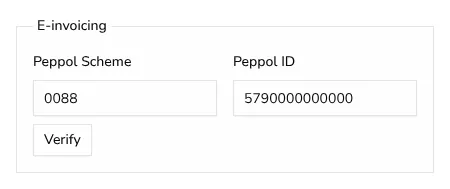
Once the entity is enabled, the customer form's E-invoicing section shows Peppol Scheme and Peppol ID fields whenever the customer has a tax number or company number entered — for example, scheme 0088 and ID 5790000000000 — and Verify checks that the address is registered on Peppol and accepts invoices. When you enter a Slovenian customer's tax number, Apollo fills the empty fields itself: scheme 9949 and SI followed by the 8-digit tax number. UJP is the Peppol access point for every Slovenian budget user: the Slovenian public-sector recipient (UJP) button fills in UJP's address (scheme 9949, ID si10641424), and the customer needs a valid Slovenian tax number, or Apollo won't send the e-invoice. This tells Apollo where to deliver e-invoices to that customer over the Peppol network.
![E-invoicing section of the customer form with Peppol Scheme 0088, Peppol ID 5790000000000 and a Verify button]()
- 6
Control sending per invoice#
When you create an invoice or credit note for a supported entity, a Peppol checkbox (Send via UJP/Peppol for Slovenian entities) appears next to the page title that turns electronic sending on or off for that document — it follows the auto-send setting by default. When electronic sending is selected, issuing the document validates the required fields; drafts don't block on this.
![Create Invoice form with a Peppol checkbox next to the page title]()

- 7
Check delivery status#
Delivery status is tracked on the document itself, so you can check whether an e-invoice was delivered over Peppol at any time. Sending prices are listed on the pricing page.
Tips
- Complete your entity's address and the details Apollo uses to derive your Peppol identifier before you enroll — without them, the enrollment can't be created.
- Add each customer's Peppol ID and scheme once, so every invoice you send them electronically already carries the right address.
- If the enrollment status doesn't update on its own after external verification, click Refresh.
Frequently asked questions
What do I need before I can enable Peppol sending?
A complete company address and a Peppol identifier Apollo can derive from your entity details; without them, the enrollment status shows that entity data is missing.
What does 'Verification required' mean?
The enrollment has been created, but you need to open the verification link and complete the required checks before the entity can send over Peppol.
Does every invoice send over Peppol automatically?
Only issued invoices and credit notes are sent automatically, and only for entities that are verified with auto-send turned on and a customer that has a Peppol address; you can also turn electronic sending on or off for an individual document.
Can I send an e-invoice to a Slovenian budget user over Peppol?
Yes. UJP is the Peppol access point for every Slovenian budget user, so fill in UJP's address on the customer with the Slovenian public-sector recipient (UJP) button and check the customer's tax number. That's a separate route from the UJP package, which you send yourself.
How much does sending invoices over Peppol cost?
Pricing is listed on Apollo's pricing page.