How to view all your payments
The Payments page collects every payment you've recorded across invoices, credit notes and advance invoices in a single, searchable list, so you don't have to open each document to check what came in. Use it to review recent payments, jump straight to the document behind one, or fix a mistake.
- 1
Open the Payments page#
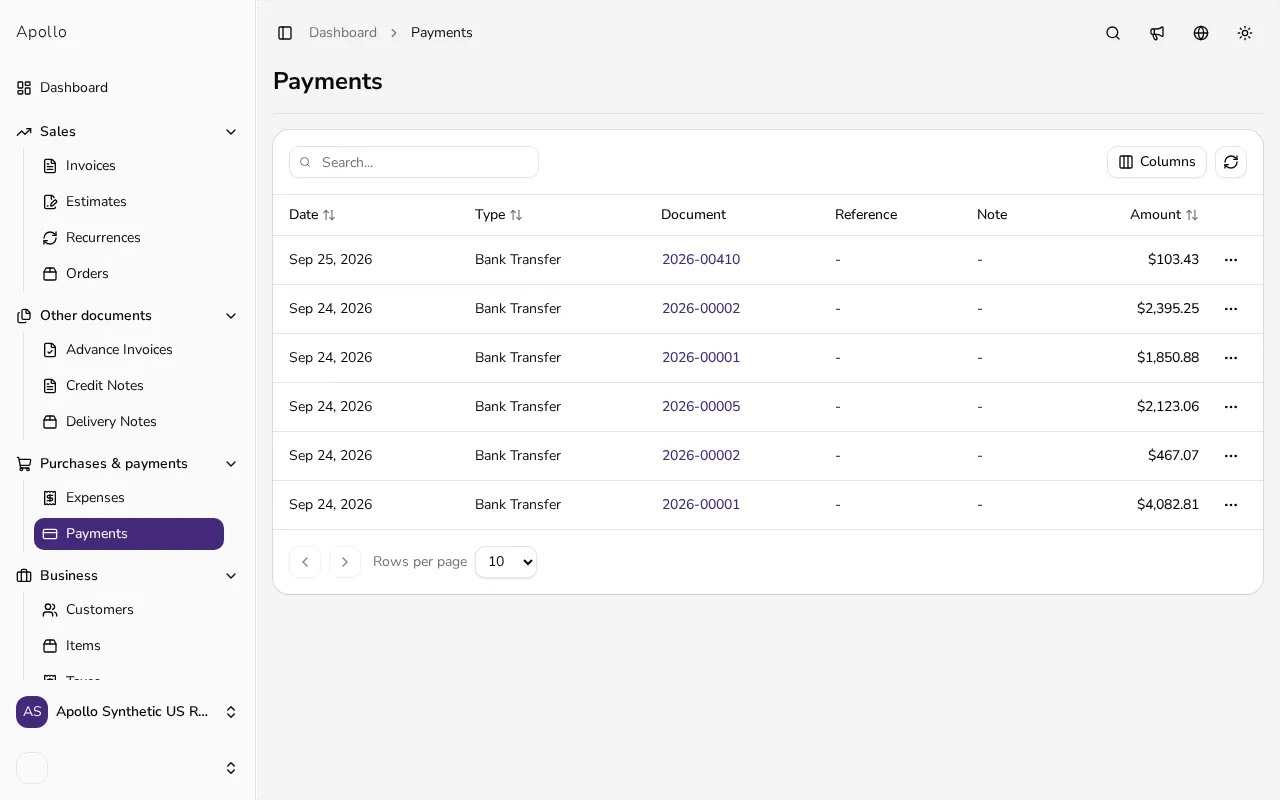
Click Payments in the sidebar to see every payment recorded across your documents, most recent first.
![List of all recorded payments with date, type, document and amount columns]()
- 2
Review the columns#
Each row shows the Date, Type (such as Bank Transfer or Cash), the linked Document, Reference, Note and Amount.
- 3
Open the related document#
Click the document name in the Document column to jump straight to the invoice, credit note or advance invoice the payment belongs to.
- 4
Search or sort the list#
Type into the search box to find a payment by customer or document, or click Date, Type or Amount to sort the list by that column.
- 5
Edit or delete a payment#
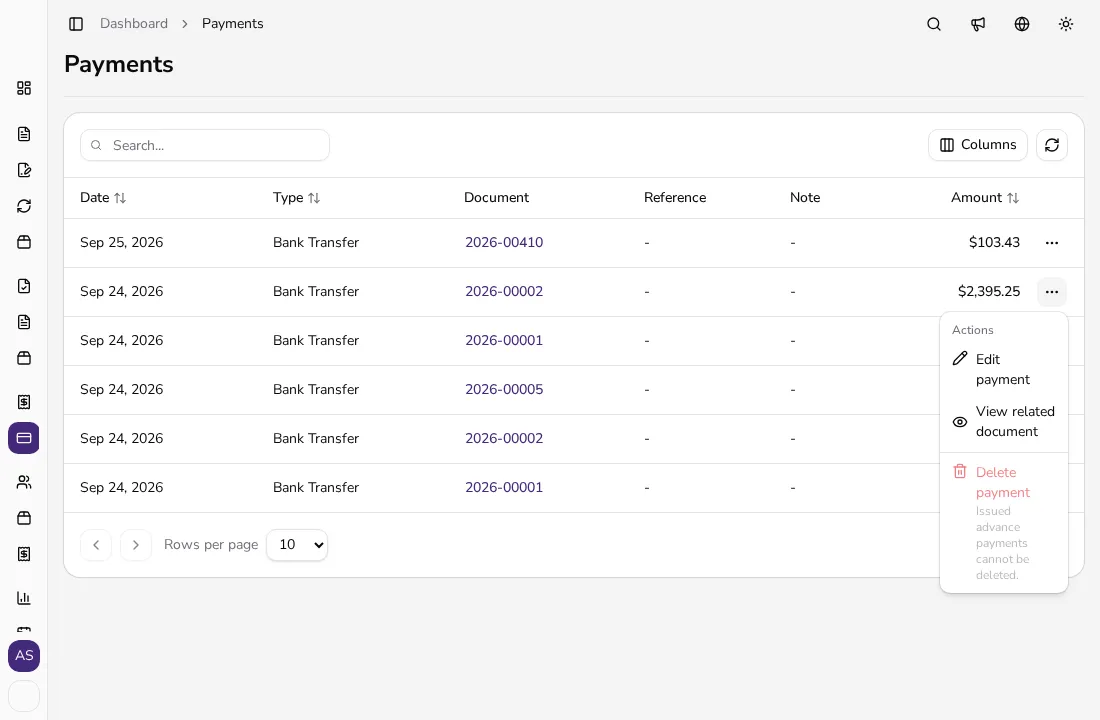
Open a row's ⋯ menu to Edit payment or Delete payment. Payments applied automatically from an advance or a credit note are managed automatically and can't be changed here.
![Open payment row menu with Edit payment and Delete payment options]()
Tips
- Sort by Amount to quickly spot your largest payments for the period you're reviewing, which is handy for a monthly check.
- When a Note is long, click the small info icon next to it to read the full text without opening the document.
- This page only shows payments already recorded — to add a new one, open the related invoice and click Add payment.
Frequently asked questions
What counts as a payment on this page?
Every amount recorded on an invoice, credit note or advance invoice, plus expense payments if you track expenses.
Can I record a new payment from this page?
No. Open the related invoice, credit note or advance invoice and click Add payment or Payment there instead. In Portugal, payments can't be added to credit notes.
Why can't I edit or delete some payments?
Payments applied automatically, such as an advance payment settling an invoice, are managed automatically. The row explains why the action is unavailable.
Can I see which invoice a payment paid off?
Yes — click the linked name in the Document column to open that invoice, credit note or advance invoice directly.