How to migrate from Apollo v1
If you used the previous version of Apollo, you can bring an organization's customers, tax rates, documents and payments into the new app instead of starting over. The migration runs in the background once you confirm it, and your Apollo v1 organization keeps working the whole time, so you can compare the two or keep using it until you're ready to switch.
- 1
Open Migrate from Apollo v1#
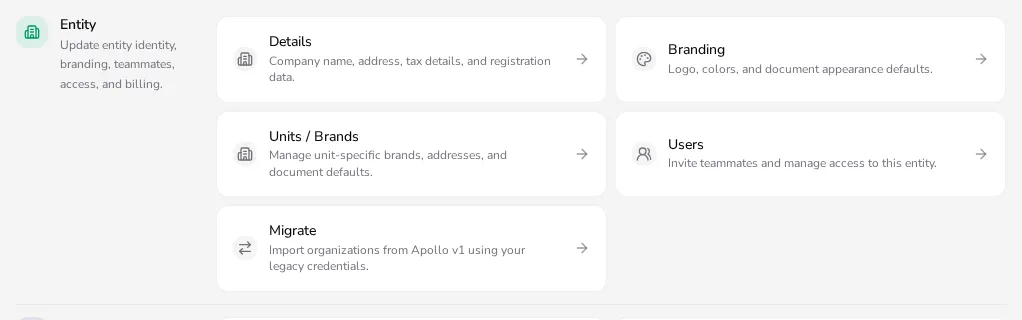
In the sidebar, click Settings. Under Entity, click Migrate — this option is only available on Apollo and only appears while you still have an Apollo v1 organization left to bring over.
![Entity settings section with the Migrate card among Details, Branding and Users]()
- 2
Verify your Apollo v1 account#
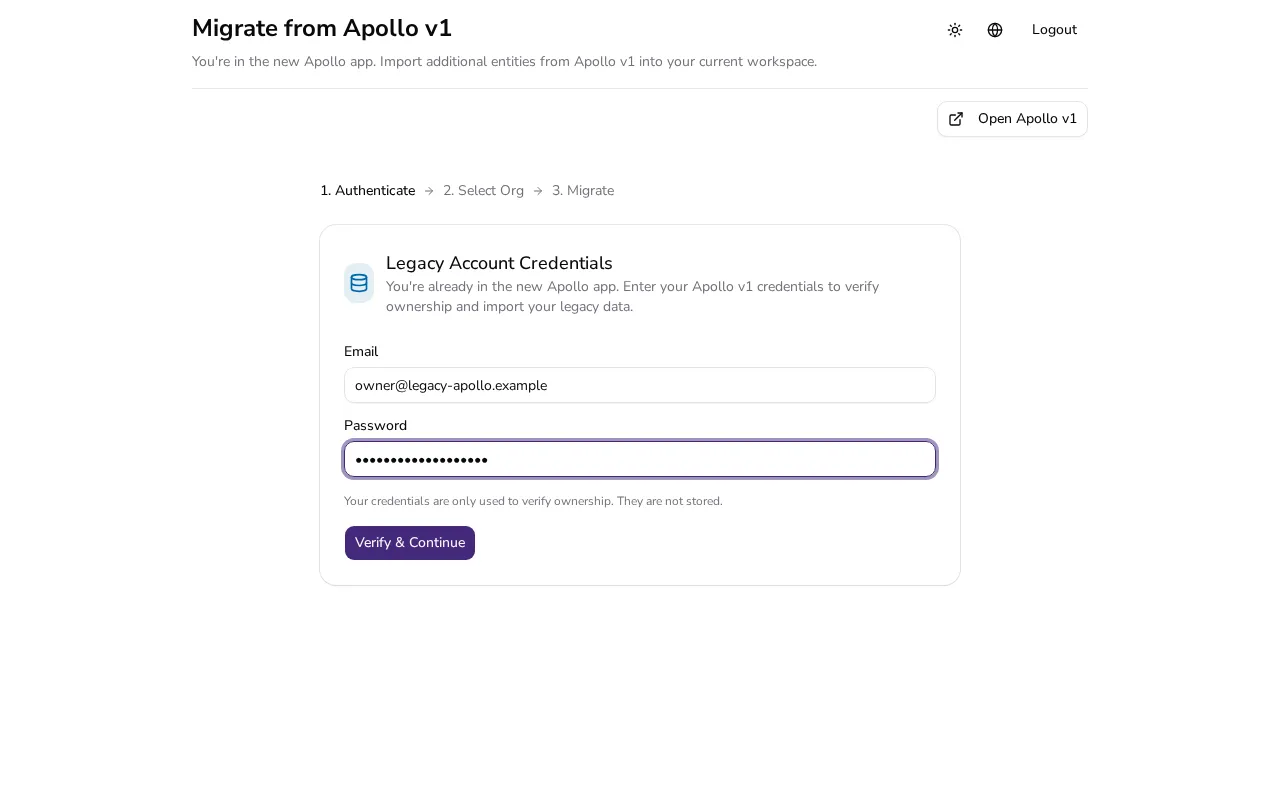
Apollo opens Migrate from Apollo v1 on its own page. Under Legacy Account Credentials, enter the Email and Password you use to sign in to Apollo v1, then click Verify & Continue. These credentials only confirm you own the account and aren't stored.
![Migrate from Apollo v1 page with the legacy account email and password fields]()
- 3
Choose which organization to migrate#
If you manage more than one organization in Apollo v1, Select Organization lists each one you're an owner or admin of. Pick the one you want to bring into Apollo; an organization that's already been migrated here is marked and can't be selected again.
- 4
Review what's migrating#
The Confirm Migration screen shows the organization's name and tax number. If some data — such as a connector Apollo doesn't support yet — needs manual follow-up afterward, it's listed here with a checkbox confirming you understand before you continue.
- 5
Start the migration#
Click Start Migration. Apollo copies over your customers, tax rates, documents with their items, and payments, showing a progress bar as it works; this can take a few minutes, and you can safely leave the page and come back later.
- 6
Open your migrated entity#
When migration finishes, Apollo takes you straight to the new entity. You can start another migration any time from the same Migrate page — earlier migrations are listed at the bottom so you can reopen them.
Tips
- Apollo v1 stays available the whole time — use Open Apollo v1 on the migration page if you need to check something in the old app while you migrate.
- You don't have to migrate everything at once: skip an organization for now and come back to it later from the same page.
- If you manage several organizations, migrate them one at a time; each one becomes its own entity in Apollo.
Frequently asked questions
Is my Apollo v1 account deleted after I migrate?
No. Migrating only copies your data into a new Apollo entity; your Apollo v1 organization and login keep working exactly as before.
What if I already migrated this organization?
It's marked in Select Organization and can't be migrated again from there. Reach out to support if you need a completed migration redone.
What happens if some of my data can't be migrated automatically?
Apollo lists it on the Confirm Migration screen before you start, so you know exactly what needs manual follow-up after the supported data has been imported.
Can I migrate more than one organization from Apollo v1?
Yes. Open Migrate again after your first migration finishes to bring in another organization; each one becomes a separate entity in Apollo.