How to set the language of your documents
Apollo's interface language and your documents' language don't have to match — you can run the app in English and still send a customer an invoice in Slovenian. A default language covers every new document, and you can switch it for any single PDF download or email without changing anything else. This guide covers all three places where you set it.
- 1
Set your default document language#
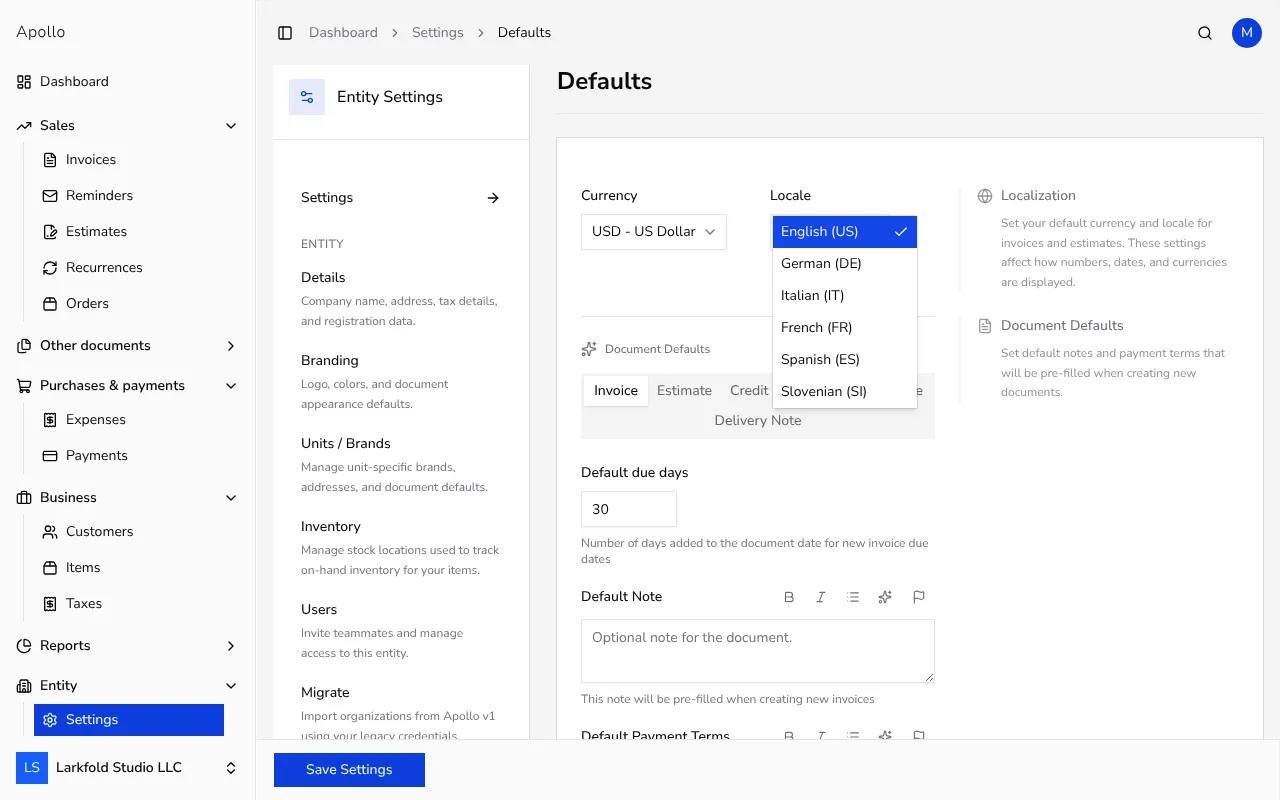
In the sidebar, click Settings, then choose Documents and Defaults. Under Localization, the Locale field sets the language new documents and their PDFs use by default, separately from the Currency field next to it.
![Defaults settings page with the Localization section and Locale dropdown open]()
- 2
Change the language for a single PDF#
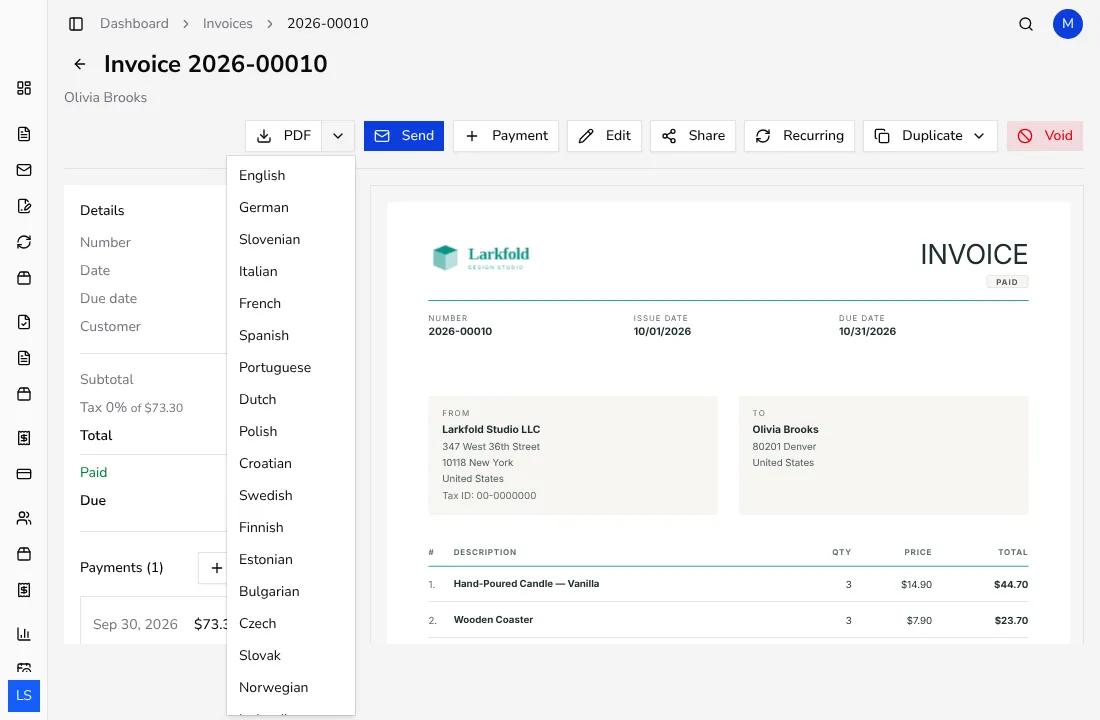
On any document's page, click the small arrow beside the PDF button to open a list of languages, including English, German and Slovenian. Pick one to download that document's PDF with translated labels, without touching the saved document or your account's default.
![Dropdown menu next to the PDF button listing language options for the download]()
- 3
Send an email in a different language#
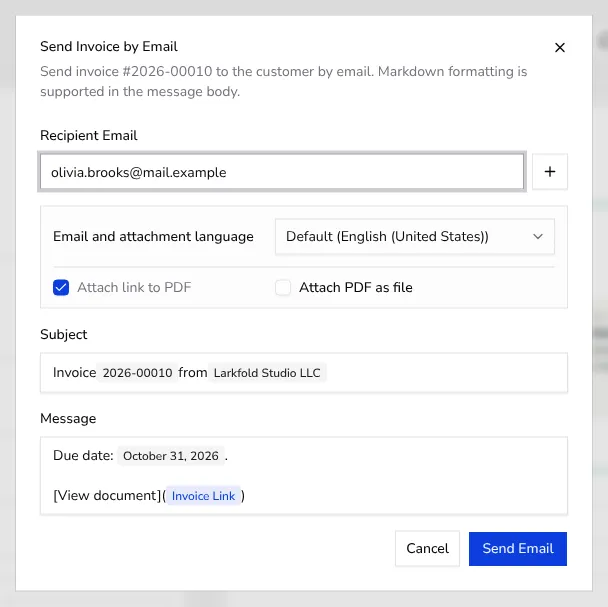
When you send that same document by email, the Send dialog has its own Email and attachment language field, starting on Default, shown with your account's locale in brackets. Pick another language there to translate the email text and its attached or linked PDF for that one send.
![Send email dialog with the Email and attachment language field open showing language options]()
- 4
Pick the language every time it matters#
Apollo doesn't save a language preference per customer, so the PDF and email language you choose only applies to that one download or that one email; the next one starts from your account's default again.
- 5
Know what stays the same either way#
Whichever language you pick, your invoice keeps the same template, logo and layout — only the field labels and standard text translate, while your own note, items and numbers stay exactly as you typed them.
Tips
- Set the default Locale to the language most of your customers speak, so you rarely need to override it.
- For a one-off customer in another language, you don't need to change your account settings at all — just pick the language on that download or that email.
- Changing the language for an email only affects that message; it doesn't change any PDF you already downloaded.
Frequently asked questions
Can I issue a document in a different language than my interface?
Yes. The document language is independent of the language you use to run Apollo itself.
Can I pick a language separately every time I send an email?
Yes, every time you send a document by email you can choose the email and attachment language in the Send dialog, independently of previous sends.
Can I set a default language for one specific customer?
No, there isn't a per-customer language setting; you choose the language each time you download a PDF or send an email to that customer.
Does changing the language change how the invoice looks?
No, your template, logo and layout stay the same; only the labels and standard wording are translated into the language you pick.