Set default notes and payment terms in Apollo
Typing the same note or payment terms on every invoice gets old fast. Apollo's default settings let you pre-fill a note, payment terms, and even a document footer and signature once, so every new document you create already has them ready to send, and can personalize itself automatically with details like the customer's name or the document number.
- 1
Open default settings#
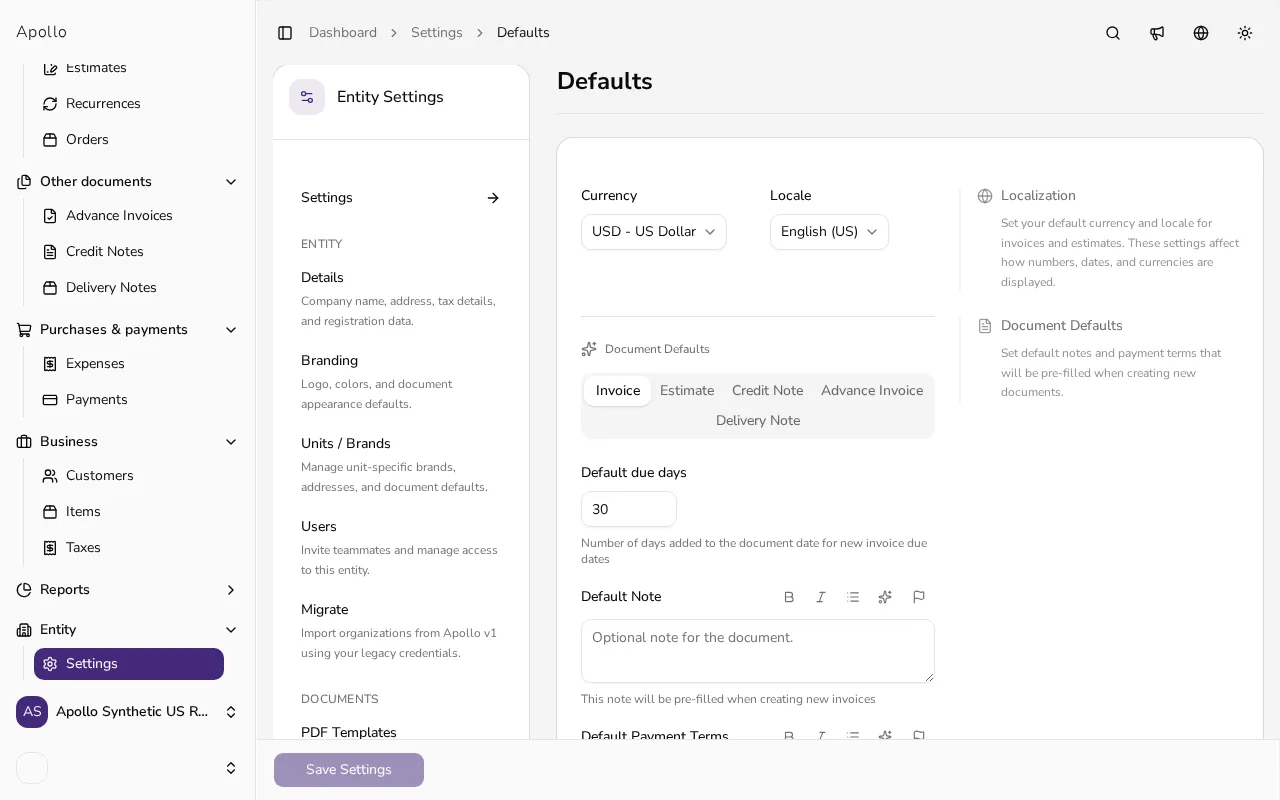
In the sidebar, click Settings, then choose Documents and Defaults. The page groups its fields into a localization section, a Document Defaults section with one tab per document type, and a footer section.
![Defaults settings page showing document type tabs and default note fields]()
- 2
Set a default note and payment terms#
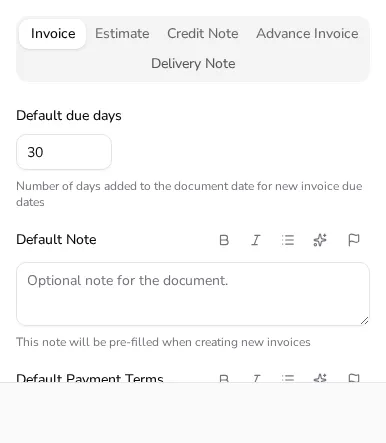
Under Document Defaults, open the Invoice tab. Default Note pre-fills the note field on every new invoice, and Default Payment Terms does the same for payment terms; Default due days sets how many days from the document date the due date defaults to. The Estimate and Credit Note tabs offer the same note and payment-terms fields; Advance Invoice and Delivery Note only offer a default note, since those documents don't have payment terms of their own.
![Invoice tab with default due days, default note and default payment terms fields filled in]()
- 3
Personalize a note with variables#
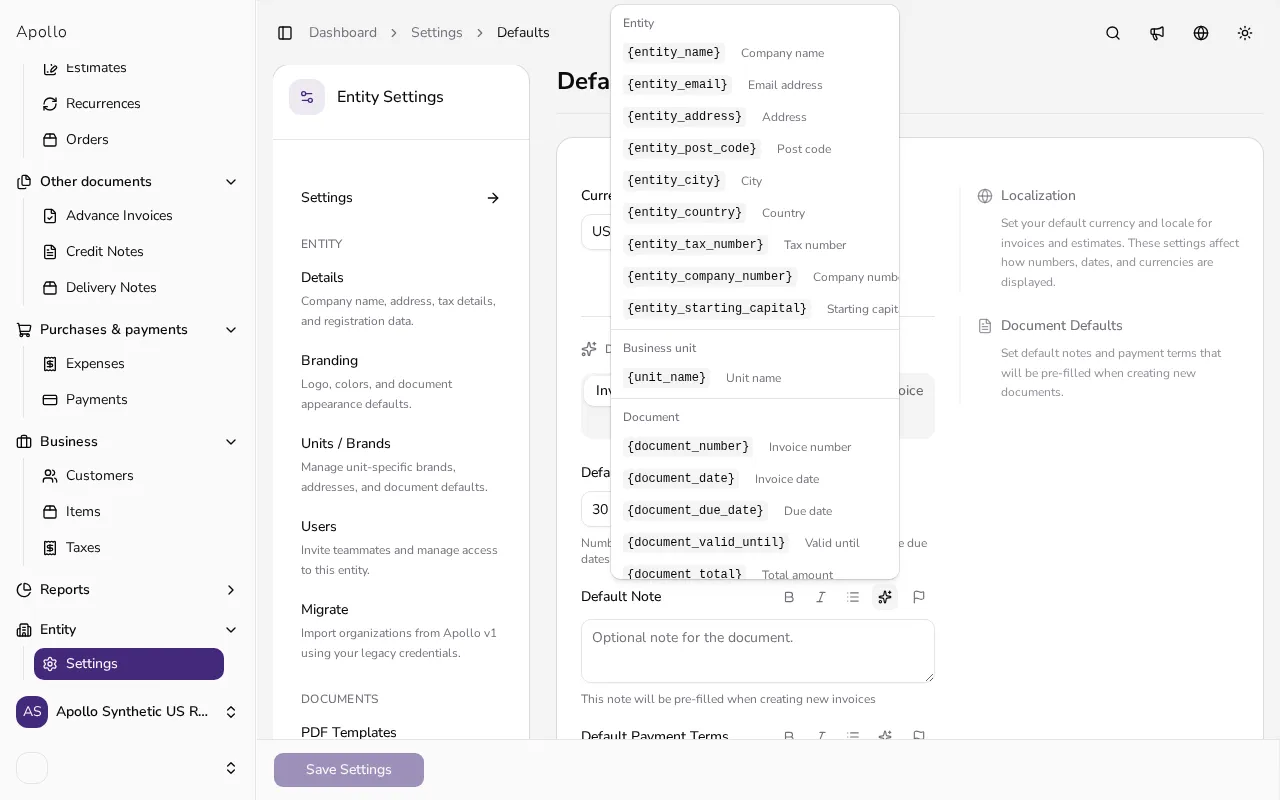
Click the Insert variable icon above any note or terms field to add a placeholder such as Customer name, Invoice number or Due date. Apollo replaces each placeholder with the real value on every document you create, so one default note can still greet each customer by name.
![Insert variable menu listing placeholders such as customer name, invoice number and due date]()
- 4
Add a document footer and signature#
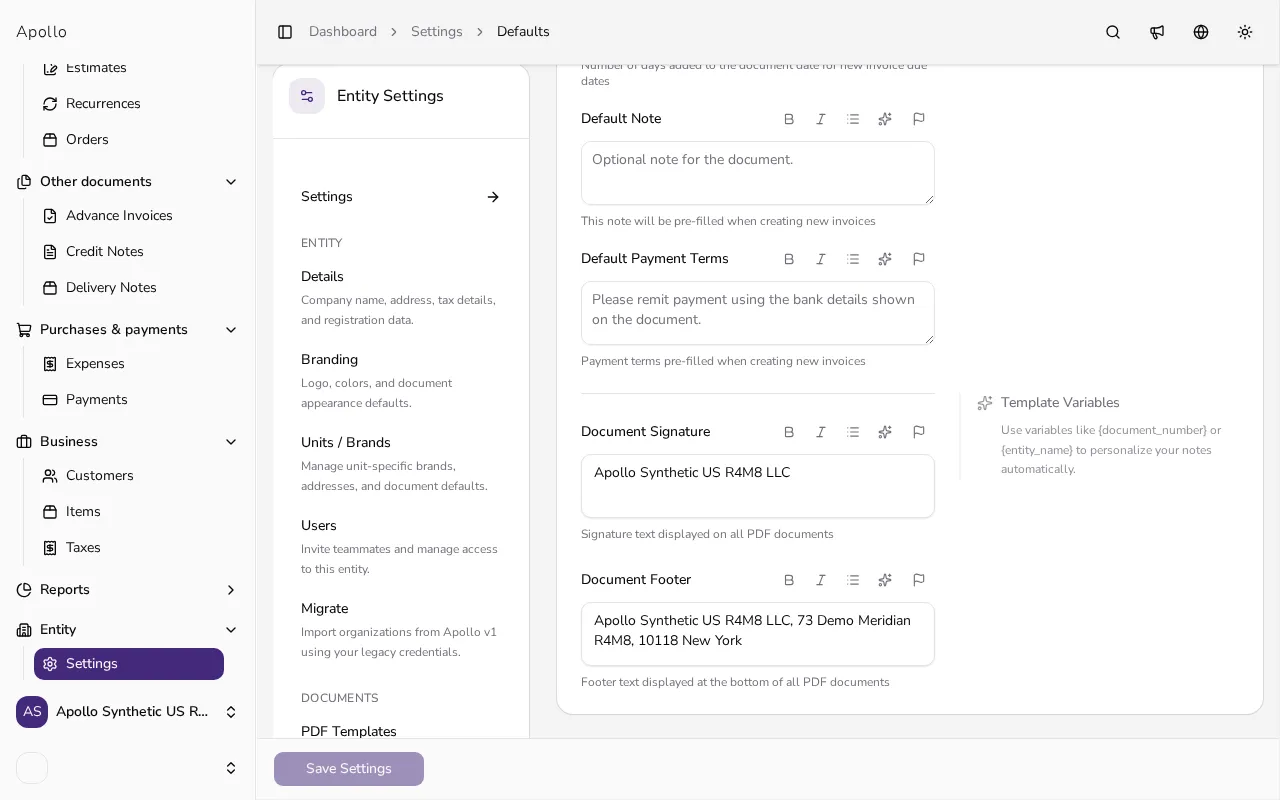
Scroll down to the Document Signature and Document Footer fields. Unlike the notes above, these are shared across every document type and print at the bottom of every PDF you issue, so they're a good place for a slogan, your bank details, or legal boilerplate.
![Document footer section with signature and footer text fields]()
- 5
Save your settings#
Once every tab looks right, click Save Settings. From then on, every new invoice, estimate, credit note, advance invoice or delivery note opens with these defaults already filled in — you can still edit or clear them on any individual document.
Tips
- Defaults only pre-fill new documents; changing them here doesn't rewrite the note or payment terms on documents you've already created.
- You can still overwrite or delete the pre-filled note or terms on any single document without touching the default itself.
- Use the document footer for anything that should appear on every PDF, such as your registration number, and keep the note field for things that vary a little by document type.
Frequently asked questions
Do defaults apply to documents I've already created?
No. Defaults only pre-fill the note, terms and footer fields when you start a new document; anything you already issued keeps whatever text was on it at the time. The one exception is a document saved without a footer of its own: it shows your current default footer whenever it's opened or downloaded.
Why don't advance invoices and delivery notes have a default payment terms field?
Those document types don't carry their own payment terms, so their tab only offers a default note; payment terms apply to invoices, estimates and credit notes.
Can I leave a default note blank for one document type?
Yes. Each tab's fields are independent and optional, so you can set a default note for invoices while leaving estimates or credit notes without one.
What's the difference between the note and the document footer?
The note is per document type and appears in the body of that document, while the document footer and signature are shared across every document type and always print at the bottom of the PDF.