How to create and apply an advance invoice
An advance invoice lets you bill a customer for a deposit or upfront payment before you deliver the full order. Apollo tracks it separately from your regular invoices and, once it's paid, lets you turn it straight into the final invoice with the advance already deducted, so the customer only pays what's left.
- 1
Open Advance Invoices and start a new one#
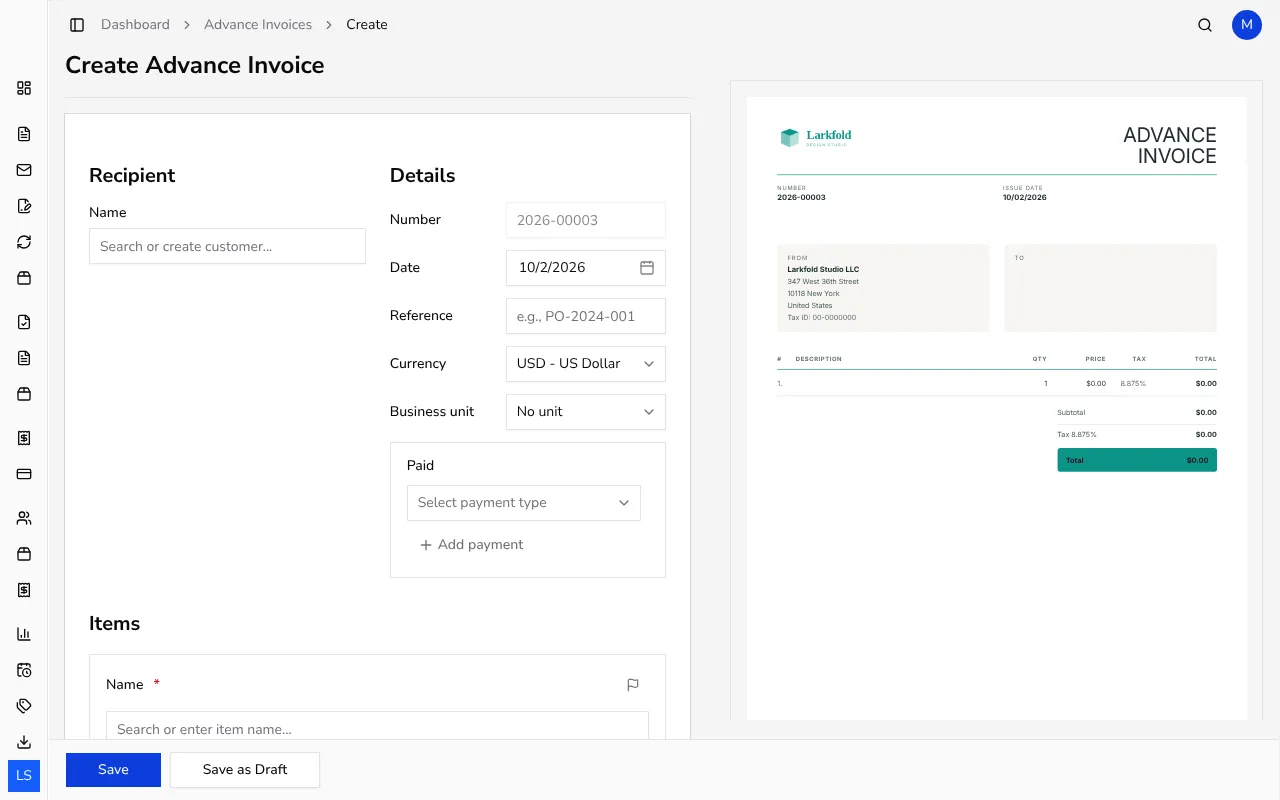
In the sidebar, under Other documents, click Advance Invoices, then click Create. This opens a form very similar to a regular invoice, with a live preview on the right.
![Blank advance invoice form on the left with a live PDF preview on the right]()
- 2
Add the recipient and items#
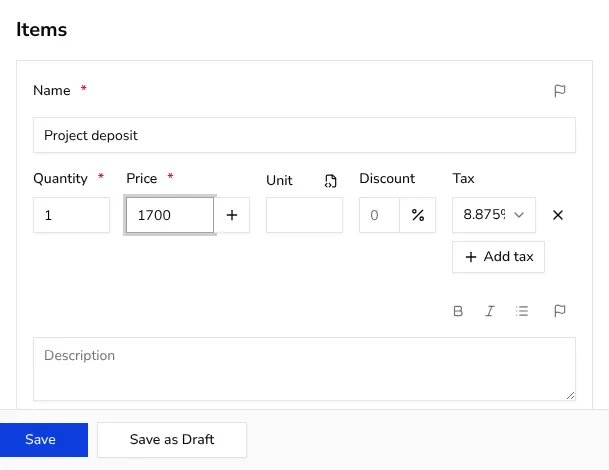
Under Recipient, search for or add the customer exactly as you would on an invoice. Under Items, add a line for the advance amount — either a single deposit line or an itemized breakdown of what the advance covers.
![Items section of the advance invoice form with a deposit line item, quantity and price filled in]()
- 3
Record how the advance was paid#
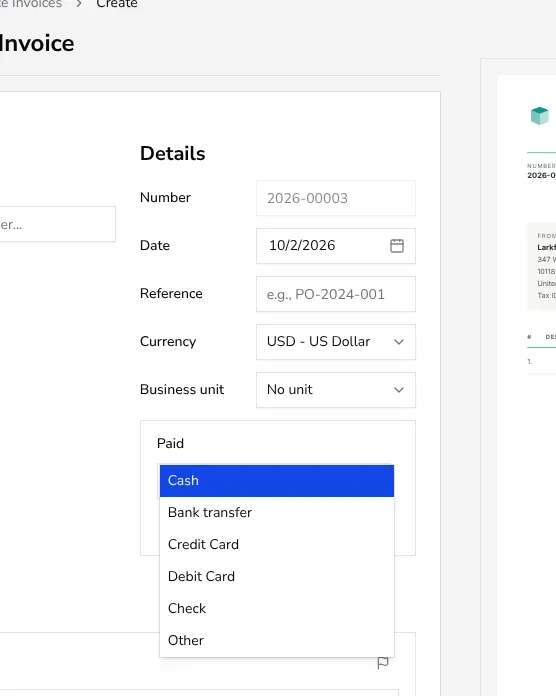
Unlike a regular invoice, an advance invoice you issue must be recorded as fully paid: choose a Payment Type such as Cash, Bank Transfer or Card. If you're not ready to record payment yet, use Save as Draft instead — you can finish and issue it once you're paid.
![Details section of the advance invoice form with the payment type dropdown open, listing Cash, Bank Transfer and other options]()
- 4
Save the advance invoice#
Click Save to issue the advance invoice with its own number. It now appears in your Advance Invoices list, separate from your regular invoices, ready to be applied later.
- 5
Apply the advance to the final invoice#
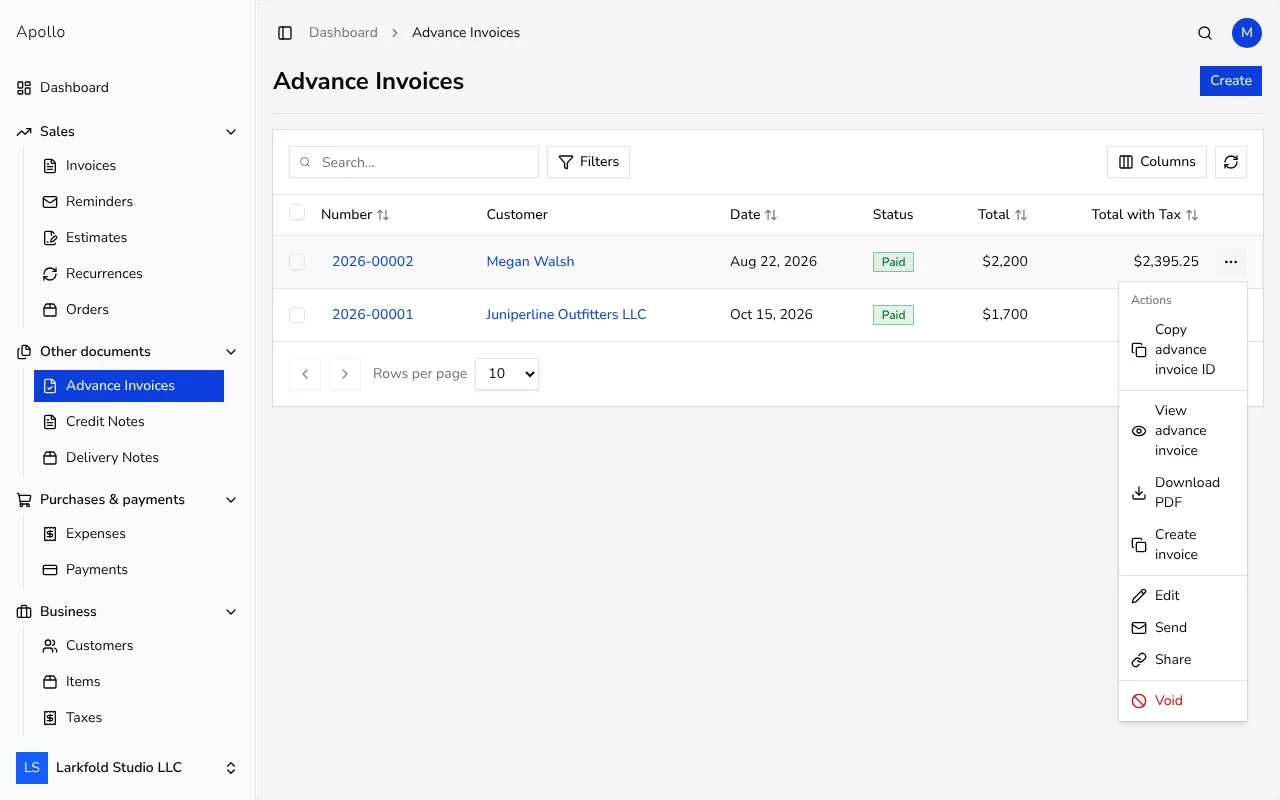
When you're ready to bill the rest of the order, open the advance invoice's menu and choose Create invoice (or select several fully paid advance invoices in the list and click Copy to Invoice). This opens a new invoice pre-filled from the advance invoice, and Apollo carries the recorded payment over automatically.
![Advance invoice row menu open with the Create invoice action highlighted]()
- 6
Finish and issue the invoice#
Add any remaining items, check the totals, and save. Because the advance payment is applied automatically, the invoice shows only the remaining balance still due — you record any further payment separately once the customer pays it.
Tips
- Record the customer's payment when you issue the advance invoice — Apollo requires it to be fully paid before it can later be applied to an invoice.
- An advance invoice can only be applied once; after that, Apollo shows it as already fully applied and won't let you reuse it.
- The items you added on the advance invoice carry over to the new invoice, so you only need to add anything that wasn't part of the deposit.
Frequently asked questions
Can I create an advance invoice without recording a payment?
You can save it as a draft without recording anything, but issuing it always requires recording how it was paid in full; Apollo doesn't offer a partial or unpaid option once you issue it.
What happens to the advance payment when I apply it to an invoice?
It's applied automatically as a payment on the new invoice, so the invoice already shows that amount as paid; you only need to record any additional payment the customer still owes.
Can I apply one advance invoice to two different invoices?
No. Once an advance invoice has been applied to an invoice, it's marked as fully applied and Apollo won't let you apply it again.
Can I void an advance invoice?
Yes, as long as it hasn't been applied to an invoice yet. Once it's linked to an invoice, you can't void it directly.