How to set up recurring invoices
If you bill the same customer on a regular basis, a recurring schedule generates the next invoice for you automatically instead of you duplicating it every time. Set it up once from an existing invoice, choose how often it repeats, and Apollo issues — and optionally emails — each new invoice on schedule.
- 1
Open the invoice you want to repeat#
Go to Invoices, open the invoice that represents what you bill regularly, such as a monthly retainer or subscription.
- 2
Click Recurring#
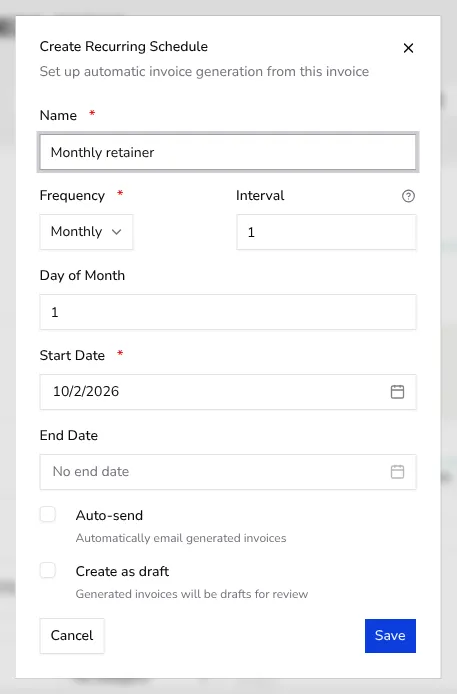
In the action bar at the top of the invoice, click Recurring to open the Create Recurring Schedule drawer.
![Open Create Recurring Schedule drawer with name and frequency fields]()
- 3
Name the schedule and set its frequency#
Enter a Name for the schedule, then choose the Frequency — Daily, Weekly, Monthly or Yearly — and an Interval, for example Monthly with interval 3 for a quarterly invoice.
- 4
Set the start and end date#
Pick the Start Date for the first generated invoice. Leave End Date empty to repeat indefinitely, or set one to stop the schedule automatically.
- 5
Choose Auto-send and Create as draft#
Turn on Auto-send to email each generated invoice automatically, or turn on Create as draft to review it yourself before issuing it.
- 6
Save and manage the schedule#
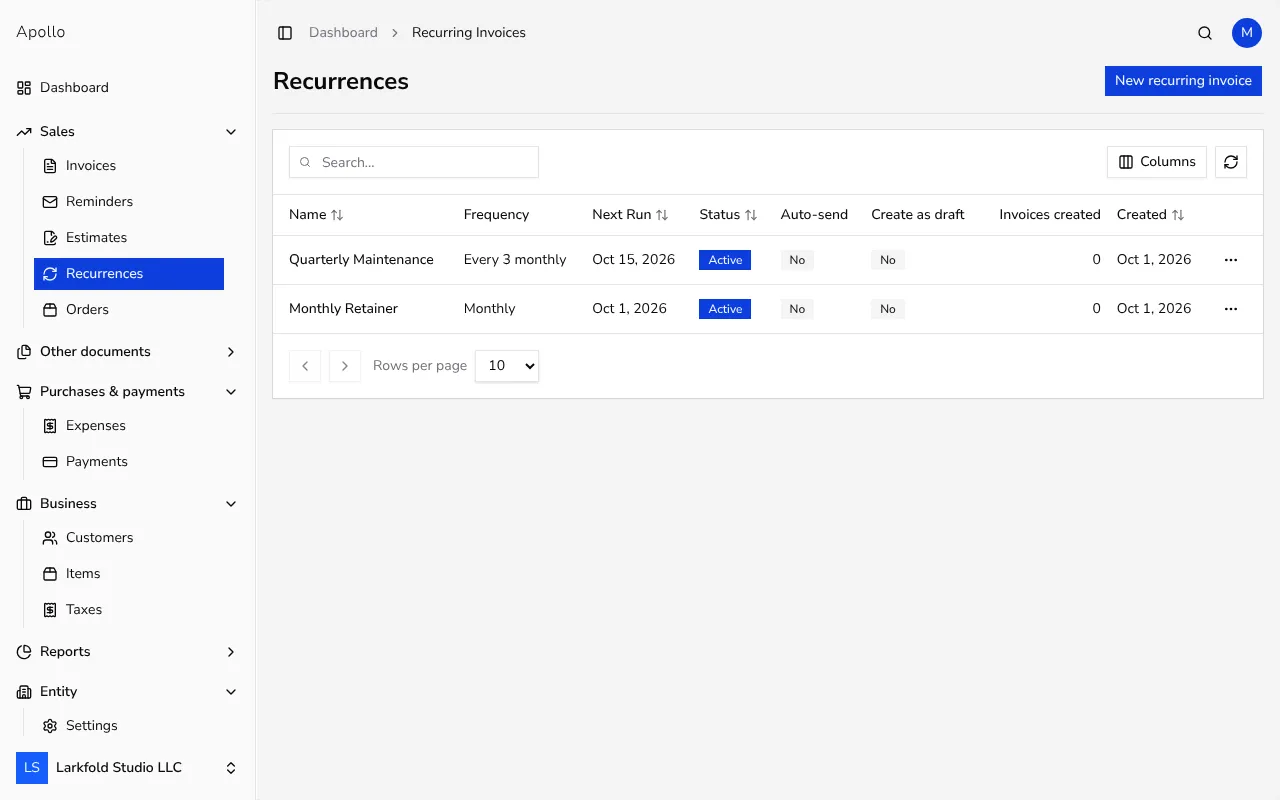
Click Save. Manage every schedule from Recurrences in the sidebar, where you can pause, resume, edit or delete it, and open the invoices it has already generated.
![Recurring schedules list showing frequency, status and invoices generated]()
Tips
- Turn on Create as draft for schedules you want to double-check, such as invoices with usage-based amounts, before they go out.
- Pause a schedule instead of deleting it if a customer takes a break — resuming keeps the same settings and history.
- Open Recurrences in the sidebar to see how many invoices each schedule has generated, with a shortcut to the latest one.
Frequently asked questions
Can I edit a recurring schedule after creating it?
Yes. Open Recurrences in the sidebar, find the schedule, and choose Edit from its menu.
What happens if I pause a schedule?
No new invoices are generated until you resume it. Invoices already issued are not affected.
Does a recurring schedule email the invoice to my customer automatically?
Only if you turned on Auto-send. Otherwise, each generated invoice waits for you to send it yourself.
Can I set a schedule to run forever?
Yes — leave End Date empty and it keeps generating invoices until you pause or delete it.