How to sign up for Apollo
Apollo works in your own language from the very first screen. Signing up takes less than two minutes: all you need is an email address, a password, and your company name. This guide walks you from the sign-up page to your working dashboard.
- 1
Open the sign-up page#
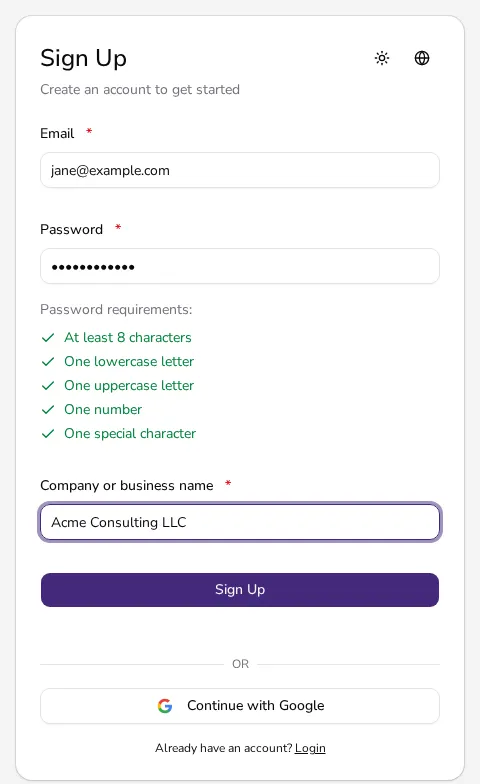
On the sign-up page, enter your Email and Password. If you'd rather not type a password, click Continue with Google to sign up with an existing Google account instead. Your password needs at least 8 characters, one lowercase and one uppercase letter, one number, and one special character.
![Sign-up form with fields for email, password, and company name]()
- 2
Enter your company name#
Type your business or trade name into the Company or business name field. This pre-fills the next step where you complete the rest of your company's details, so you can always adjust it later.
- 3
Confirm your email address#
After you click Sign Up, Apollo signs you in automatically and sends a verification email. Open your inbox and click the confirmation link to fully activate your account.
- 4
Add your company details#
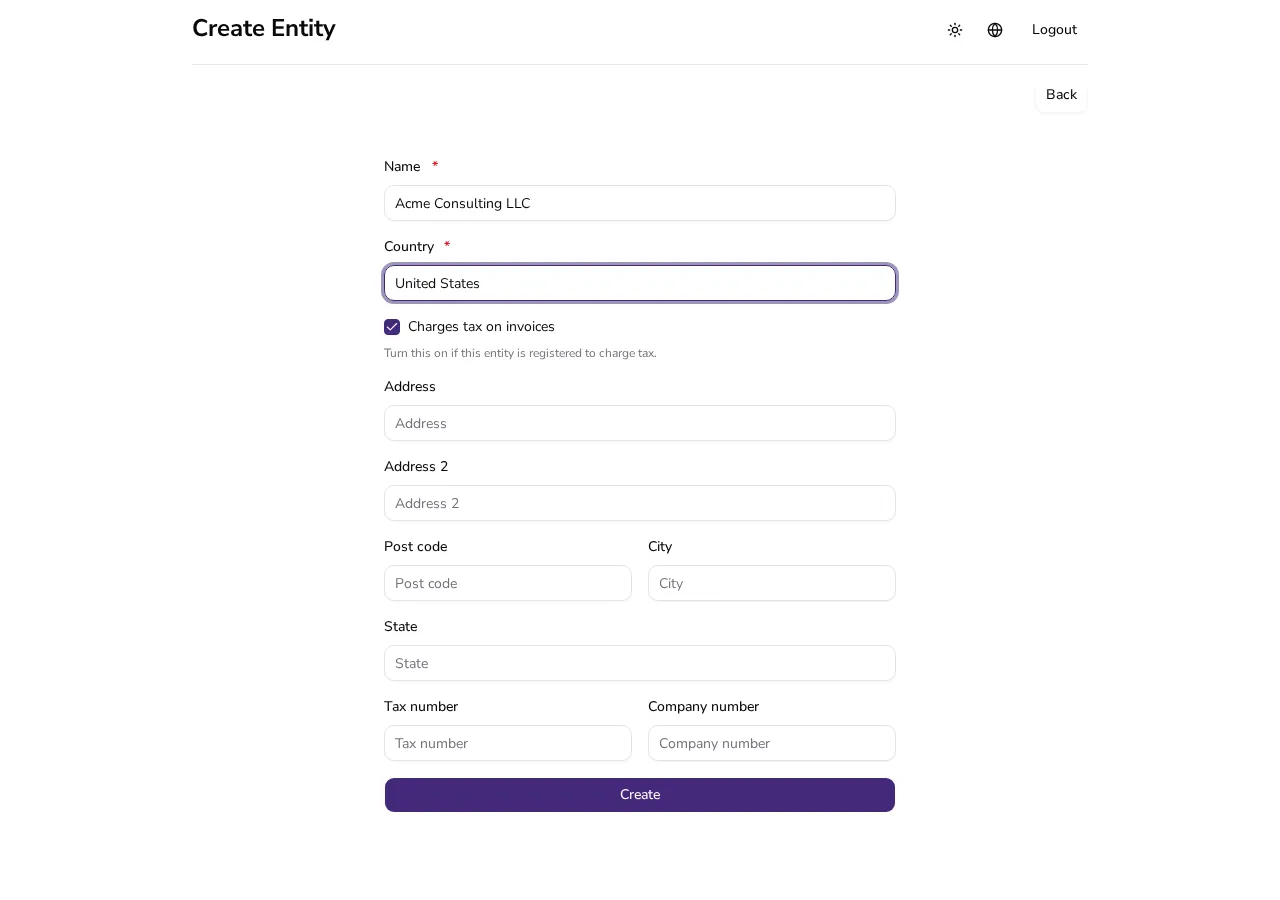
You're taken straight to the add-company form. Fill in Name and Country (both required), and optionally your address, tax number and other contact details. Click Create and your company is ready to use.
![Add-company form with fields for company name, country and address]()
- 5
Explore your dashboard#
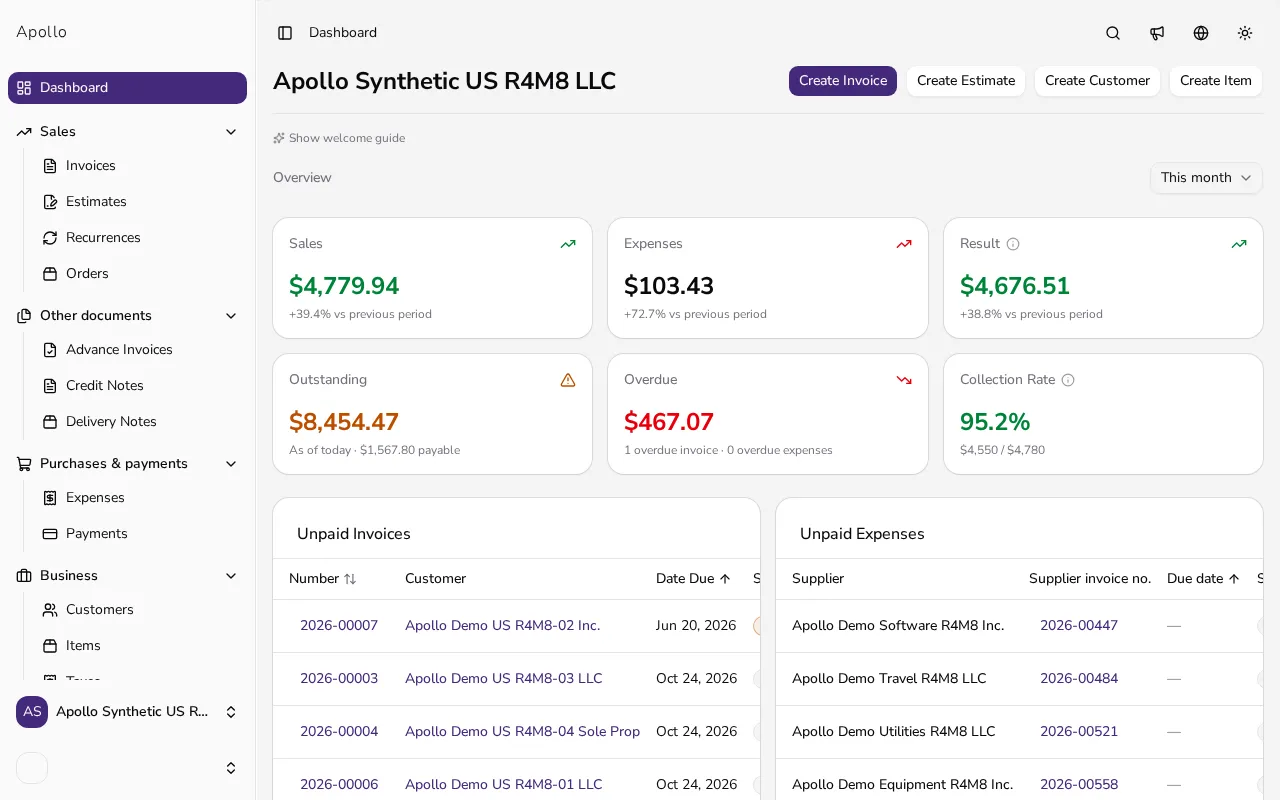
You land on your new company's dashboard, where a short getting-started guide points you to creating your first invoice, adding customers and items, and customizing how your documents look.
![New company dashboard showing the getting-started guide and quick actions]()
Tips
- The company name field on sign-up is optional — you can always change it later in settings.
- If you're signing up from a teammate's invitation link, you skip the company name entirely and join their existing company instead.
- Use the email address you want to receive invoice and payment notifications on.
- The sign-up and login pages work in your own language, whatever country you're signing up from.
Frequently asked questions
Do I need to fill in every company detail during sign-up?
No. Sign-up only asks for a company name (optional), and the next screen only requires a name and country. You can add the address, tax number and bank account later in settings.
I didn't get the verification email — what now?
Check your spam folder and wait a few minutes. You can keep using your account before confirming, but we recommend verifying your email as soon as possible.
Can I add another company later?
Yes. Use the company switcher in the sidebar to add a new company at any time and switch between them.
Can I use the same email for more than one company?
Yes. One user account can manage several companies — switch between them from the company switcher in the sidebar.