How to manage recurring invoice schedules
Once a recurring schedule is running, you don't have to leave it alone until it's no longer useful. From the Recurrences list you can pause a schedule while a customer takes a break, resume it later with the same settings, change its frequency or dates, or delete it for good. This guide covers every action available on an existing schedule.
- 1
Open the Recurrences list#
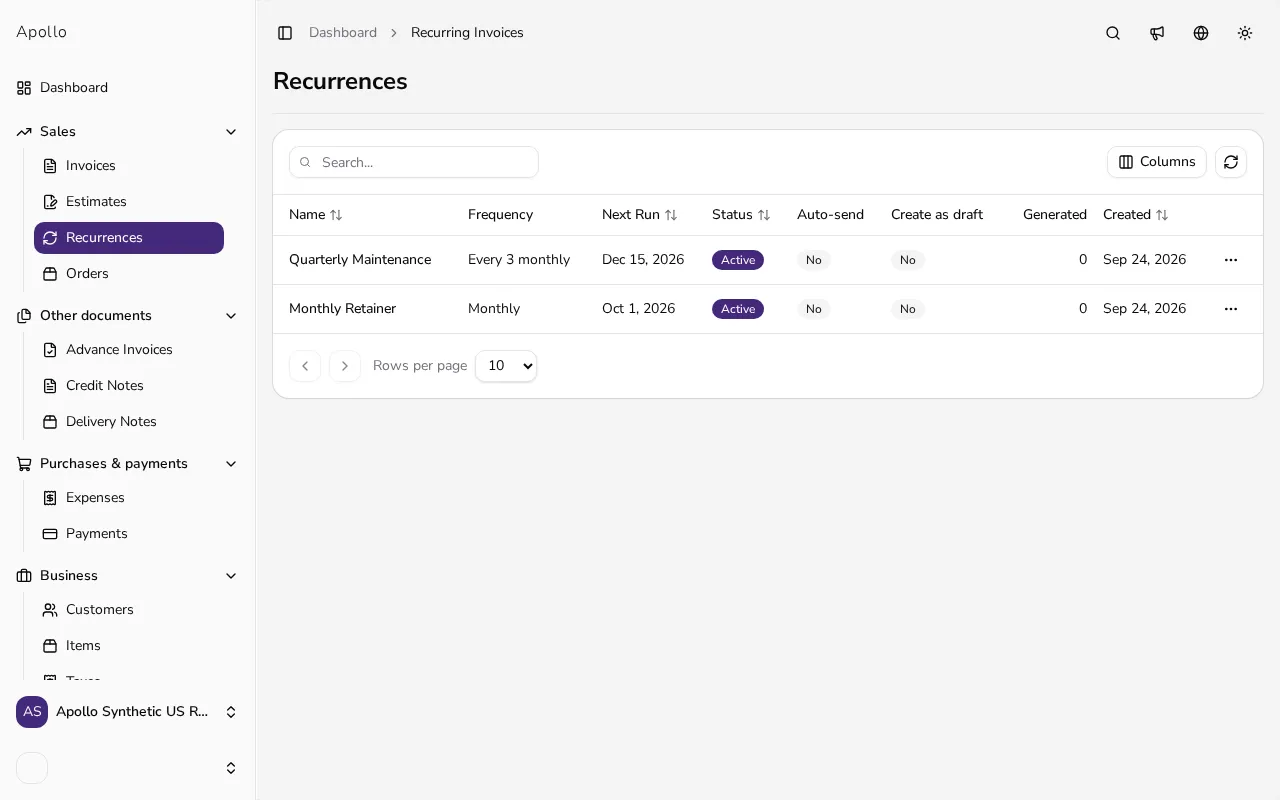
In the sidebar, click Recurrences. The list shows every schedule with its Name, Frequency, Next Run and Status, plus how many invoices it has generated so far.
![Recurrences list showing name, frequency, status and generated invoice count]()
- 2
Open a schedule's actions menu#
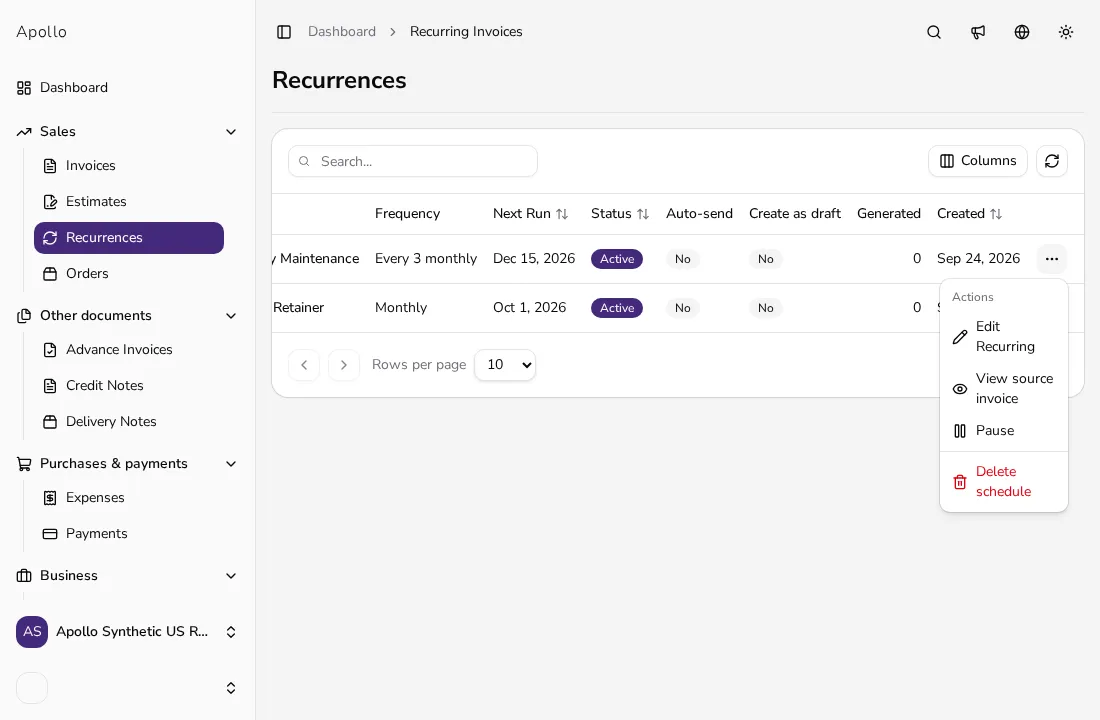
Click the ⋯ button at the end of a schedule's row to open its menu, with Edit Recurring, View source invoice, Pause (or Resume) and Delete schedule. Once the schedule has generated at least one invoice, a View latest invoice item appears too.
![Row actions menu open with edit, pause and delete schedule options]()
- 3
Pause or resume a schedule#
Choose Pause to stop a schedule from generating new invoices while keeping everything else in place; its status badge changes to Paused. Choose Resume on a paused schedule to pick generation back up on the same settings.
- 4
Edit an existing schedule#
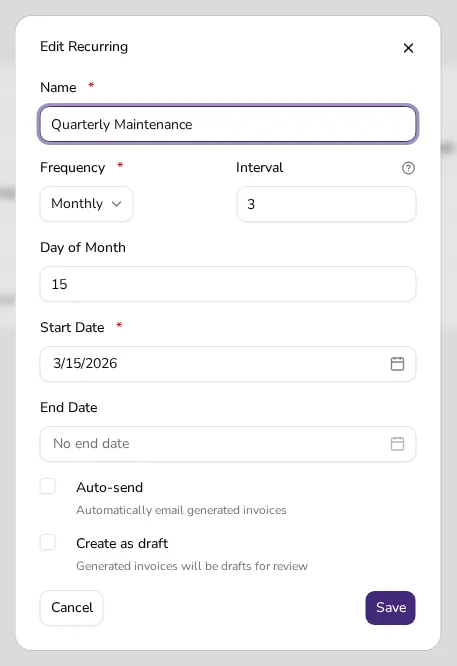
Choose Edit Recurring to open the same form used to create the schedule, already filled in with its Name, Frequency, Interval, Day of Month (for monthly schedules), Start Date, End Date, Auto-send and Create as draft settings. Change what you need and click Save.
![Edit Recurring drawer pre-filled with an existing schedule's settings]()
- 5
Open the invoices a schedule has generated#
Choose View source invoice to open the original invoice the schedule was created from. Once the schedule has generated at least one invoice, choose View latest invoice instead to jump straight to the most recently generated one.
- 6
Delete a schedule you no longer need#
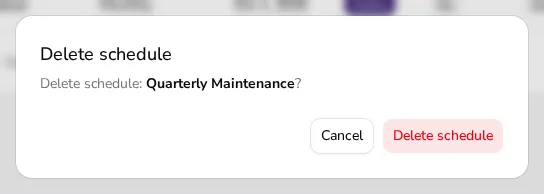
Choose Delete schedule, then confirm the schedule's name in the dialog that opens. Deleting a schedule only stops future invoices; any invoices it already generated stay exactly as they are.
![Delete schedule confirmation dialog naming the schedule to be removed]()
Tips
- Pause a schedule instead of deleting it when a customer's billing takes a short break — its settings and history stay intact when you resume it.
- Use View latest invoice on a schedule's row to jump straight to the most recently generated invoice, without searching for it in your invoice list.
- Deleting a schedule doesn't touch the invoices it has already generated; only future, not-yet-created invoices are affected.
Frequently asked questions
What happens to invoices already generated if I delete the schedule?
Nothing changes for them — they stay in your Invoices list exactly as issued; deleting the schedule only stops future automatic generation.
Can I change the frequency of an existing schedule?
Yes, open its Edit Recurring action and change Frequency or Interval the same way you set them when creating it.
Can I resume a paused schedule at any time?
Yes, choose Resume from its row menu; it picks up with the same settings it had before you paused it.
Where can I see how many invoices a schedule has generated?
The Recurrences list shows a generated invoice count for each schedule, with a quick link to open the latest one.