How to record a payment on an invoice
Recording a payment keeps your invoice totals accurate and shows you exactly what a customer still owes. Use it whenever money arrives by bank transfer, cash, card or another method, whether the invoice is paid in full or only partly, so your records and reports always match reality.
- 1
Open the invoice#
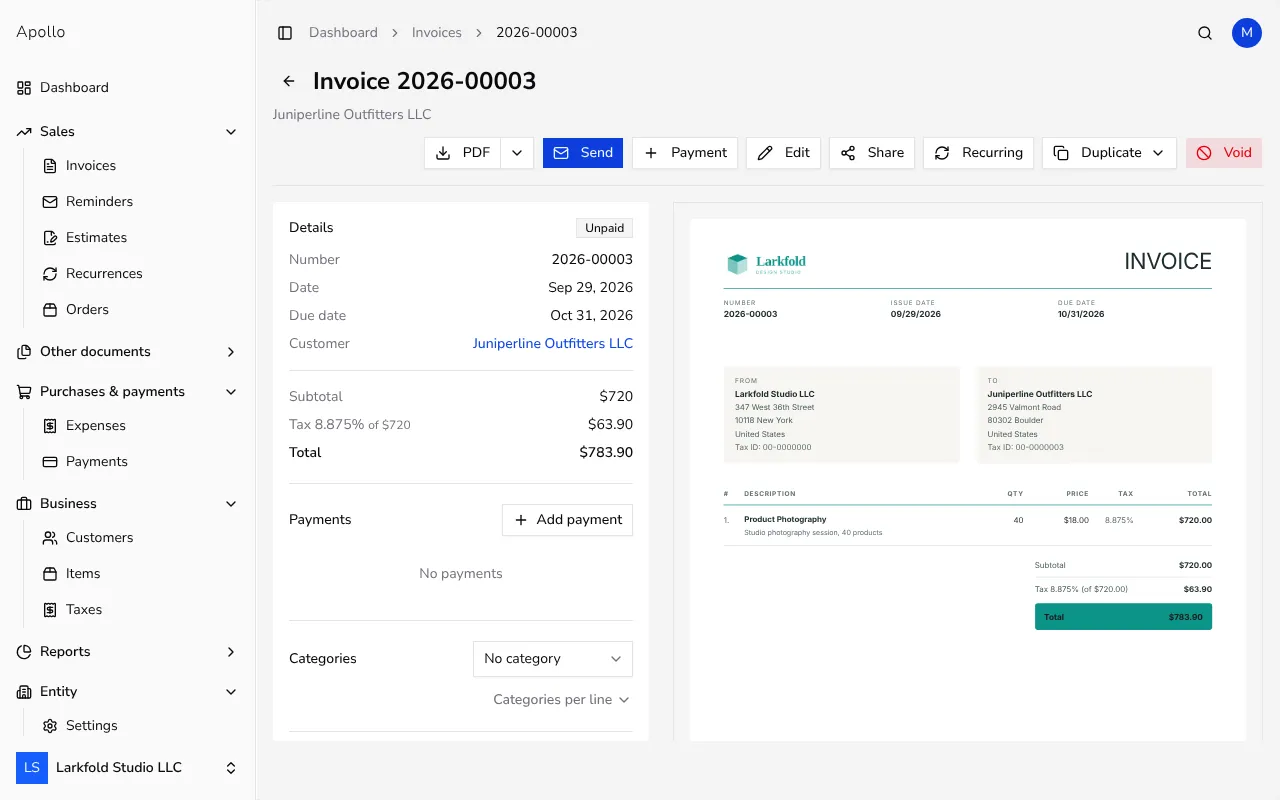
Go to Invoices in the sidebar and open the invoice you were paid for. You can also open it straight from the Overdue or Unpaid filter if you're clearing older invoices.
![Invoice page with the Payments card and Add payment button in the sidebar]()
- 2
Click Add payment#
On the invoice page, click Add payment in the Payments card in the sidebar, or Payment in the action bar at the top. Both open the same payment form.
- 3
Enter the amount and payment type#
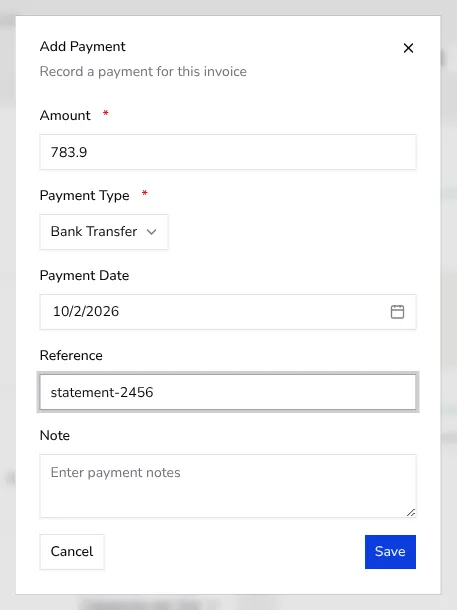
The Amount field is pre-filled with what's still owed — change it to record a partial payment instead. Then choose the Payment Type, such as Bank Transfer, Cash, Credit Card, Debit Card, Check or PayPal.
![Add payment form with amount, payment type and payment date fields]()
- 4
Set the date and add a reference#
Pick the Payment Date the money actually arrived, and optionally fill in Reference (handy for matching a bank statement later) and Note.
- 5
Save the payment#
Click Save. The invoice status updates right away — to Partially paid if part of the total is still due, or Paid once the full amount has been recorded.
Tips
- Add the bank statement number to Reference so a payment is easy to match later.
- Record payments as soon as they arrive — the unpaid invoices list and your reports rely on accurate payment dates.
- To fix a mistake, edit the existing payment from the Payments list instead of deleting and re-adding it.
Frequently asked questions
Can I record more than one payment on the same invoice?
Yes. Click Add payment again for each additional payment; the invoice stays Partially paid until the total recorded equals the amount due.
Does recording a payment notify my customer?
No. Recording a payment only updates your own records and reports — nothing is sent to the customer.
Can I edit or delete a payment after saving it?
Yes, from the payment's menu in the Payments list, unless the invoice has been voided.
What if I entered the wrong amount?
Open the payment's menu, choose Edit, and adjust the Amount — the invoice status recalculates automatically.