A tour of the Apollo dashboard
The dashboard is the first page you see after signing in, and it's your starting point for everything in Apollo. This guide covers the sidebar, the quick search that finds any page in seconds, and how to switch between companies if you manage more than one.
- 1
Look around the dashboard#
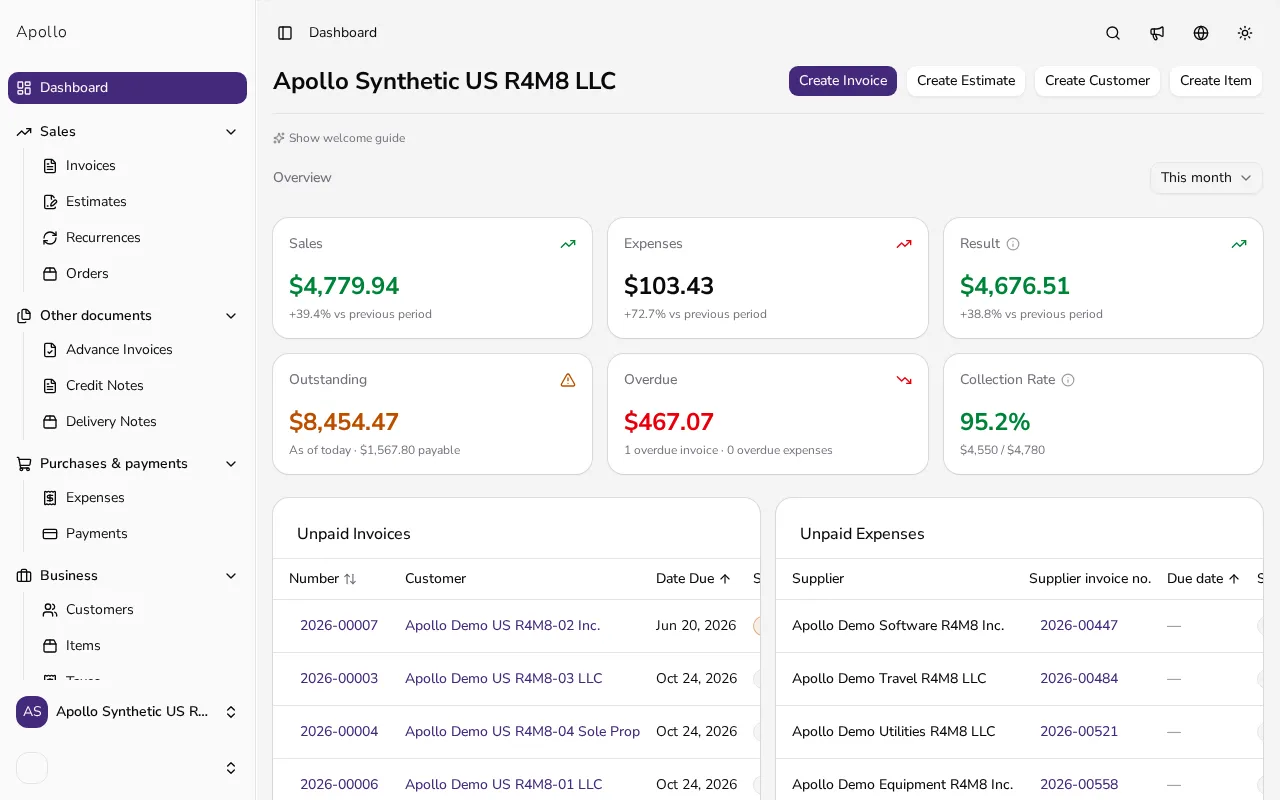
At the top of the dashboard you'll find a short getting-started guide and quick-action buttons to create an invoice, customer, or item right away. Below that are an overview of your revenue, unpaid invoices, and your company's recent activity.
![Full dashboard view with quick actions and a revenue overview]()
- 2
Get to know the sidebar#
The left sidebar is grouped into sections: Sales (Invoices, Estimates, Recurrences, Orders), Business (Customers, Items, Taxes), Reports (Analytics, Export), and Entity (Settings, Subscription). Which sections you see depends on the features your company uses; in Portugal, for example, Recurrences doesn't appear because recurring invoices aren't available there.
- 3
Find anything with the shortcut#
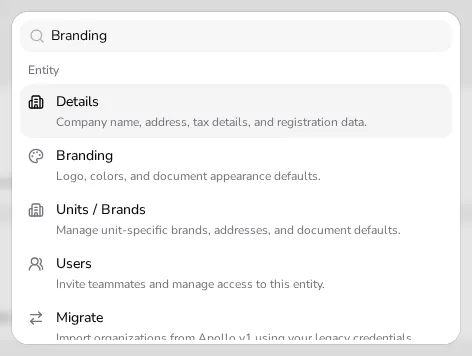
Click the Search icon near the top of the app, or press Ctrl K (⌘K on a Mac), to open the search box. Type the name of the page or setting you're after, such as "Customers" or "Branding", and press Enter.
![Open search box showing matching pages and settings results]()
- 4
Switch between companies#
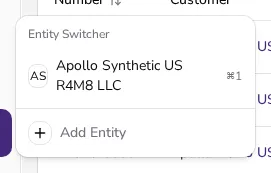
If you manage more than one company, click the current company's name at the bottom of the sidebar. This opens a list of all your companies plus an Add Entity option to create a new one.
![Open company switcher listing companies with an add-company button]()
Tips
- The Ctrl K (⌘K on a Mac) shortcut works on any page in the app, not just the dashboard.
- Search remembers the pages you use most recently and shows them at the top of the list.
- The Other documents and Reports sections start collapsed — click them to expand.
- You can dismiss the getting-started guide on the dashboard with the X button, then bring it back with the link that appears in its place.
Frequently asked questions
Why don't I see every sidebar section mentioned here?
The sidebar adapts to the features your company uses — for example, an Expenses section only appears once you turn it on, and estimates and credit notes depend on your company's country.
How do I quickly switch companies if I manage more than one?
Click the company name at the bottom of the sidebar and pick another company from the list. Switching is instant — no need to sign in again.
Does search find individual invoices or customers?
No, the Ctrl K search finds pages and settings inside the app. To search individual invoices, customers or items, use the search boxes on their own list pages.
What do the quick actions at the top of the dashboard do?
They're shortcuts for the most common tasks — issuing an invoice or adding a customer or item — without needing to open the matching page from the sidebar first.