How to connect a custom online store to Apollo
A custom store is any online shop that your developer or agency built and that isn't Shopify or WooCommerce. Apollo gives it a webhook URL and a signing secret, and the store sends its orders there. From those orders, Apollo issues invoices, estimates, payments and credit notes with the same automation as Shopify and WooCommerce. You don't need a plugin. This guide shows what you do in Apollo and what you hand to your developer.
- 1
Open Integrations and choose Custom store#
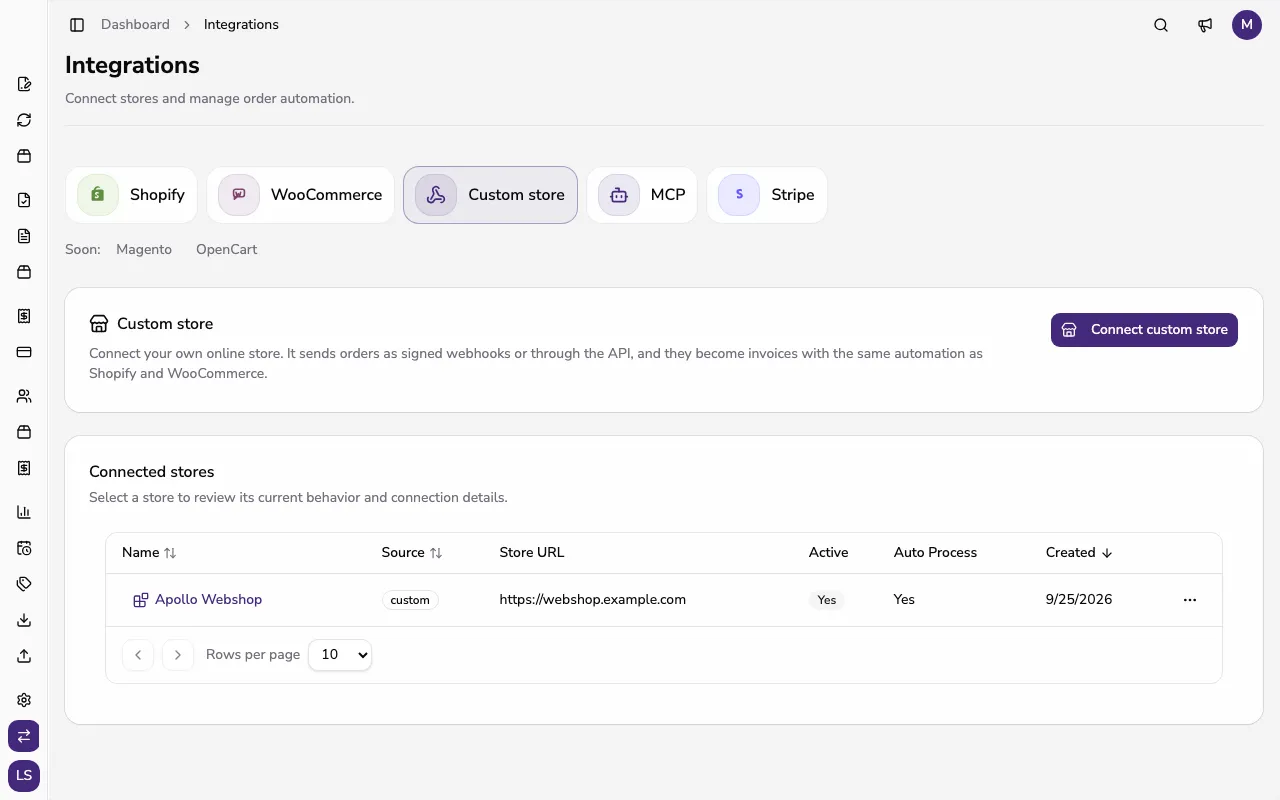
In the sidebar, under Entity, click Integrations and choose Custom store. The Connected stores list shows the stores already connected to this company. Only company admins can connect and edit stores.
![Integrations page with the Custom store tab selected and the Connected stores list]()
- 2
Connect the store#
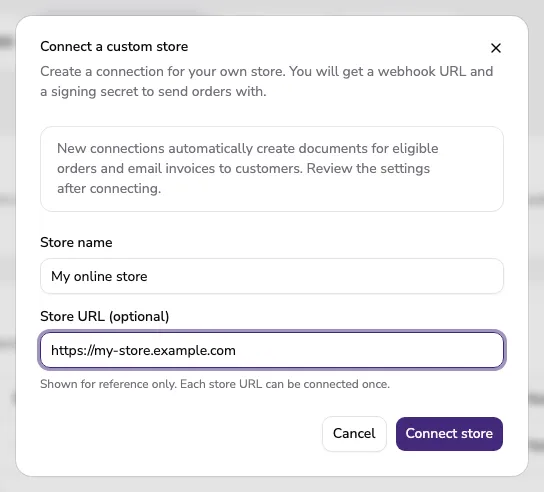
Click Connect custom store. In Store name, enter a name you'll recognize the store by. Store URL (optional) is shown for reference only, and each URL can be connected once. Click Connect store.
![Connect a custom store dialog with the Store name and Store URL fields filled in]()
- 3
Copy the webhook URL and the secret#
Apollo shows the is connected dialog with the Webhook URL and the Signing secret. The secret is shown only once, so copy it now and then click I've saved the secret. Give both to your store's developer, together with the API documentation. You can see the webhook URL again later, but not the secret.
- 4
The store sends its orders#
Your developer sends each order as JSON to the webhook URL, signed with HMAC-SHA256 in the X-SI-Signature header. A server can also post the same JSON through the REST API with an API key. Every send carries the full current order, and lines can be gross or net. When an order changes, the store sends it again with the same order ID and Apollo updates it, for example when it's paid, shipped, cancelled or refunded.
- 5
Check how documents are created#
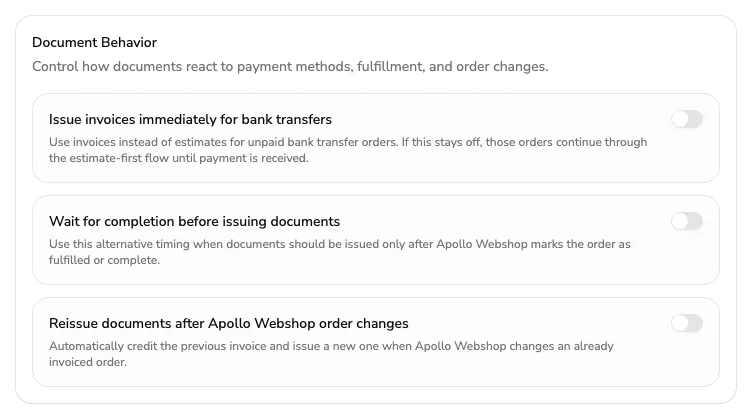
A new connection is ready to use: Auto Process is on, documents are created when the order arrives, and the invoice is emailed to the buyer where the country supports document email. An order paid online is processed once the store reports it as paid. An order paid by bank transfer becomes an estimate, which Apollo converts into an invoice when a later update marks it paid, unless you select Issue invoices immediately for bank transfers under Document Behavior. A full refund voids the issued invoice with a credit note, and cancelled or refunded orders never create new documents. Change the settings in Edit integration and click Save.
![Document Behavior section of the Edit Integration dialog with bank transfer, completion and reissue options]()
- 6
Follow the orders and fix failed ones#
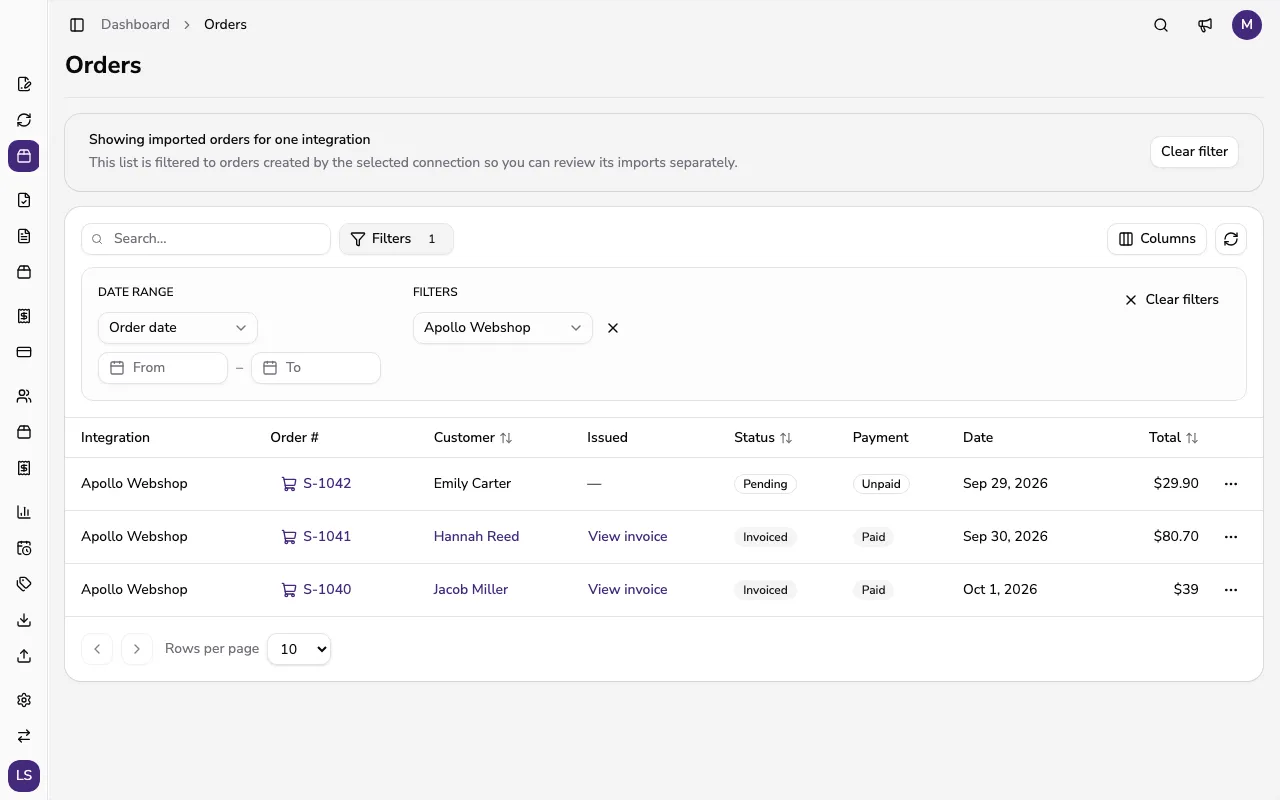
Click the store's name and then View imported orders in its details. The Orders page is filtered to that store and shows each order as Pending, Invoiced, Estimated, Cancelled or Failed. If the lines don't add up to the order total, Apollo keeps the order as failed with a reason instead of invoicing it. When your developer sends the corrected order again, Apollo processes it automatically; you can also choose Reprocess Order from the row's menu.
![Orders page filtered to the custom store, with issued invoices and a pending order]()
- 7
Rotate the secret or remove the store#
If the secret leaked or you want to change it regularly, open the store's details, click Rotate signing secret under Store connection and confirm with Rotate secret. The new secret is shown once, and the old one keeps working for 24 hours so your developer can update the store without missing orders. To remove the store, choose Delete integration from the row's menu; issued invoices stay.
Tips
- Store the signing secret in a password manager or hand it to your developer straight away, because Apollo won't show it again.
- A product line with a SKU is linked to the catalog item with the same SKU, so keep the SKUs in your store and in Apollo identical.
- If FURS fiscal verification is on, choose the Business Premise and Electronic Device in the integration settings so invoices are verified automatically.
- In Portugal, Apollo doesn't send automatic order emails and doesn't reissue documents after an order changes, so those settings aren't available there.
Frequently asked questions
Do I need a plugin for a custom store?
No. The connection works through the webhook URL or the REST API, so your developer only has to make the store send signed orders.
What happens with bank transfer orders?
Because they aren't paid yet, they become estimates. When the store sends an update saying the order is paid, Apollo converts the estimate into an invoice. If you want the invoice straight away, select Issue invoices immediately for bank transfers.
Does a custom store count toward my plan's stores?
Yes. Every active custom store counts as a connected store, exactly like a Shopify or WooCommerce store. The included stores and the price of extra ones are on the pricing page.
Does Apollo import older orders?
No. The store sends its own orders, so there is no historical import. Your developer can send an older order afterwards if you need it.