How to see your expenses by category in Apollo
Once you've recorded a few expenses, the Receivables and payables report groups them by financial category in its Payables section, so you can see where your money is going, month by month. Your revenue sits next to it in the Receivables section, on the same months. It pulls from your finalized expenses directly, so there's nothing extra to set up beyond assigning categories to the items you buy.
- 1
Open Receivables and payables#
In the sidebar, under Reports, click Receivables and payables. The old Expenses by category link now opens this page.
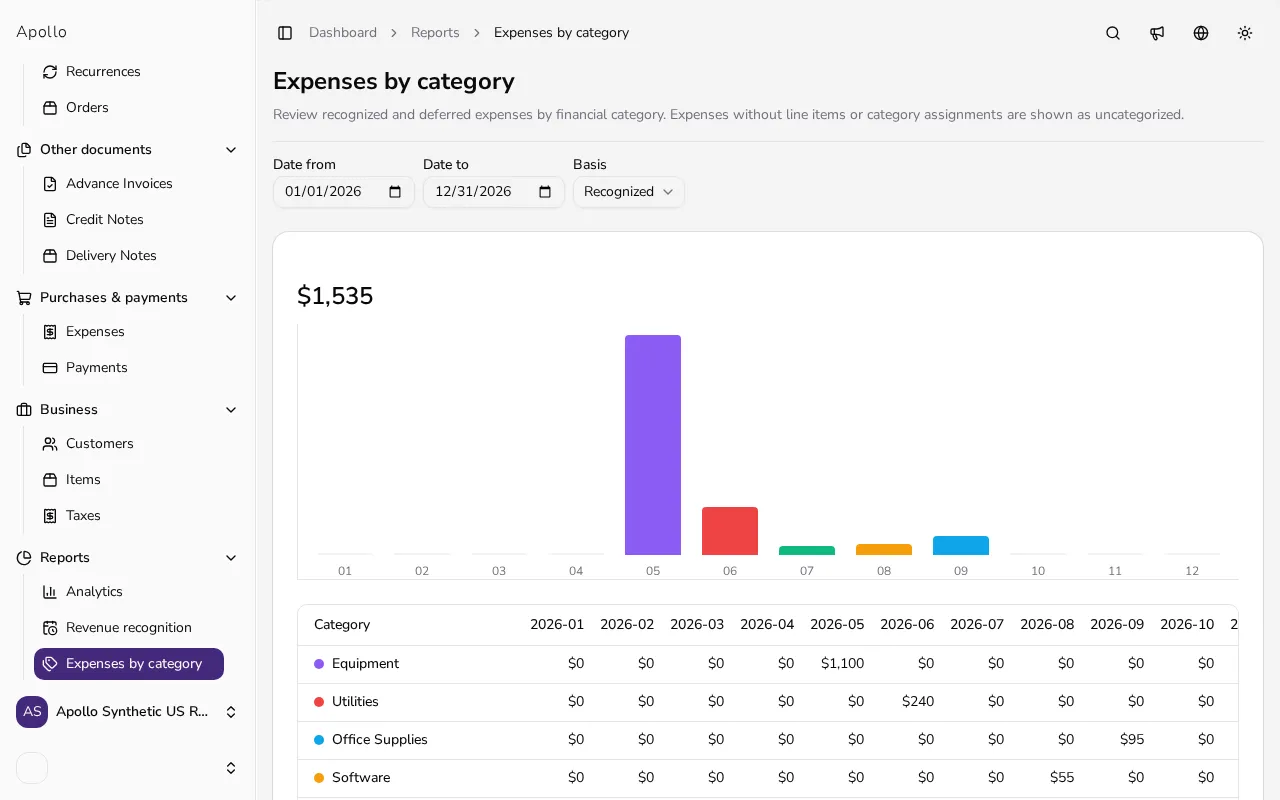
![Receivables and payables report page with monthly totals, a stacked monthly chart and a category table for each of receivables and payables]()
- 2
Read the monthly totals, chart and table#
At the top, Monthly totals puts Receivables and Payables on the same months. Scroll down to the Payables section: a stacked bar chart breaks each month down by category, and the table underneath lists one row per category with one column per month, a Total column, and a totals row at the bottom.
- 3
Filter the date range#
Use Date from and Date to to set the period you want to review; by default the report covers the current calendar year, from January 1 to December 31. The range applies to receivables and payables alike.
- 4
Switch between recognized and deferred amounts#
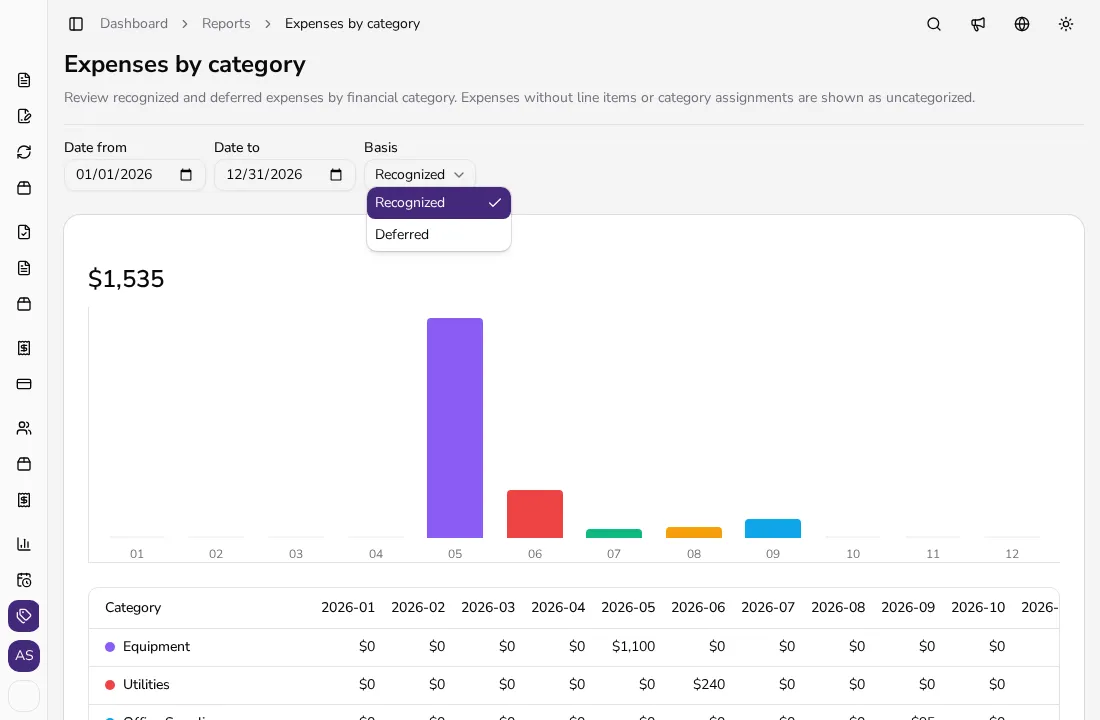
Use the Basis dropdown to switch between Recognized and Deferred amounts for both sections at once. Which portion of an expense counts as recognized or deferred in a given month follows your entity's Expense recognition setting (document date, or service period with daily proration).
![Open Basis dropdown on the receivables and payables report with Recognized and Deferred options]()
- 5
Check why an expense shows as Uncategorized#
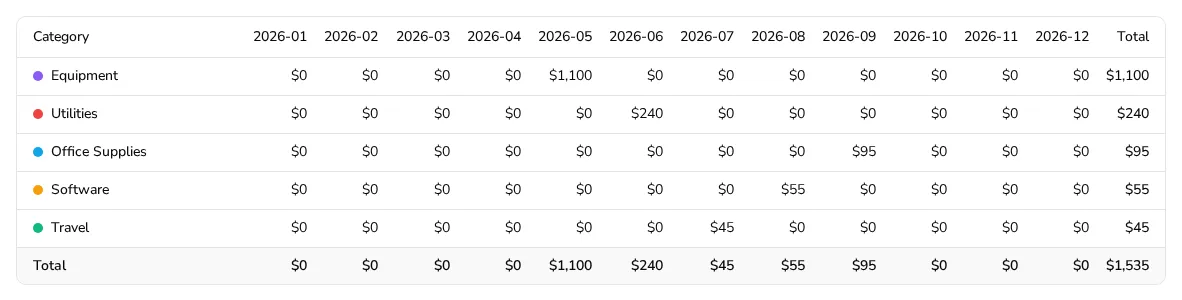
Once every item on your expenses has a category, the Payables table fills in with a named row per category and a Total row, as below. An expense only lands in a separate Uncategorized row when it has no line items, or when a line item's product or service has no financial category assigned. To have it counted under a real category instead, add its items with Line items and make sure each item has a Category set — financial categories are available on some plans.
![Payables category table with a named row per category and a Total row]()
Tips
- Assign a default category to your frequently used items once, in the item's own Category field, so every expense that uses that item is categorized automatically.
- Switch to Line items instead of Totals when recording an expense if you want it to count toward a category in this report.
- Narrow the date range to a single month if you want to compare it against the same month last year.
- If you don't see a Payables section, expenses are turned off for your account, and the page shows only revenue recognition.
Frequently asked questions
How do I get an expense assigned to a category?
Assign a financial category to the product or service on the expense's line items; expenses entered only with Totals, or with items that have no category, are grouped under Uncategorized instead.
What's the difference between Recognized and Deferred?
The Basis dropdown switches between the two calculations used by your entity's Expense recognition setting: recognized on the document date, or split over the expense's service period. Check Settings → Expense recognition to see which method your entity uses.
Can I filter the report by a custom period?
Yes. Set any Date from and Date to you like; the report defaults to the current calendar year until you change it.
Does this report include draft expenses?
No, the report is built from finalized expenses only, the same set counted in your other expense reports.