How to record an expense in Apollo
Expenses are the supplier invoices, receipts and other purchases your business pays for. Apollo lets you add one in seconds by scanning a photo or PDF of the document, or by typing it in yourself, and keeps track of what's paid and what's still due.
- 1
Open Expenses#
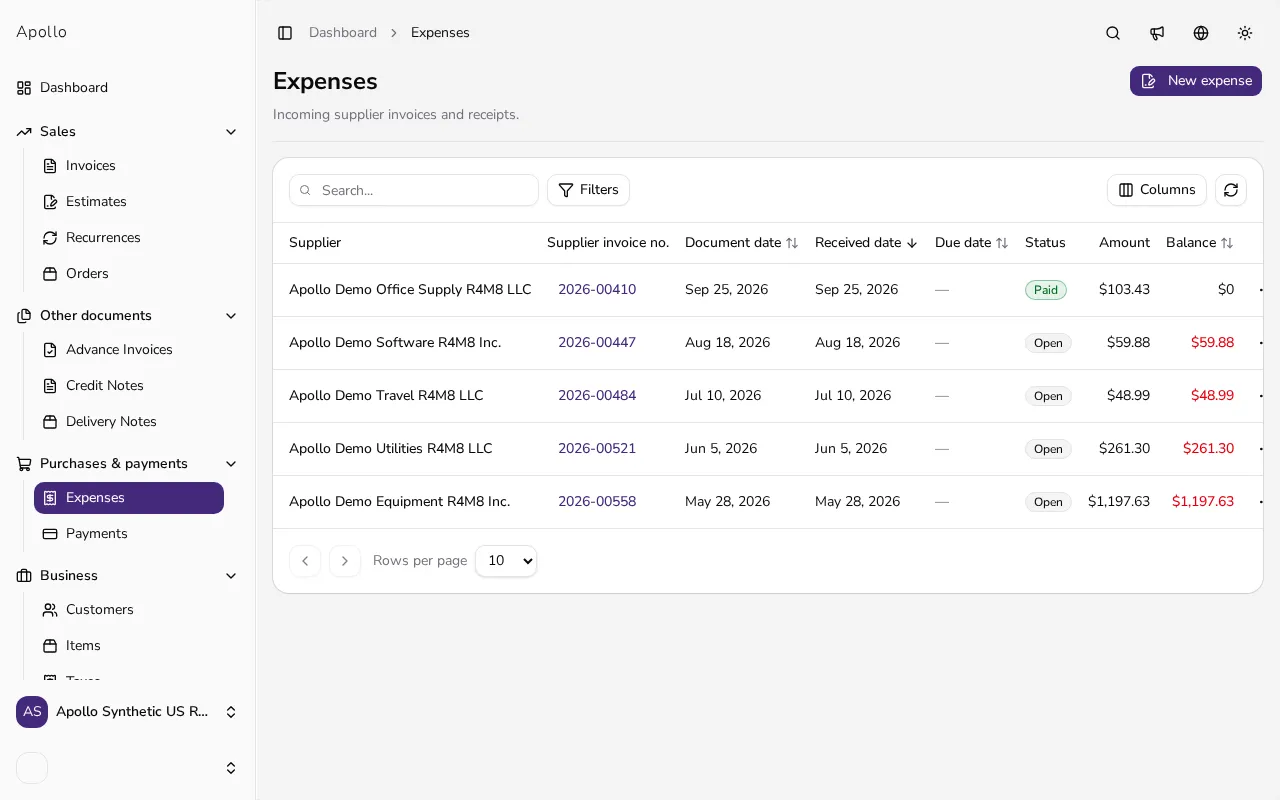
In the sidebar, under Purchases & payments, click Expenses, then click New expense.
![Expenses list page with a New expense button]()
- 2
Scan a receipt or invoice, if it's on your plan#
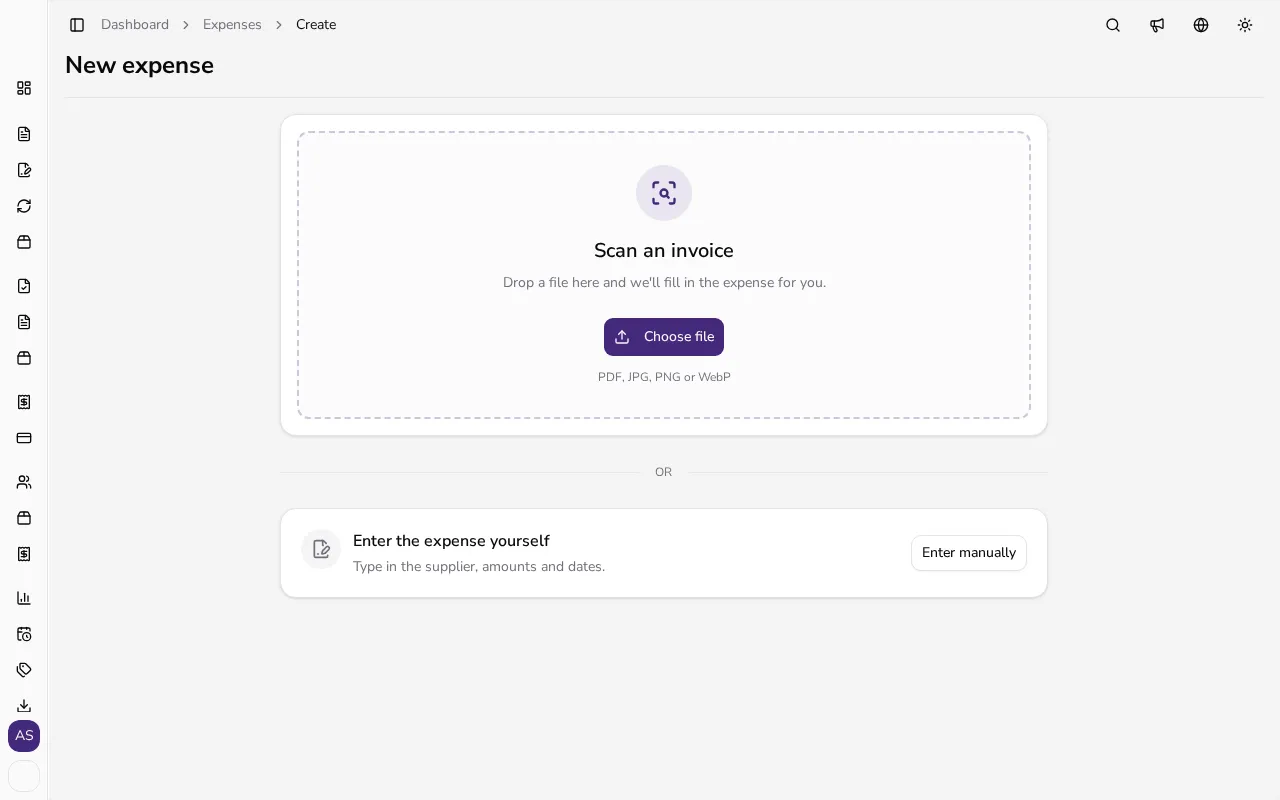
Drop a PDF or photo onto the upload panel, or use Choose file or Take photo. Apollo reads the supplier, dates and amounts and fills in the form for you to review before saving. Scanning depends on your plan's monthly quota of pages, with extra pages billed separately; if it's not available or you'd rather not scan, click Enter manually instead.
![Expense scanning panel with a drop zone, choose file and take photo options]()
- 3
Fill in the supplier and dates#
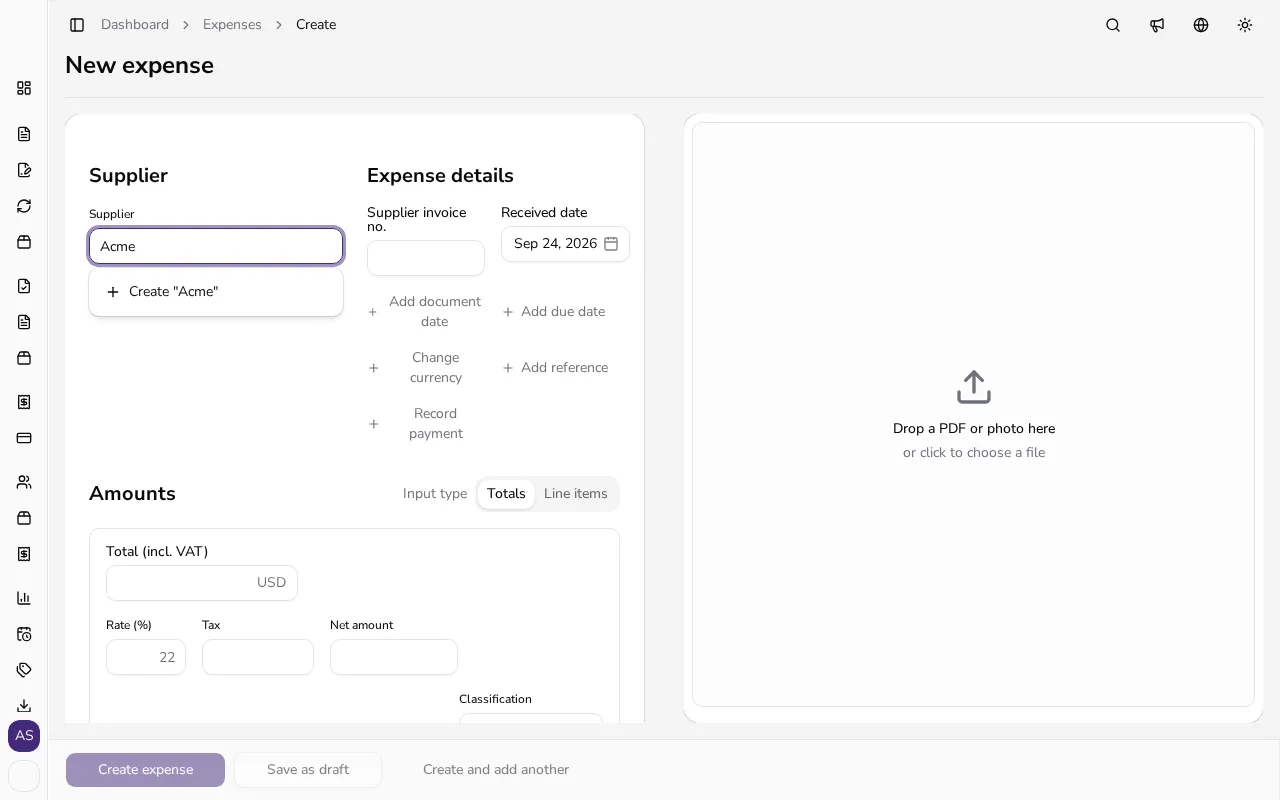
Search for or add the Supplier, then set the Document date and, if different, the Received date. Payment due, Currency and Supplier invoice no. are also available here — the last one helps Apollo warn you if you accidentally enter the same supplier document twice.
![Expense form with supplier, document date and currency fields filled in]()
- 4
Enter the amounts#
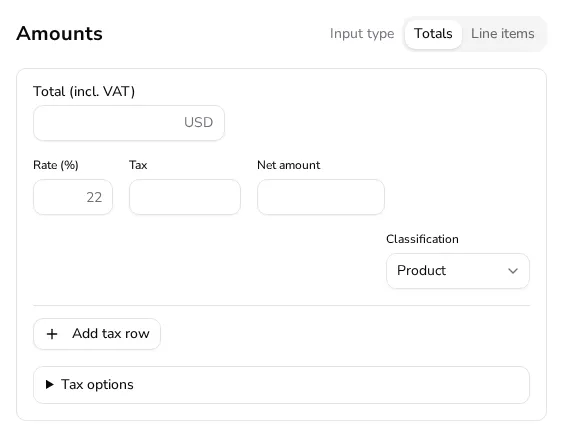
Switch between Totals, for quickly entering the overall net and tax amounts, and Line items, for an itemized breakdown with a quantity, unit price and tax rate per line. Use whichever matches how much detail you need from this expense.
![Expense amounts section showing the Totals and Line items tabs]()
- 5
Attach the source document#
If you didn't scan the expense, you can still drop a PDF or photo under Attachment so the original document stays with the record for later reference.
- 6
Record the payment#
Turn on Mark as paid if you've already settled the expense, or leave it off and record a payment later against the remaining balance from the expense's own page.
- 7
Save the expense#
Click Save expense to finalize it, or Save as draft to come back and finish it later. Either way, it appears in your Expenses list with its current status.
Tips
- Scanning saves typing, but always check the extracted amounts before saving — Apollo flags any difference between what it read and what it calculated.
- You can switch between Totals and Line items at any point before saving if you realize you need a different level of detail.
- Void an expense you no longer need instead of trying to delete it once it's no longer a draft; only draft expenses can be deleted outright.
Frequently asked questions
Is scanning a receipt available on every plan?
It depends on your plan: most include a monthly quota of scanned pages, with extra pages billed separately. If scanning isn't included or you've used your quota, you can still add every expense manually.
What's the difference between Totals and Line items?
Totals is the fastest way to record a supplier document by its overall net and tax amounts, while Line items breaks the expense into individual products or services with their own quantity and price.
Can I record a partial payment on an expense?
Yes. Record a payment against the remaining balance whenever you pay part of it, and Apollo keeps track of what's still due until the expense is fully paid.
Can I edit an expense after saving it?
Yes, you can edit an expense at any time until you void it; a voided expense can no longer be edited.