How to manage your personal Apollo account settings
Your personal account settings are separate from your company's settings: they control how Apollo looks and behaves for you, not the entity itself. Open them whenever you want to switch the interface language, change between light and dark mode, confirm your email is verified, or decide whether this browser may send optional analytics data.
- 1
Open your account settings#
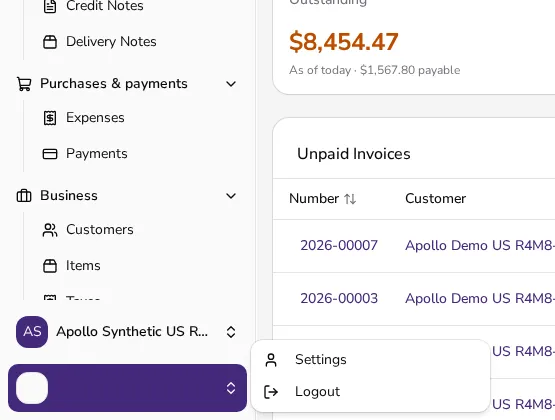
Click the round button with your initial at the top right to open the user menu, then click User Settings. This opens your personal settings, separate from your company's Settings, which manage the entity instead of just you.
![User menu opened from the round avatar button at the top right, showing the email, Language, Theme, User Settings and Logout]()
- 2
Change your interface language#
Under Language, pick the language you want to see Apollo in. Choosing a language updates the interface right away and is remembered the next time you sign in, on any device.
![Language and Theme dropdown fields side by side on the user settings page]()

- 3
Switch the color theme#
Under Theme, choose Light, Dark, or System to follow your device's own setting. The change applies across Apollo immediately, without reloading the page.
- 4
Check your email and verification status#
Your Email Address is shown for reference — it's the address you sign in with. Below it, Email Verification shows whether it's confirmed; if it isn't, click Resend verification email and follow the link in the message you receive.
![Email address field and email verification status with a resend button]()

- 5
Set your analytics preference#
Further down, Analytics privacy lets you Allow or Decline optional analytics data from this browser. You can revisit this choice at any time from the same page.
Tips
- Your interface language here only affects what you see — it doesn't change the language your customers see on invoices you send them.
- Switching theme doesn't require reloading the page; Apollo remembers your choice on this device the next time you open it.
- If a setting you're looking for isn't here, it usually lives under your company's Settings instead, since that page manages the entity rather than your personal account.
Frequently asked questions
Where do I change my password?
There's no password field on this page. Sign out and use Forgot Password? on the sign-in screen to reset it by email instead.
Does changing my language here change what my customers see?
No. This setting only changes the Apollo interface for you. The language a customer sees on an emailed invoice or PDF depends on that document's own language. In Portugal, document PDFs are always in Portuguese.
Why is my email address showing as not verified?
This usually happens right after you sign up, before you click the confirmation link Apollo sent you. Use Resend verification email if you can't find the original message.
Can I sign in with a fingerprint or face instead of a password?
If your device supports it, Apollo may offer to set this up right after you sign in; it's a separate prompt and isn't managed from this settings page.