How to send a payment reminder
When a customer's invoice passes its due date without payment, Apollo can send them a reminder email without you writing one from scratch. One reminder covers every overdue, unpaid invoice that customer has, so you don't send several emails for the same customer. This guide walks through composing and sending one.
- 1
Find an overdue invoice#
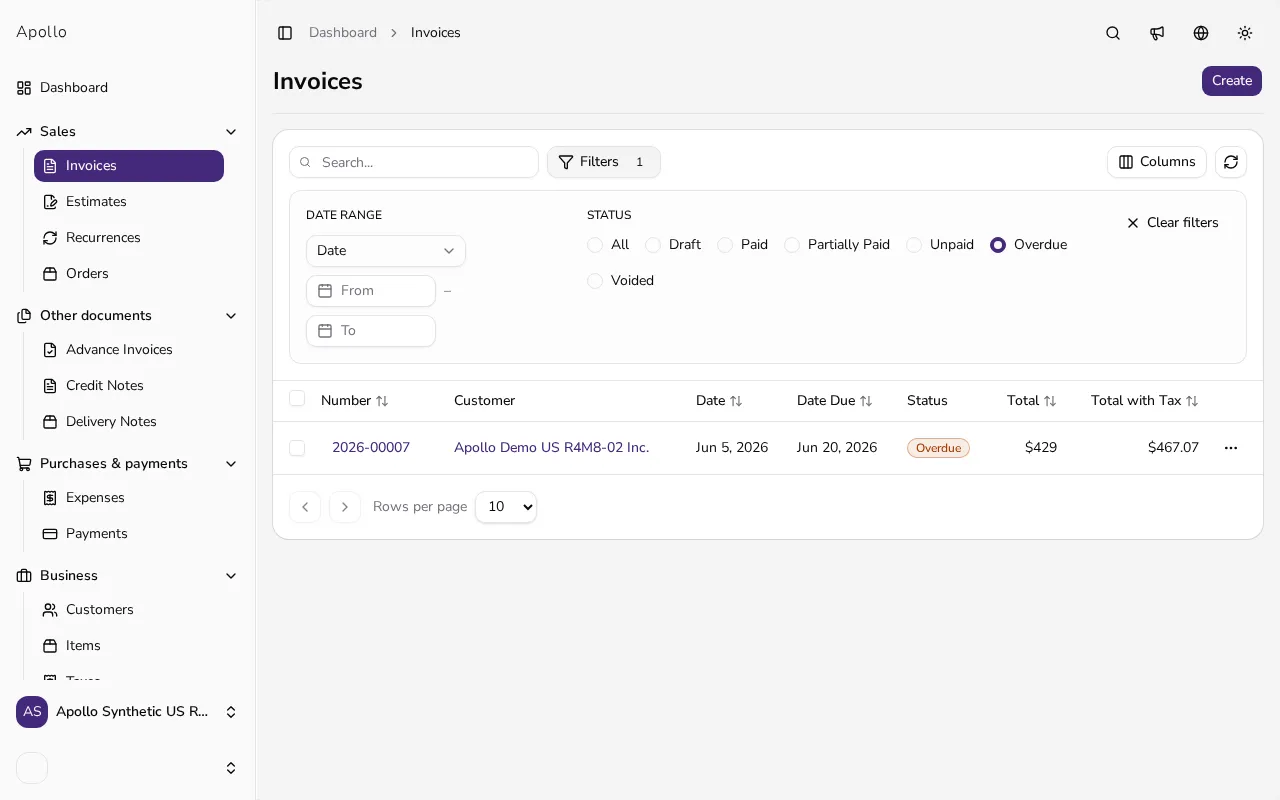
Go to Invoices in the sidebar and filter by Status: Overdue, or open an overdue invoice directly. A reminder is only available once an invoice has passed its due date and still has an amount owing.
![Invoice list filtered to overdue invoices]()
- 2
Open Send reminder#
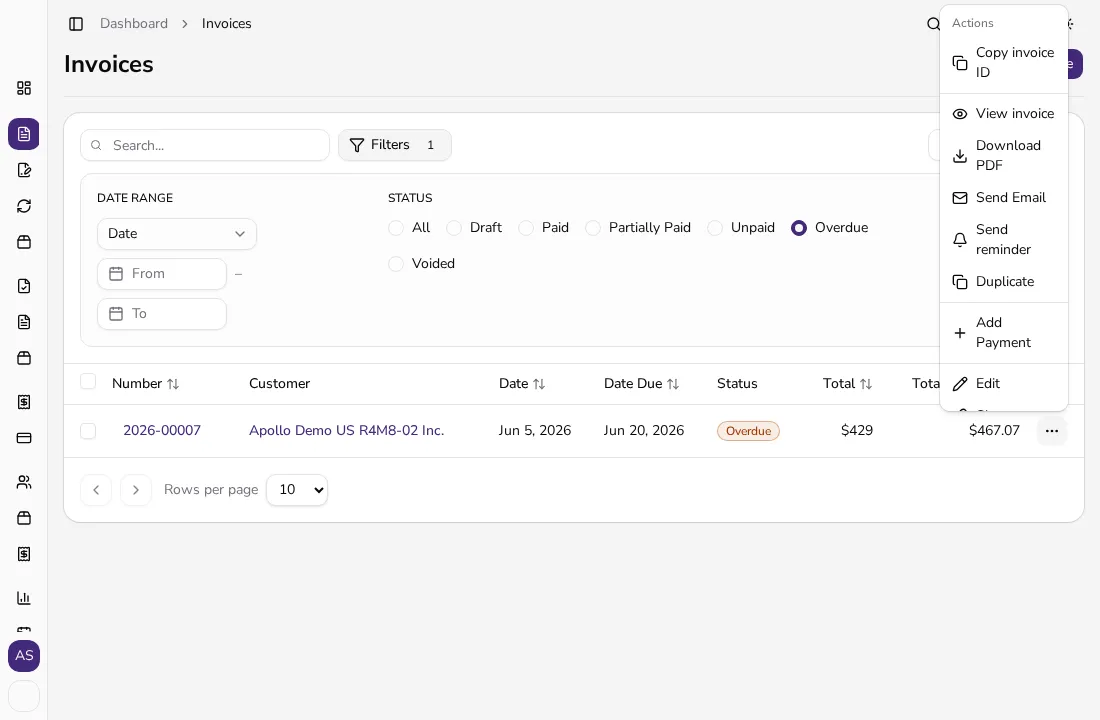
From the invoice row's ⋯ menu, click Send reminder. You can also open the same dialog from an overdue invoice's own page.
![Invoice row action menu with the Send reminder option]()
- 3
Check the recipient and language#
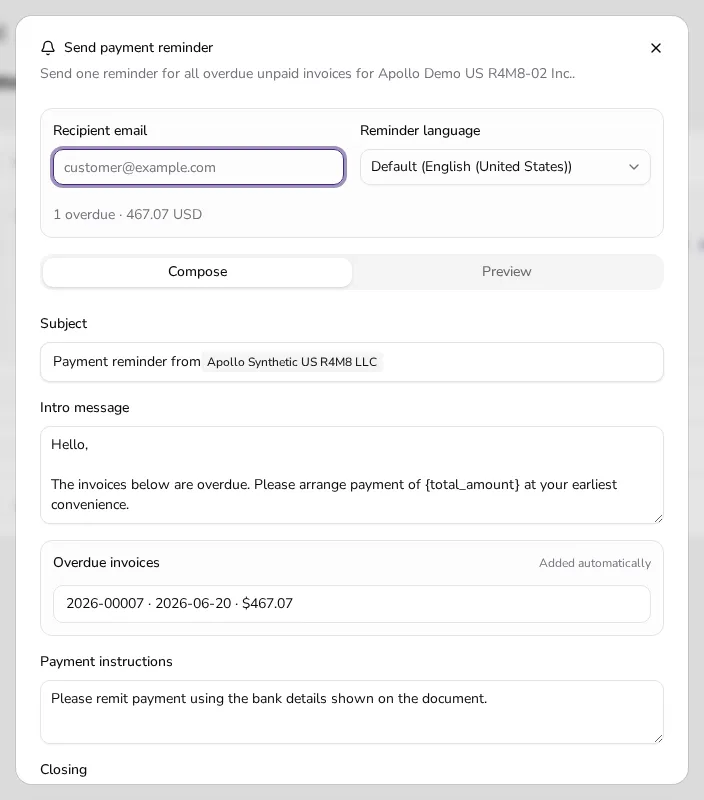
The dialog is titled Send payment reminder and states it will send one reminder for all overdue unpaid invoices for that customer. Fill in or check the Recipient email — it's taken from the customer's record when one is on file, otherwise the field is empty — and pick a Reminder language if you want something other than the default.
![Send payment reminder dialog with recipient email, language and message fields]()
- 4
Review the message and overdue invoices#
Adjust the Subject, Intro message, Payment instructions and Closing if needed. The Overdue invoices list below is added automatically and lists every invoice the reminder will cover, with its total and due date. Switch to the Preview tab to see the email as your customer will.
- 5
Send the reminder#
Click Send reminder. Apollo emails it to the recipient address and shows a confirmation with how many overdue invoices it covered.
Tips
- One reminder always covers all of a customer's overdue invoices, so you never need to send more than one at a time to the same customer.
- Set default reminder wording and payment instructions once in your settings, so most reminders need little or no editing before sending.
- Switch to the Preview tab before sending to check how the invoice list and amounts will actually look in the email.
Frequently asked questions
Which invoices does a reminder include?
Every unpaid, non-voided invoice for that customer whose due date has already passed, regardless of which invoice you started the reminder from.
Why don't I see Send reminder on an invoice?
It only appears once the invoice's due date has passed and it isn't fully paid or voided; on a draft or on an invoice that isn't overdue yet, it's not offered.
Can I change who receives the reminder?
Yes. The Recipient email field takes the customer's email from their record when one is saved, and you can always edit it before sending; if the customer has no email on file, the field starts empty and you fill it in yourself.
Can I send the reminder in a different language than my account?
Yes, use the Reminder language dropdown to pick a specific language for that email instead of your default.