How to manage your items catalog
If you bill the same products or services more than once, it's worth saving them in Apollo's items catalog. That way you just search for them and add them to a document, instead of retyping the name, price and tax every single time.
- 1
Open Items#
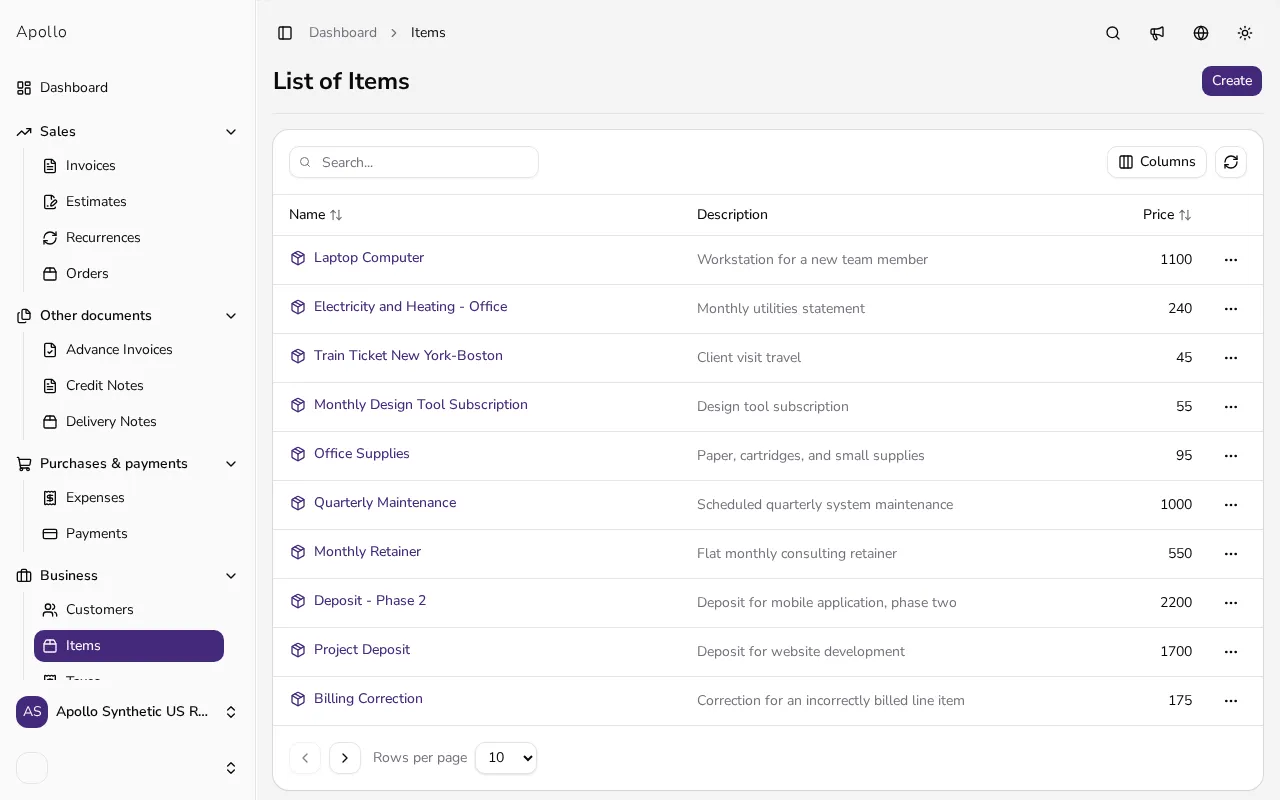
In the left-hand sidebar, click Items. This shows the list of every product and service you've added so far, with its price, tax and price with tax.
![List of products and services in the Apollo items catalog]()
- 2
Click Create#
In the top-right corner, click Create to open the form for a new item.
- 3
Enter a name and description#
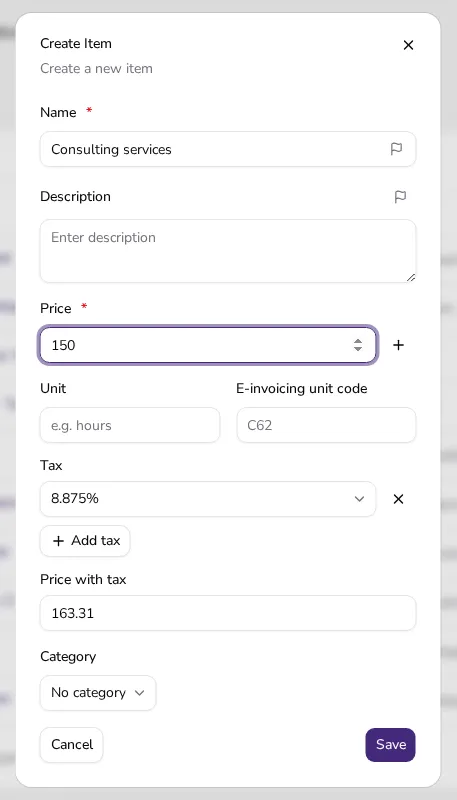
Fill in the Name of the product or service (required) and, if you like, a Description, which can appear under the line on an issued document.
- 4
Set the price#
Enter the default price in the Price field. Use the button next to it to switch between Net price (before tax) and Gross price (tax included); Apollo immediately shows the calculated Price with tax below.
![New item form showing price, unit and tax fields being filled in]()
- 5
Choose a tax#
In the Tax section, open the selector and pick the tax rate that applies to this item. Use Add tax if your country allows more than one rate per line. If the rate you need doesn't exist yet, you can create it on the Taxes page.
- 6
Add a unit and category#
Fill in Unit with what you measure the item in, such as piece or hour. If you have financial categories set up in Apollo, you can also assign the item to one using the Category field.
- 7
Save the item#
Click Save. The item is added to your catalog and becomes available right away when you add a line to a new invoice, estimate or other document.
- 8
Use the item on a document#
When adding a line to an invoice or estimate, start typing the item's name in the line field — Apollo suggests saved items, and picking one fills in the price, unit and tax straight from the catalog.
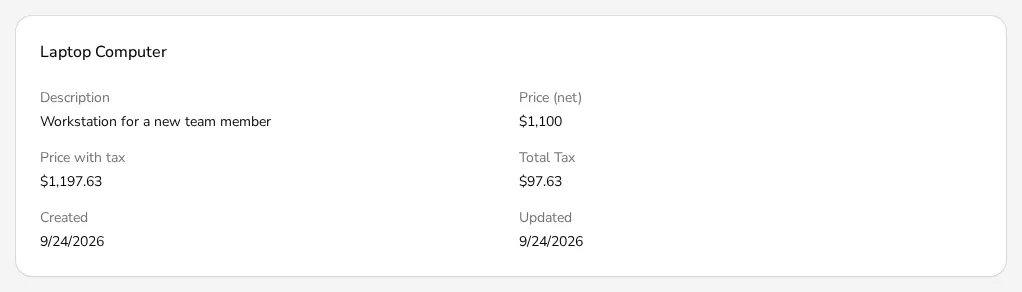
![Item profile page showing its price, tax and catalog details]()
Tips
- For services you bill by the hour, set Unit to "hour" and use your hourly rate as the price.
- If you normally type prices including tax, switch the button next to Price to gross mode so Apollo doesn't apply tax twice.
- You can edit or archive an item from its profile at any time — it won't change any document where the item was already used. In Portugal, most fields of a saved item are locked.
Frequently asked questions
Does changing an item's price affect invoices I've already issued?
No. Every issued document keeps the price and details it had at the time it was created; a catalog change only affects documents you create afterwards.
How do I choose whether the price includes tax or not?
Click the toggle button next to the Price field to switch between Net price and Gross price; Apollo calculates the other value for you based on the tax rate you picked.
Can an item have more than one tax rate?
That depends on your country's rules. Where it's allowed, use the Add tax button on the item form to add another rate.
What if the item I want isn't suggested on a document?
Just keep typing the name by hand — the line is created as a one-off entry, and you don't need to save it to the catalog to use it.