How to create an estimate in Apollo
Create an estimate when you want to give a customer a price for goods or a service before issuing an invoice. An estimate uses the exact same form as an invoice, only with a validity date added, and later you can turn it into an invoice with one action.
- 1
Open Estimates#
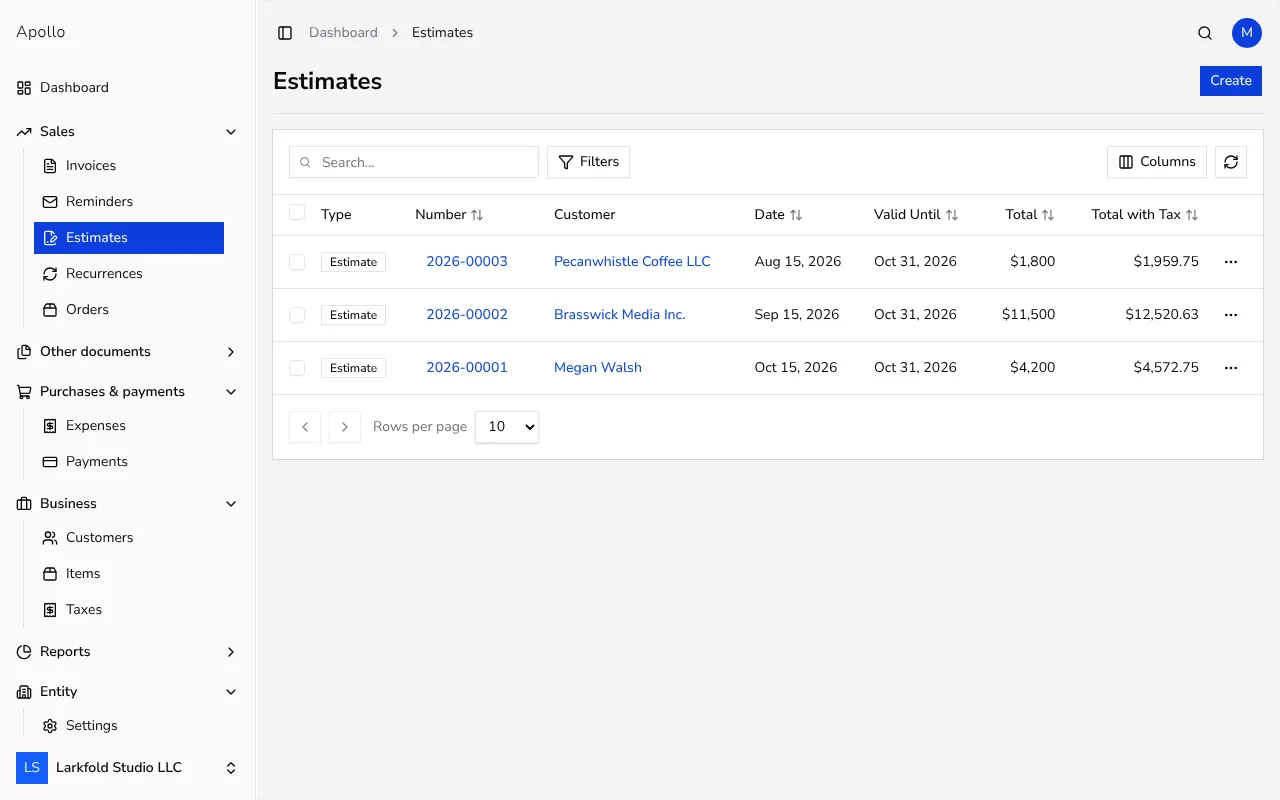
In the left-hand sidebar, click Estimates. This opens the list of every estimate you've issued so far, with its status, date and amount.
![List of estimates in Apollo with a button for creating a new one]()
- 2
Click Create#
In the top-right corner, click Create. A form for a new estimate opens, with Create Estimate shown as the heading at the top of the page.
- 3
Choose a customer#
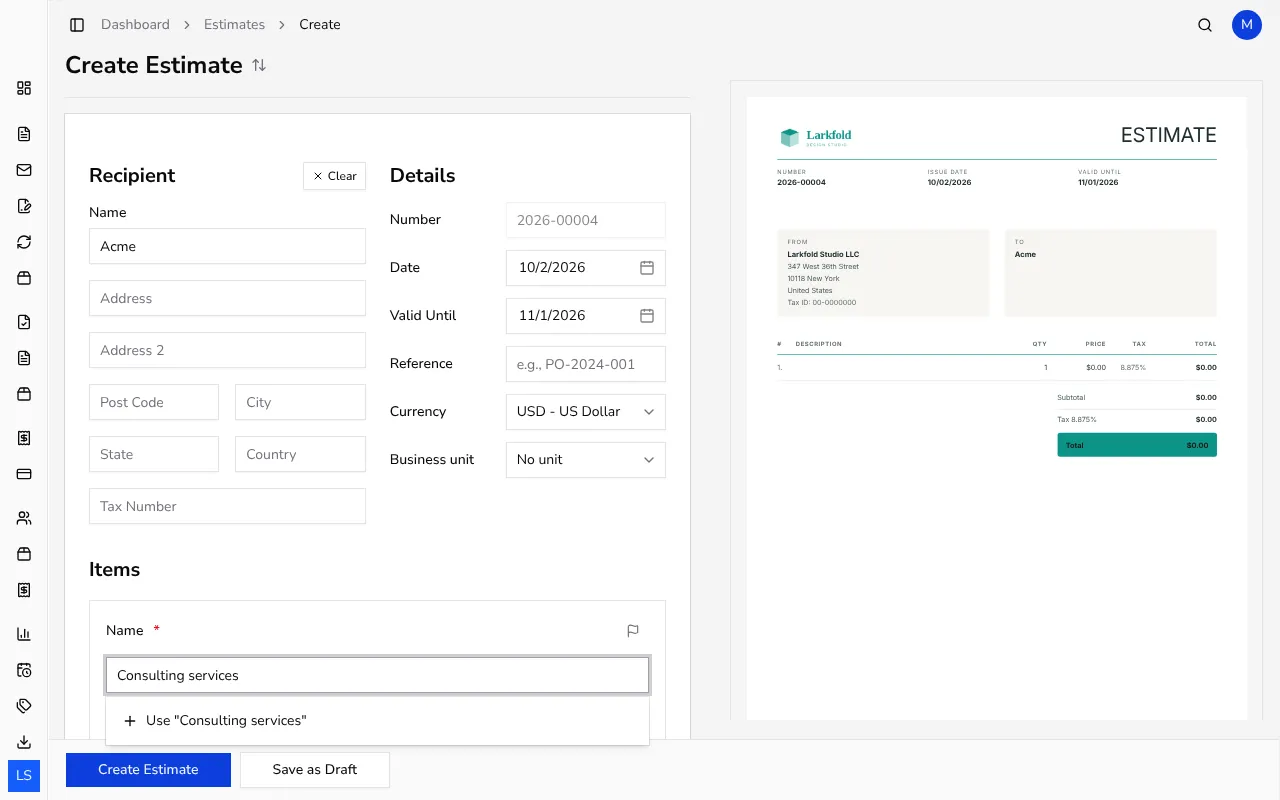
Start typing a name in the customer field — Apollo suggests customers you've already saved. If the customer isn't in your directory yet, you can add them right from this form without leaving the estimate.
- 4
Add the line items#
For each line, type a name or search for a saved item, then set the quantity, price and tax. Use the add-line button to add as many items as you need.
![New estimate form with a customer selected and line items added]()
- 5
Check the dates#
Check the Date the estimate is issued on and the Valid Until field, which tells the customer how long the price is guaranteed. Apollo suggests the second date automatically, but you can change it by hand.
- 6
Issue it or save it as a draft#
Click Create Estimate to issue it right away with its own number, or choose Save as Draft if you're not ready to finish it yet. You can also click the heading at the top of the page to switch it to a Proforma invoice instead, if that's what the customer actually needs. Save as Draft isn't available in Portugal, where every estimate is issued straight away.
- 7
Share the estimate with your customer#
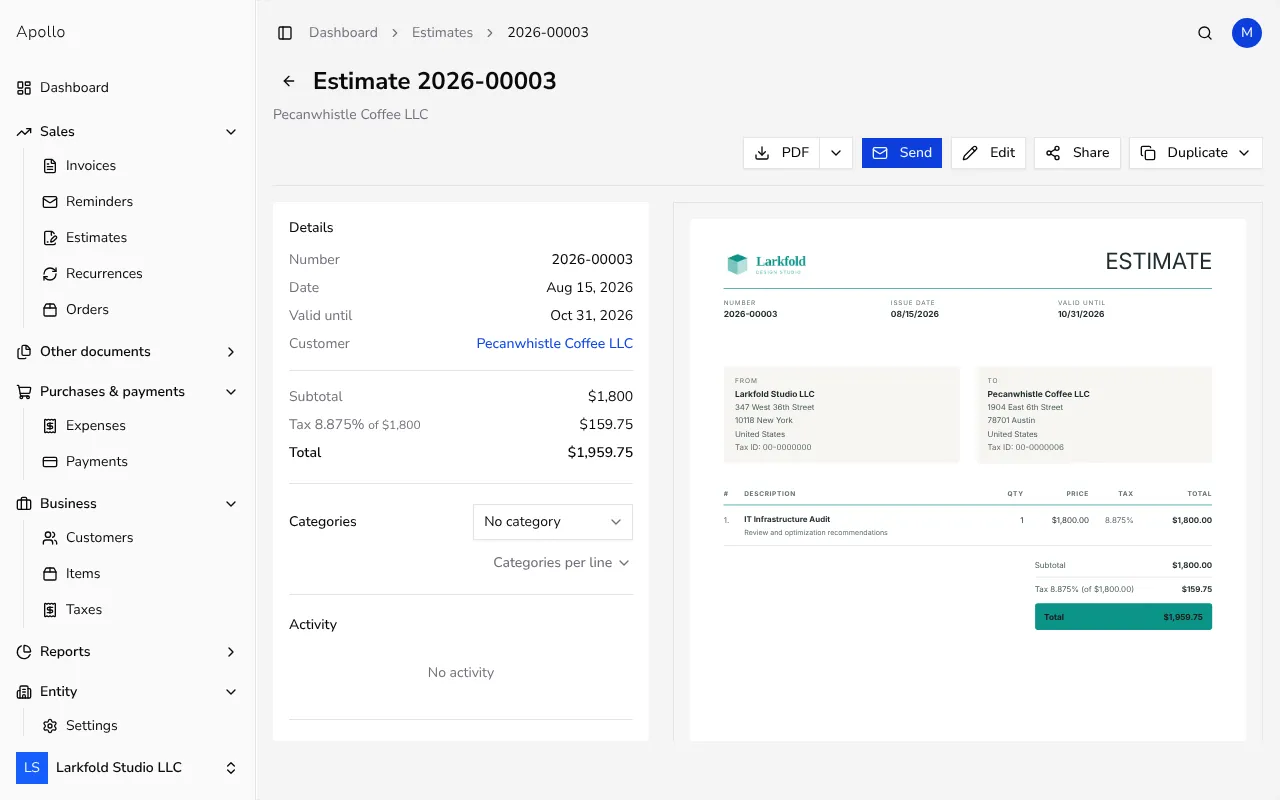
From the issued estimate's view, click the share button to get a link to a browser preview, or download the PDF and send it to your customer any way you like.
![Issued estimate view with share and PDF download buttons]()
Tips
- Set the validity date realistically based on how quickly the prices of your products or services change.
- If the customer accepts the estimate, don't retype it — convert it straight into an invoice from its view.
- You can switch an estimate's heading between "Estimate" and "Proforma invoice" any time before you issue it, depending on which document the customer actually needs.
Frequently asked questions
What's the difference between an estimate and an invoice?
An estimate is a price proposal the customer still needs to accept, and it doesn't create a payment obligation; an invoice is the document that actually requests payment.
Can I email the estimate directly from Apollo?
Yes, from the issued estimate's view you can send it by email the same way as other documents. Sending by email isn't available in Portugal; download the PDF or share a link instead.
What happens once an estimate's validity date passes?
The estimate stays saved in Apollo, and you can still convert it into an invoice or duplicate it with a new validity date if the customer decides later.
How do I turn an estimate into an invoice?
From the issued estimate's view, use the Duplicate button and choose Create invoice; Apollo prepares a new invoice with the same customer and line items.