How to manage tax rates in Apollo
Before you can charge tax on a document, the right rate needs to exist on the Taxes page. Once you've added it, you can pick it on any item or directly on a line of an invoice, estimate or other document, instead of typing it in every time.
- 1
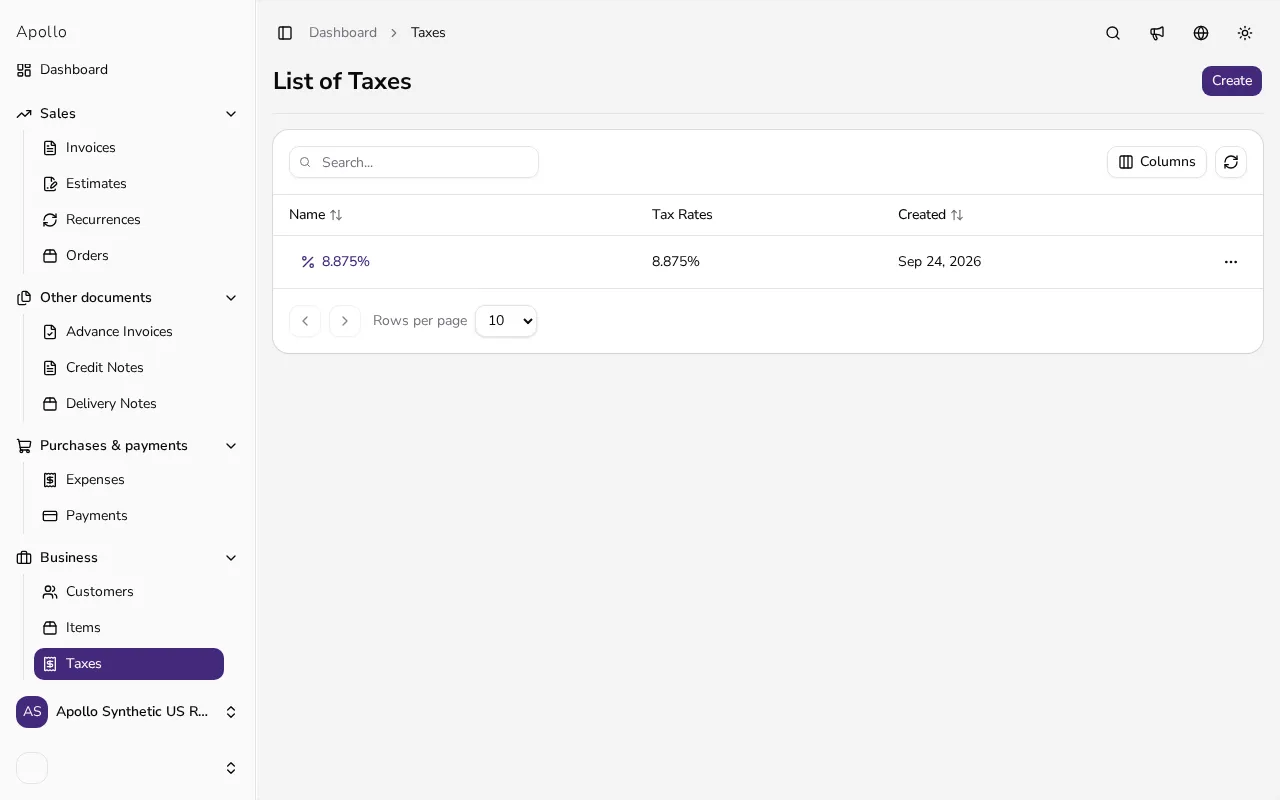
Open Taxes#
In the left-hand sidebar, click Taxes. This opens the list of every tax rate you've added so far, showing its percentage and whether it's marked as the default.
![List of tax rates in Apollo with a button for creating a new one]()
- 2
Click Create#
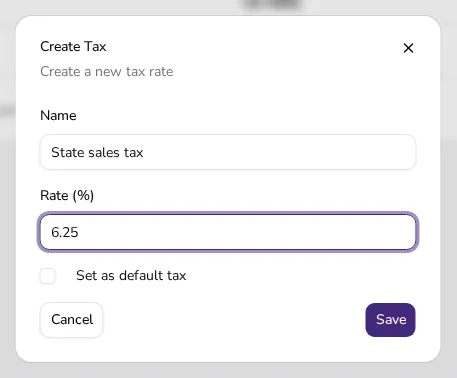
In the top-right corner, click Create to open the form for a new tax rate.
![Form for adding a new tax rate with a name and percentage field]()
- 3
Enter a name#
In the Name field, enter what the rate should be called, such as standard rate or reduced rate. This name is what you'll see later when picking the rate on an item or a document line.
- 4
Enter the percentage#
In the Rate (%) field, enter the numeric value of the rate — for example 22, if that is the rate that applies in your country. Apollo uses this value to calculate the tax on every line where this rate is selected.
- 5
Set it as the default, if needed#
If this is the rate you use most often, tick Set as default tax. Apollo will then suggest it automatically whenever you add a tax on an item or a document line, so you don't have to pick it by hand most of the time.
- 6
Save the tax rate#
Click Save. The rate is added to the Taxes list and becomes available to pick on every item and on lines of new documents from that point on.
- 7
Apply the rate on an item or document#
When editing an item or adding a line to an invoice, estimate or other document, open the Tax selector and choose the rate from the list. Apollo then calculates the tax and the line total automatically.
Tips
- If your country has more than one tax rate (for example a standard and a reduced one), add them all up front so you can quickly pick between them on individual items.
- Mark the rate you use for most of your items as the default — Apollo will suggest it automatically and save you a few clicks on every new item.
- You can edit a tax rate any time from the Taxes list; this does not change the tax already recorded on documents you've issued.
Frequently asked questions
Which tax rate should I enter?
That depends on your country and the type of business you run, so Apollo does not prescribe specific rates — enter the one that your local rules require for your case.
What does the "Set as default tax" checkbox do?
Apollo suggests that rate automatically whenever you add a tax on an item or a document line, so you don't have to pick it by hand most of the time.
Can I change the percentage of an existing tax rate?
Yes, you can edit it any time from the Taxes list. The change applies to documents created afterwards, while documents you've already issued keep their original value.
Do all my items need to have a tax rate?
Not necessarily. If your company is a tax subject, new items and new document lines start with your default rate; remove it with the X next to it wherever you don't charge tax, and the item or line is left without tax. In Portugal every document line needs a tax treatment, so pick an exempt one there instead.