How to read your reports and analytics
Analytics turns your invoices, payments and customers into a single dashboard, so you can see how the business is doing without exporting anything. Pick a period, read the key numbers at the top, then open a section for the chart or table behind it — every figure updates together and compares itself to the period before.
- 1
Open Analytics#
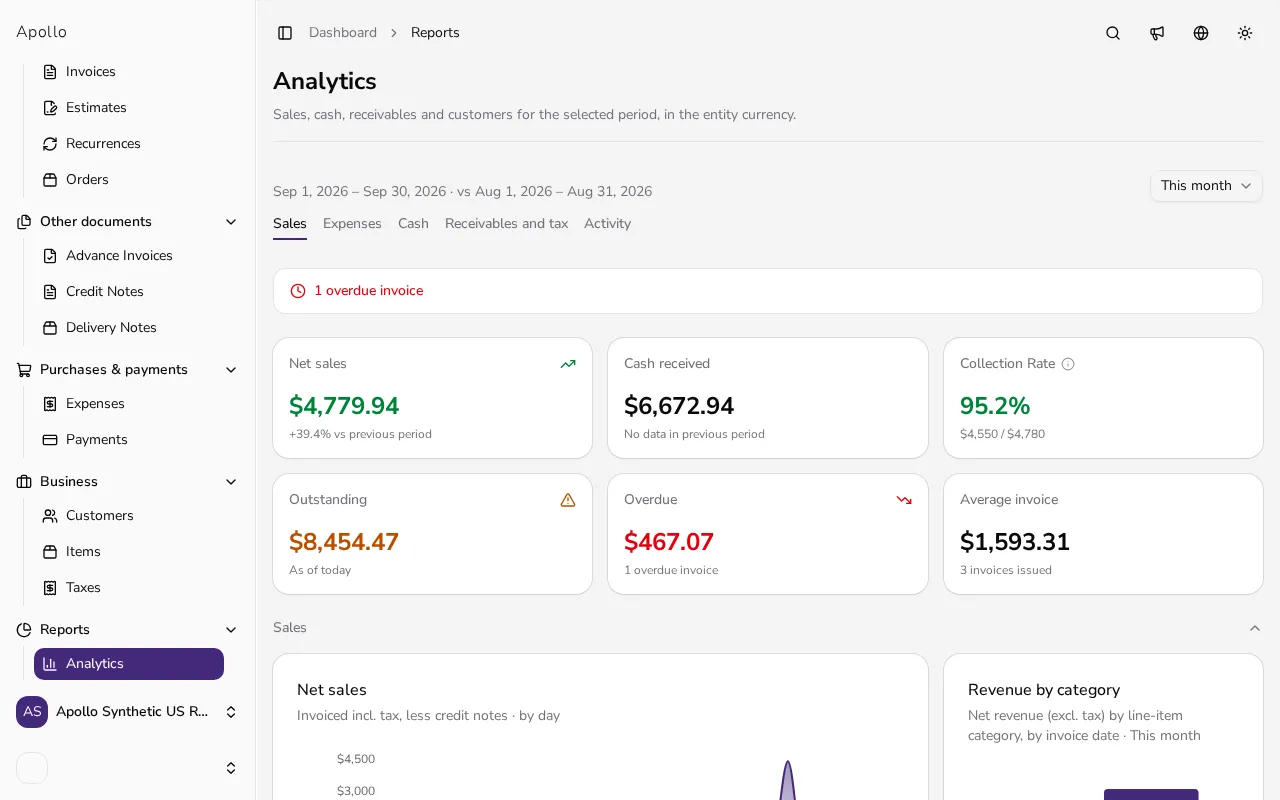
Click Reports in the sidebar to open the Analytics page for your current company.
![Analytics page showing the key metrics row and Sales section]()
- 2
Choose a period#
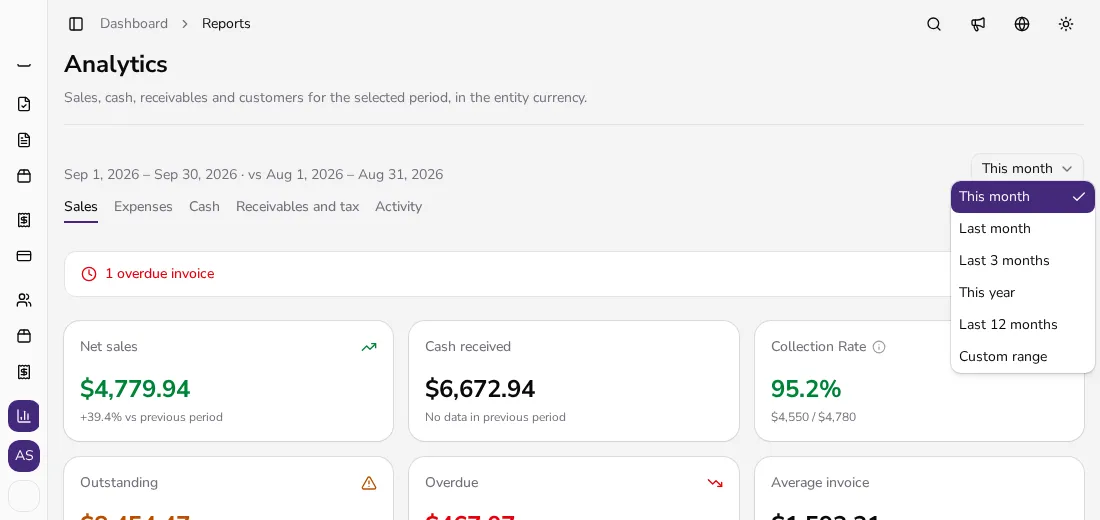
Use the period selector to pick This month, Last month, Last 3 months, This year, Last 12 months or Custom range with your own From and To dates.
![Open period selector dropdown with preset date range options]()
- 3
Read the key numbers#
The top row shows Net sales, Cash received, Collection Rate, Outstanding, Overdue and Average invoice, most of them compared vs previous period.
- 4
Browse a section for more detail#
Sales, Cash, Receivables and tax and Activity are already open below the key numbers, each with its own charts and tables, such as the sales trend, top customers, cash flow and receivables aging — click a section's title to collapse it.
- 5
Check Expenses if you track them#
If you record expenses, an Expenses section appears with expense totals, a sales-versus-expenses chart, and your top suppliers.
Tips
- Switch to Last 12 months to see a full yearly trend instead of a single month of activity.
- Collapse sections you don't need day to day — Apollo remembers which sections stay open for your next visit.
- Compare Net sales with Cash received to see the gap between what you've invoiced and what you've actually collected.
Frequently asked questions
What does "vs previous period" compare against?
The same length of time immediately before the period you selected, so a month compares to the prior month and a quarter to the prior quarter.
Can I choose my own date range?
Yes. Pick Custom range in the period selector, then set the From and To dates.
Why don't I see an Expenses section?
It only appears once you start recording expenses in Apollo.
Does changing the period edit any documents?
No. Changing the period or opening a section only changes what's displayed — no invoice, payment or expense is modified.