How to create an invoice in Apollo
An invoice is the document you send a customer to ask for payment. In Apollo you build one from a simple form: pick or add a customer, list what you're charging for, and issue it. This guide walks through every field on that form, from the recipient down to the final Save button.
- 1
Open the invoice form#
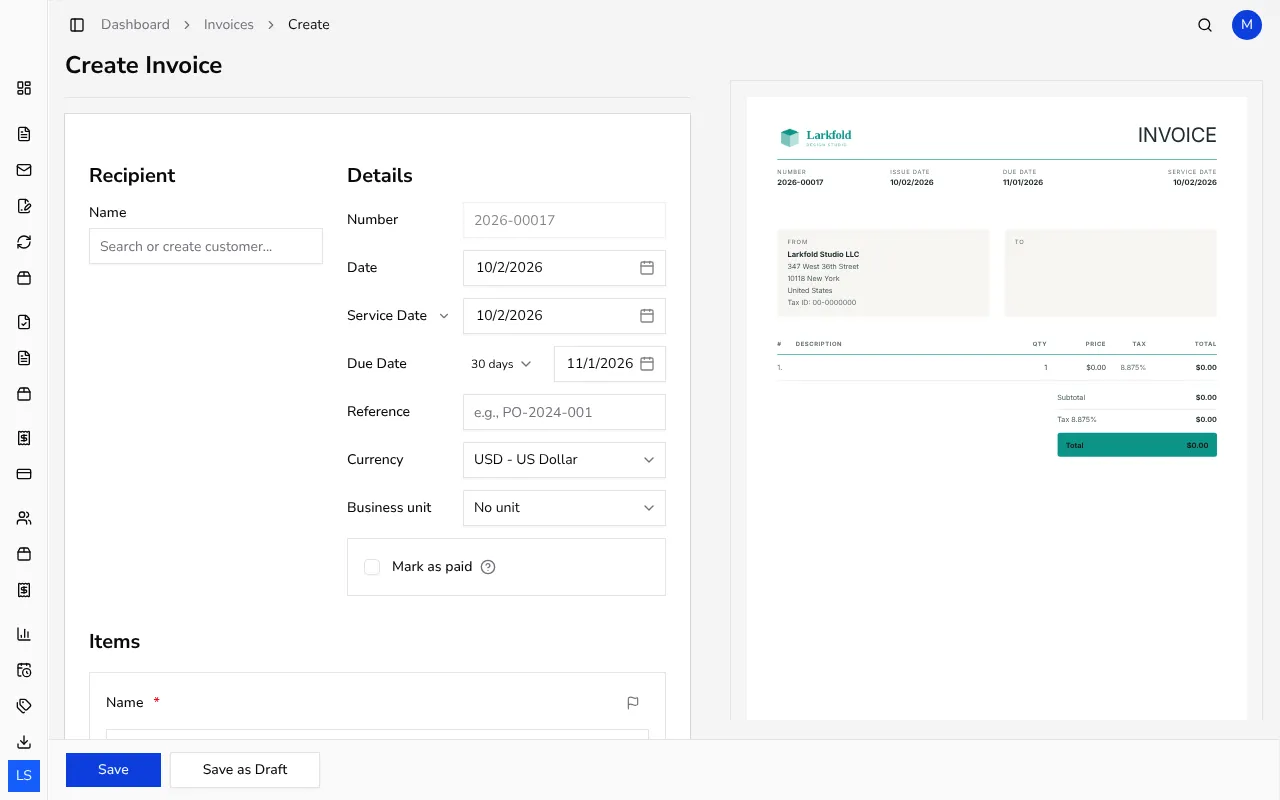
In the sidebar, click Invoices, then click Create. This opens a blank invoice form on the left with a live preview of the finished document on the right, so you can see exactly what your customer will receive as you fill it in.
![Blank invoice form on the left with a live PDF preview on the right]()
- 2
Add the recipient#
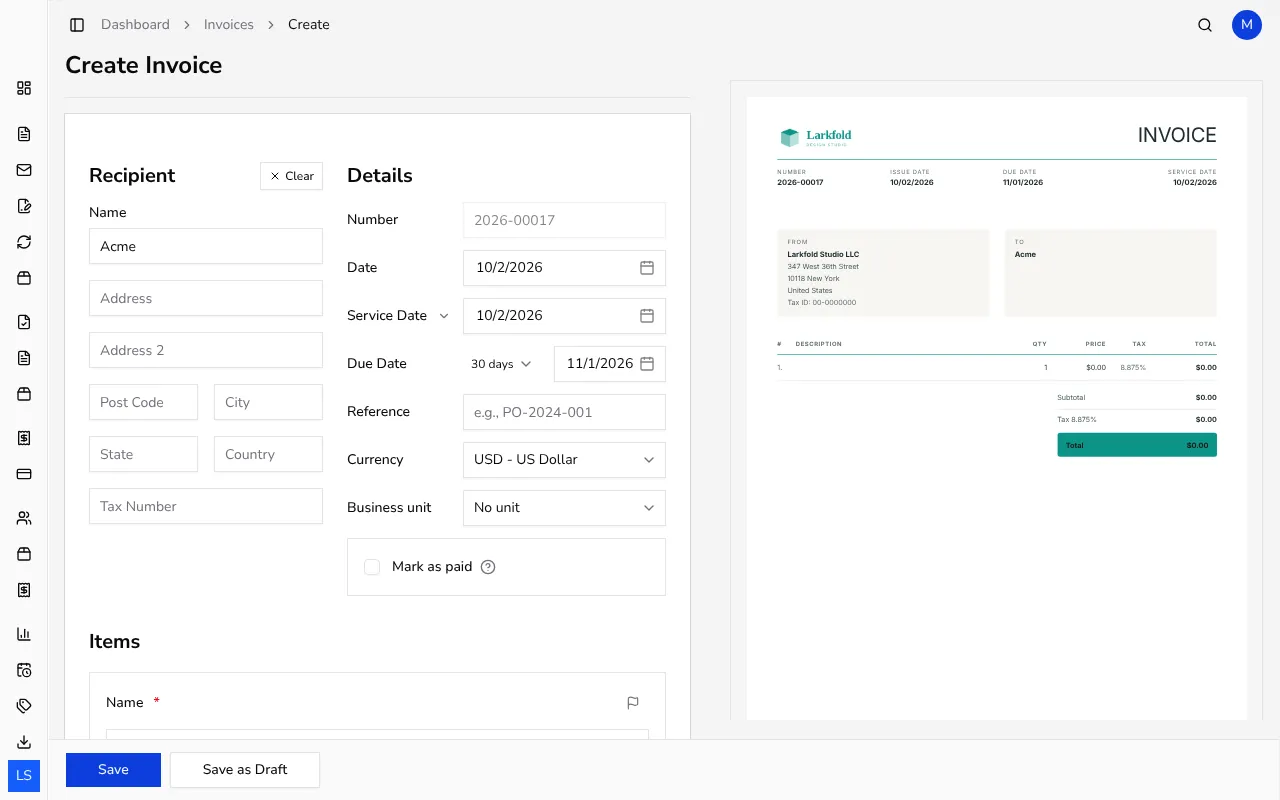
Under Recipient, type the customer's name into the Name field. Start typing to search your existing customers, or keep typing a new name to create one on the spot. Selecting an existing customer fills in their address and tax number automatically; for a new customer you can fill in Address, Post Code, City, Country and Tax Number yourself.
![Recipient section with customer name search and address fields filled in]()
- 3
Check the details#
The Details panel on the right of the recipient section shows the Number (assigned automatically when you issue the invoice), the Date, and the Due Date. You can pick a due-date preset such as On receipt, 7 days or 30 days, or choose Custom and pick an exact date. Use Currency if you want to invoice in a currency other than your company's default, and Reference for a customer PO number.
- 4
Add your items#
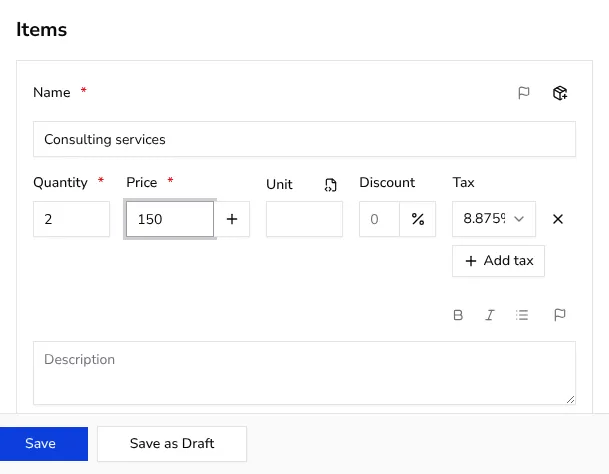
Under Items, give the first line a Name, a Quantity and a Price. Search your saved item catalog as you type, or enter a one-off item name. If your company is marked as a tax subject, each new line starts with your default Tax rate: pick another rate, or remove it with the X next to it if the line is tax-free (in Portugal, pick an exempt one instead); otherwise use Add tax. Picking a saved item replaces the line's tax with the item's saved taxes. Add more lines with Add item. A Discount field lets you take a percentage or fixed amount off any line.
![Items section with an item name, quantity, price and tax rate filled in]()
- 5
Add a note or payment terms (optional)#
Below the items, the Note field is a good place for payment instructions or a thank-you message, and Payment Terms can spell out your terms in more detail. Both support simple formatting such as bold text and lists, and both are optional.
- 6
Save or issue the invoice#
When everything looks right in the preview, click Save to issue the invoice with its final number. If you're not ready yet, click Save as Draft instead to keep working on it later without assigning a number. Either way, you land on the invoice's own page next, ready to send or download. Save as Draft isn't available in Portugal, where every invoice is issued straight away.
Tips
- Selecting an existing customer instead of typing a new name avoids duplicate customer records and keeps their invoice history in one place.
- The live preview on the right updates as you type, so you can proofread the finished document before you issue it.
- You can always duplicate an existing invoice later instead of starting from a blank form, which is faster for repeat customers.
Frequently asked questions
Can I edit an invoice after I issue it?
Yes, as long as it hasn't been voided or fiscally verified: open it and click Edit. It keeps its assigned number, and a draft can still be edited freely until you issue it. In Portugal, issued invoices can't be edited; void the invoice instead.
What happens if I leave the currency field alone?
The form starts with your company's default currency already selected, so if all your customers pay in that currency you don't need to touch this field at all.
Do I have to add tax to every item?
No. A line without a tax rate is simply issued without tax. If the item is tax-exempt or your company isn't VAT-registered, remove the rate with the X next to it — including on items picked from your catalog, which bring their saved tax with them. In Portugal every line needs a tax treatment, so pick an exempt one instead of removing it.
Can I remove an item line I no longer need?
Yes, each item row has its own remove control once you have more than one line, so you can delete a line you added by mistake before saving.