How to invite team members to Apollo
Apollo lets you invite teammates to help with issuing invoices, managing customers, or reviewing reports. Every teammate gets one of three roles that determines exactly what they can do in your company.
- 1
Open the users list#
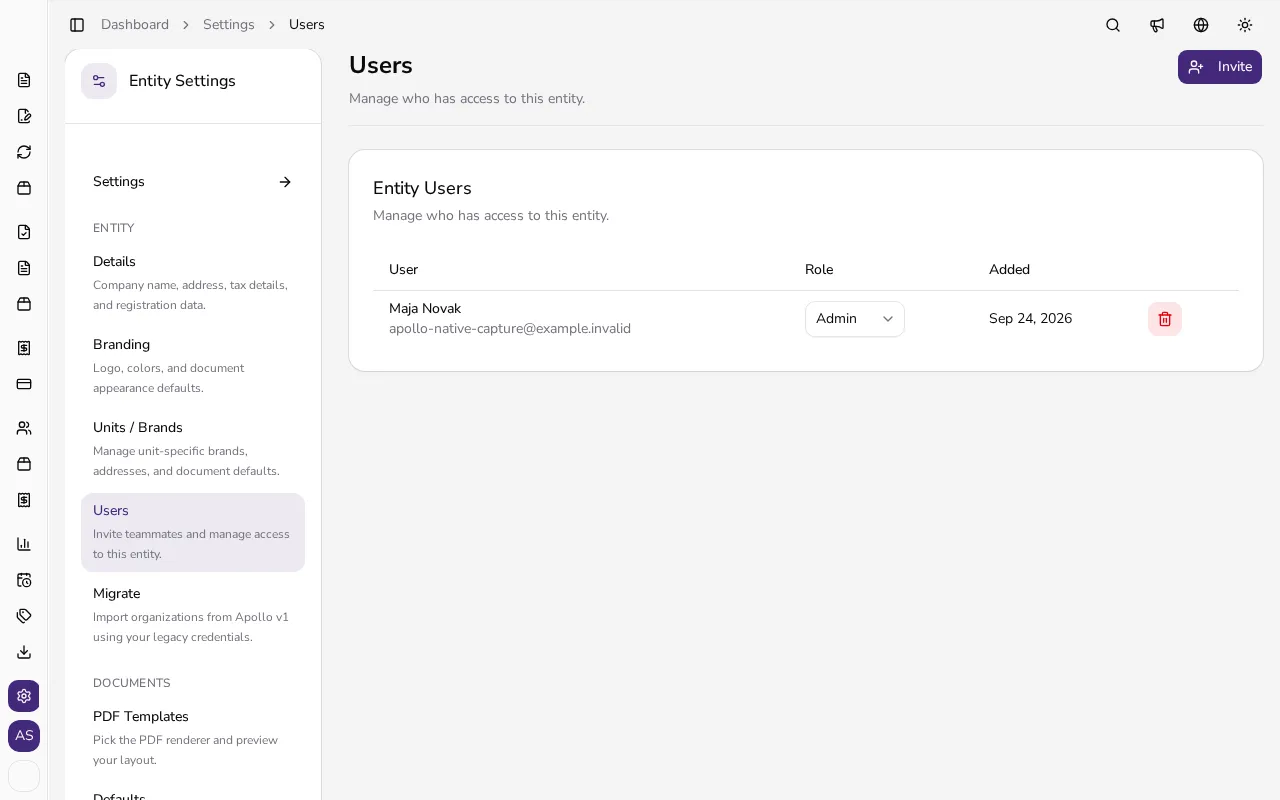
In the sidebar, click Settings, then choose Users in the Entity section. You'll see a list of everyone who currently has access to this company.
![List of company users showing their roles and dates added]()
- 2
Invite a teammate#
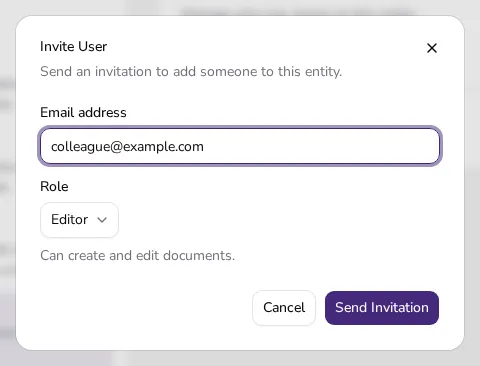
Click Invite near the top of the page. In the dialog, enter your teammate's Email address and choose their Role.
![Invite dialog with an email field and role selection]()
- 3
Choose the right role#
Admin can manage users and all entity settings. Editor can create and edit documents. Viewer can only view documents, with no editing rights.
- 4
Send the invitation#
Click Send Invitation. Your teammate receives an email with a link to join; until they accept, they show up under Pending Invitations, where you can cancel it if needed.
- 5
Edit or remove access#
Change an existing user's role at any time using the selector in the Role column, or remove their access with the delete icon in the same row. Your company must always keep at least one admin.
Tips
- You can invite a teammate before they've created an Apollo account — they accept the invitation from the link in the email.
- You can change a teammate's role at any time without sending a new invitation.
- A company must always have at least one admin, so the last admin can't be removed or downgraded.
- If you manage more than one company, you need to invite teammates separately to each one.
Frequently asked questions
What's the difference between Admin, Editor, and Viewer?
Admin manages users and every setting. Editor creates and edits documents. Viewer can only view documents, without editing them.
My teammate hasn't received the invitation. What should I do?
Double-check the email address you entered and ask them to check their spam folder. You can cancel the old invitation under Pending Invitations and send a new one.
Can I remove an admin?
Not if they're the company's only admin — Apollo requires every company to keep at least one admin so you never lose access to settings.
If I invite someone to one company, can they see my other companies?
No. The access you grant only applies to the company you invited them to.