Choose a PDF template for your invoices
Every invoice, estimate and other document you issue from Apollo uses one PDF template. Apollo ships five ready-made looks, so you can match your paperwork to how you want your business to come across without hiring a designer. This guide shows you how to compare them and pick one, using the live preview so you know exactly what you're choosing.
- 1
Open PDF template settings#
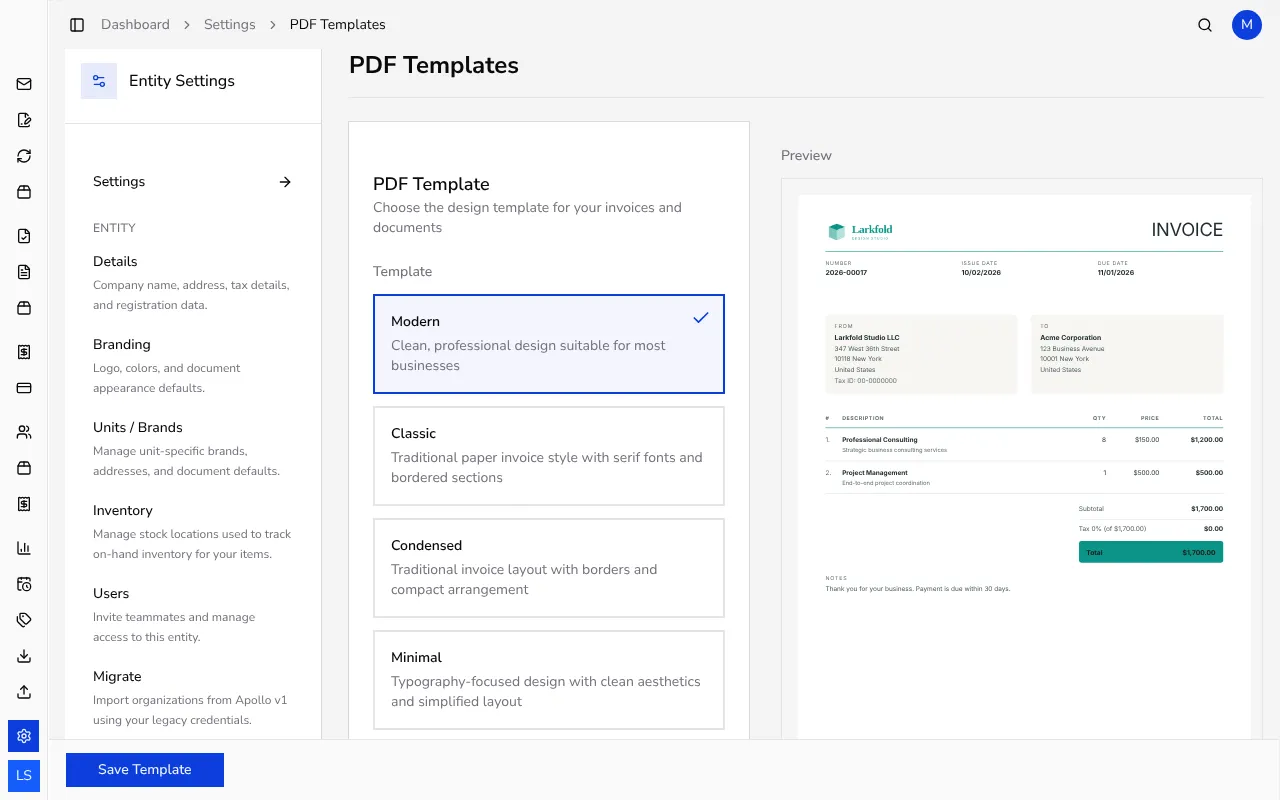
In the sidebar, click Settings, then choose Documents and PDF Templates. This opens the template picker on the left with a live preview of a sample invoice on the right, so any change you make is immediately visible.
![PDF template settings page with template cards on the left and a live invoice preview on the right]()
- 2
Compare the five templates#
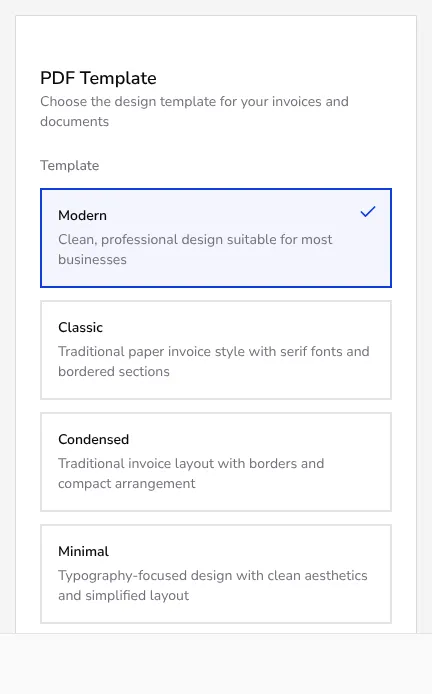
Apollo offers five templates: Modern for a clean, professional design suitable for most businesses; Classic for a traditional paper-invoice style with serif fonts and bordered sections; Condensed for a compact, bordered layout; Minimal for a typography-focused, simplified look; and Fashion for an editorial, magazine-style design aimed at creative businesses. Click any card to select it.
![Five PDF template cards labelled Modern, Classic, Condensed, Minimal and Fashion]()
- 3
Check the live preview#
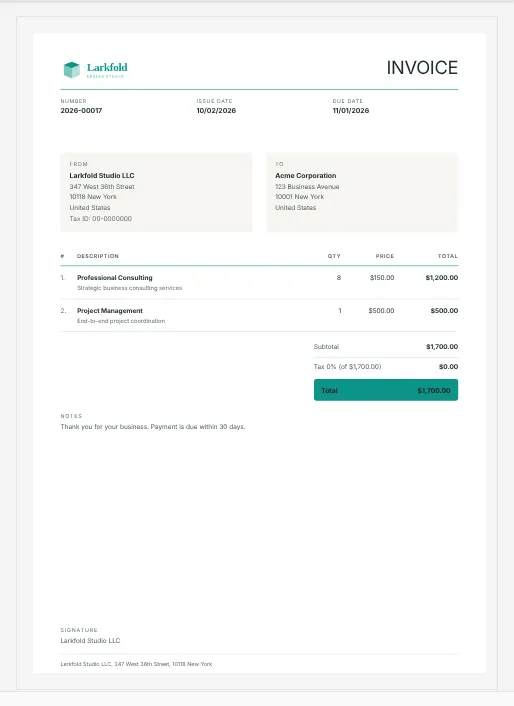
As soon as you click a template, the Preview panel on the right redraws a sample invoice using your logo, brand colour and company details, so you can see exactly how your real documents will look without creating a test document.
![Live preview panel showing a sample invoice rendered in the selected PDF template]()
- 4
Turn on a payment QR code (optional)#
If your bank account supports a payment QR code for your country, a Payment QR Codes section appears below the templates. Turn it on so the code prints on your PDF invoices; you'll need an IBAN saved under company settings first, and not every template supports every display option.
- 5
Save your template#
When you're happy with the preview, click Save Template. Apollo remembers your choice for this company and uses it for every invoice, estimate, credit note, advance invoice and delivery note, including ones you've already issued the next time you open or download them. Documents issued under a business unit with its own template keep that unit's template.
Tips
- Try a few templates side by side using the live preview before you settle on one — it costs nothing and doesn't create a real document.
- The Credit Note Display section further down the same page controls whether credit note PDFs show negative quantities and totals, which is worth checking if you export documents to accounting software.
- The preview always uses sample data, so you can safely click through every template without affecting anything a customer would see.
Frequently asked questions
Which PDF template should I pick for my business?
There's no single right answer: Modern suits most everyday invoicing, Classic and Condensed feel more traditional, Minimal keeps things very plain, and Fashion suits design-led or creative businesses. Use the live preview to compare them before deciding.
Can I use a different template for a specific customer?
No. The template applies to your whole company rather than to a customer or a single document, so every document you issue uses whichever template is currently selected here.
Why don't I see the PDF Templates page?
In Portugal, invoices must use one fixed, certified PDF layout, so template customization isn't offered there; every other market can choose freely between the five templates.
Do I need an IBAN to change the template?
No. Choosing a template needs no bank details at all. An IBAN is only required if you also want to turn on a payment QR code from the same settings page.