How to invoice in a foreign currency
If you work with customers abroad, you don't have to bill everyone in your company's usual currency. Apollo's invoice form has a Currency field that changes the currency for the whole document, so you can invoice, say, a US customer in US dollars even if your company normally invoices in euros.
- 1
Start a new invoice#
From Invoices in the sidebar, click Create. The form opens with your company's default currency already selected in the Details panel, which is right the first time for most of your invoices.
- 2
Open the Currency field#
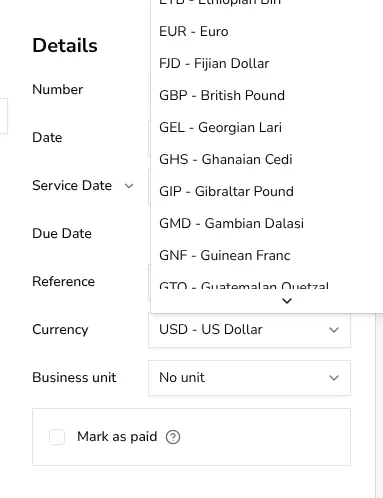
In Details, click Currency. A scrollable list opens with currencies shown as a code and a name, such as USD - US Dollar or GBP - British Pound, covering the currencies used around the world; type the first letters of a code to jump straight to it.
![Currency dropdown open showing a scrollable list of currency codes and names]()
- 3
Pick the currency you need#
Scroll to, or type the code of, the currency your customer expects, then select it. This sets the currency for the entire invoice; the amount shown in the live preview updates to use your chosen currency's usual formatting.
- 4
Enter your prices in that currency#
Add your items as usual under Items, and type each Price directly in the currency you selected. Apollo doesn't convert the prices you type — decide them in the target currency yourself before entering them.
![Item row with a price entered and a reference total shown after selecting a foreign currency]()
- 5
Check the reference total in your own currency#
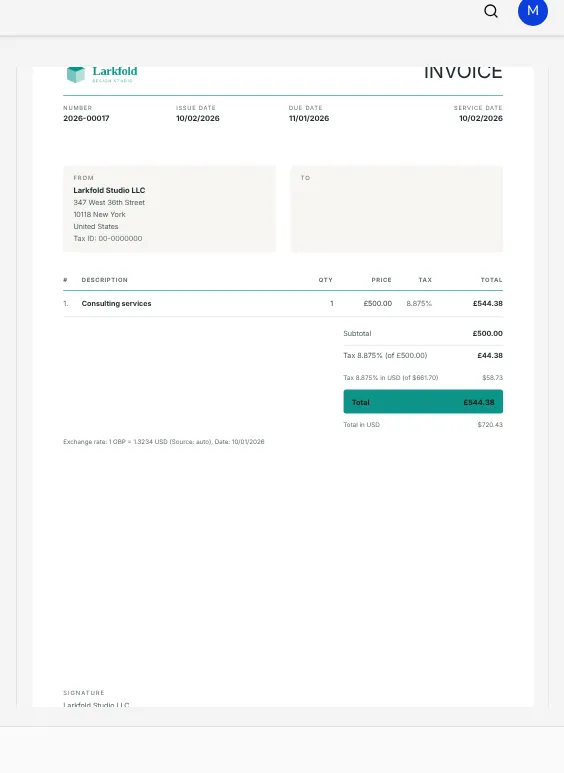
If the invoice's currency is different from your company's own currency, Apollo automatically fetches a live exchange rate and adds a line under the total labeled Total in your company's currency, together with an Exchange rate note showing the rate it used and its date. Your customer still owes the amount shown in the invoice's own currency — this extra line is only there for your own records.
![Invoice preview with the Total in USD reference line and the Exchange rate note below the totals]()
- 6
Finish, save and send#
Continue filling in the recipient and any notes as you would for any invoice, then click Save to issue it, or Save as Draft if you're not ready. The PDF and any email you send will show every amount in the currency you chose. Save as Draft and sending by email aren't available in Portugal, where every invoice is issued straight away.
Tips
- The currency you choose applies to the whole document, not individual lines, so a single invoice always uses one currency.
- Once an invoice is issued, its currency is one of the details that becomes locked, so double-check it before you save.
- The reference total in your own currency is informational only; it never changes what the customer is asked to pay in the invoice's currency.
- If most of your customers in one country pay in the same currency, it's worth checking your company's default currency in settings so you don't have to change it every time.
Frequently asked questions
Does Apollo convert my prices to the new currency automatically?
No, the price you type for each item stays exactly as entered, in the currency you picked. When that currency differs from your own company's currency, Apollo does add one extra reference line with the total converted using an automatically fetched exchange rate, purely so you can see the equivalent for your own records.
Can different items on the same invoice use different currencies?
No, the currency you choose applies to the entire document, so every line and the total use that one currency.
Can I still use my usual tax rates on a foreign-currency invoice?
Yes, tax rates work exactly the same way regardless of the currency you've chosen for the document.
Which currencies can I choose from?
The Currency field lists a wide range of world currencies by code and name; scroll through the list or type a code to jump to the one your customer uses.