How to add your logo and brand color
Your logo and brand color appear on every invoice, estimate and other document you send to customers. Setting them up takes only a few minutes, and the change shows on your documents right away.
- 1
Open branding settings#
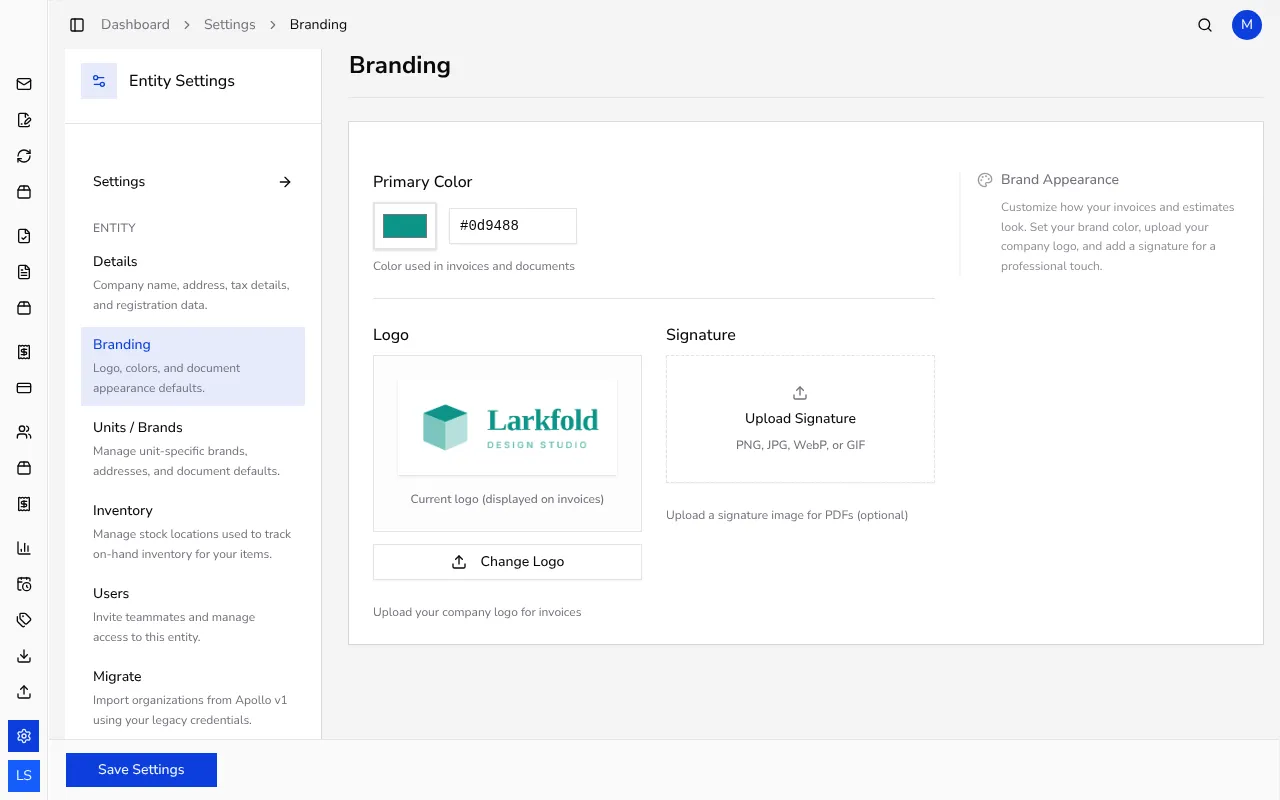
In the sidebar, click Settings, then choose Branding in the Entity section.
![Branding settings page with color, logo and signature sections]()
- 2
Pick your brand color#
Under Primary Color, click the color swatch to pick a color, or type its six-digit code (for example #5c6ac4). This color is used on invoices and other documents.
- 3
Upload your logo#
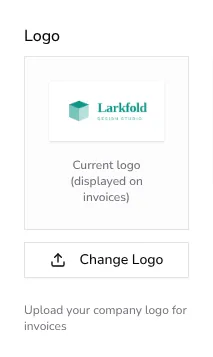
Under Logo, click Upload Logo (the button reads Change Logo if you already have one) and choose a file from your computer. Accepted formats are PNG, JPG, WebP or GIF. Once uploaded, you can crop the image in the Crop Your Logo dialog.
![Logo upload section in the branding settings page]()
- 4
Add a signature (optional)#
Under Signature, click Upload Signature if you want a signature image to appear on PDF documents. This field is optional — skip it or add it later at any time.
Tips
- Use a logo image with a clean background and enough resolution to stay sharp when printed.
- Apollo applies your current logo and brand color whenever a document is opened, downloaded or shared, so a change also updates documents you've already issued; PDFs you already sent or downloaded keep the look they had then.
- You can replace your logo at any time by clicking Change Logo — the old logo is replaced with the new one.
- If you manage more than one company, you need to set the logo and color separately for each one.
Frequently asked questions
Which image formats are supported for the logo?
PNG, JPG, WebP and GIF are all supported. We recommend a PNG with a transparent background for the best look on both light and dark documents.
Does changing the brand color affect documents I already issued?
Yes. Changing the color or logo also changes how existing documents look when you open, download or share them again; PDFs you already sent or downloaded keep the look they had then. Documents issued under a business unit with its own logo or color keep that unit's branding from when they were issued.
Is a signature required?
No, the signature is optional. If you don't upload one, documents are issued without a signature image.
How do I change the overall PDF document template?
The document template's layout is set separately in the PDF templates settings; your logo and brand color apply no matter which template you choose. In Portugal, every document uses one fixed layout, so there's no template to choose.