How to edit your company details
Your company details print on every invoice, estimate and other document you issue — from your name and address to the bank account customers pay into. Fill this page in right after you sign up, and revisit it whenever any of these details change.
- 1
Open your company details#
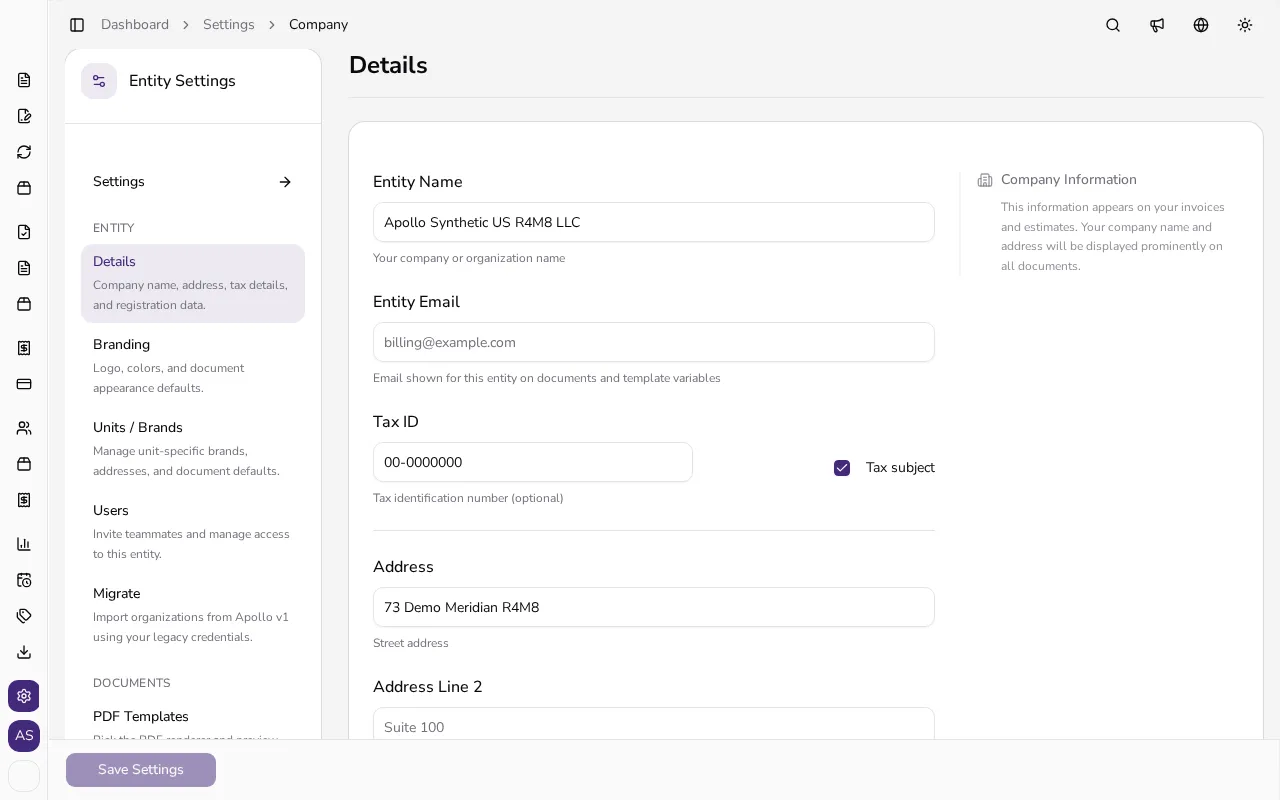
In the sidebar, click Settings, then choose Details in the Entity section.
![Company settings page showing basic details and address sections]()
- 2
Check your basic details#
Enter your full registered business name in Entity Name. Optionally add an Entity Email — this address is shown on documents and used by template variables.
- 3
Enter your tax number#
Type your tax identification number into Tax ID. Use the Tax subject checkbox to mark whether you're registered for VAT. It decides whether new document lines start with your default tax rate; you can still change or remove the tax on any line.
- 4
Add your company address#
Fill in Address, optionally Address Line 2, then City, State/Province and Postal Code. The Country field is read-only, since a company's country can't be changed after it's created.
- 5
Enter your bank account#
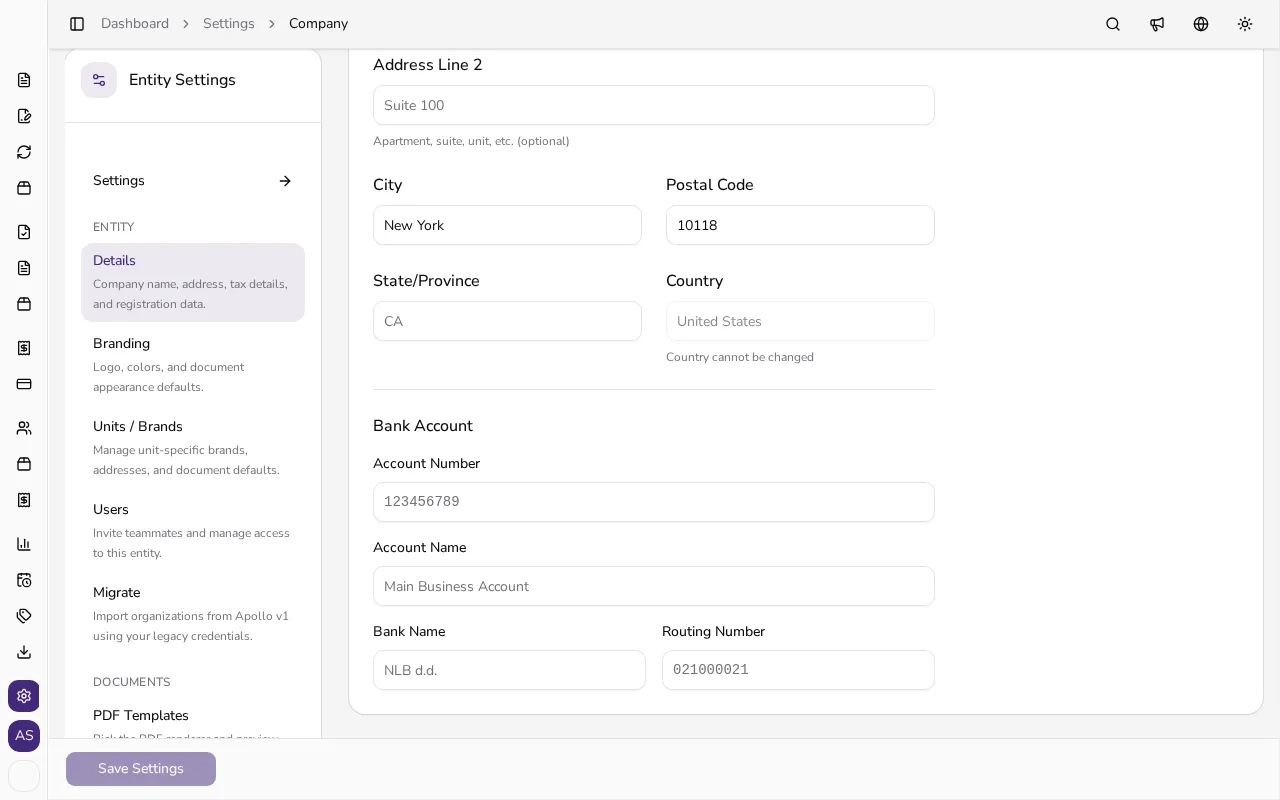
Under Bank Account, fill in IBAN (or Account Number and Routing Number for a US bank), plus Account Name and Bank Name. These details print on your documents so customers know where to send payment.
![Bank account section with account name and bank name fields]()
- 6
Save your changes#
Once everything looks correct, click Save Settings. The update applies immediately to every new document you issue from now on.
Tips
- Your company name and address appear on every document you issue, so check them before sending your first invoice.
- Unchecking Tax subject doesn't strip taxes from your documents by itself: items from your catalog keep their saved taxes, so check them if you aren't VAT-registered.
- The bank details under Bank Account are what your customers see when they need to pay you.
- The country can't be changed after your company is created — if you picked the wrong one, you'll need to create a new company instead.
Frequently asked questions
Why can't I edit the Country field?
The country is set when your company is created and can't be changed afterwards, because it determines the tax rules and document formats that apply to your entity.
Do I have to fill in a bank account?
It's optional but recommended: your bank details are printed on documents, making it easier for customers to pay you by bank transfer.
What does the Tax subject checkbox mean?
It marks whether your company is registered for VAT. Turn it off and new document lines and new catalog items start without a tax, and for EU companies Apollo stops applying automatic reverse charge to sales to businesses in other EU countries. Items already saved in your catalog with a tax still bring it onto the line when you pick them — if you aren't VAT-registered, remove the tax on the item or on the line with the X next to it. In Portugal every document line still needs a tax treatment, so pick an exempt one instead.
Where do customers actually see these details?
In the header of every invoice, estimate, credit note and other document you issue, and in the emails you send from Apollo (sending by email isn't available in Portugal).