How to send an invoice by email
Once an invoice is issued, you don't need to leave Apollo to get it to your customer. The Send button on the invoice sends it by email directly, with the PDF attached or linked, and keeps a record of when it was sent. This guide covers every field in that email dialog.
- 1
Open the invoice#
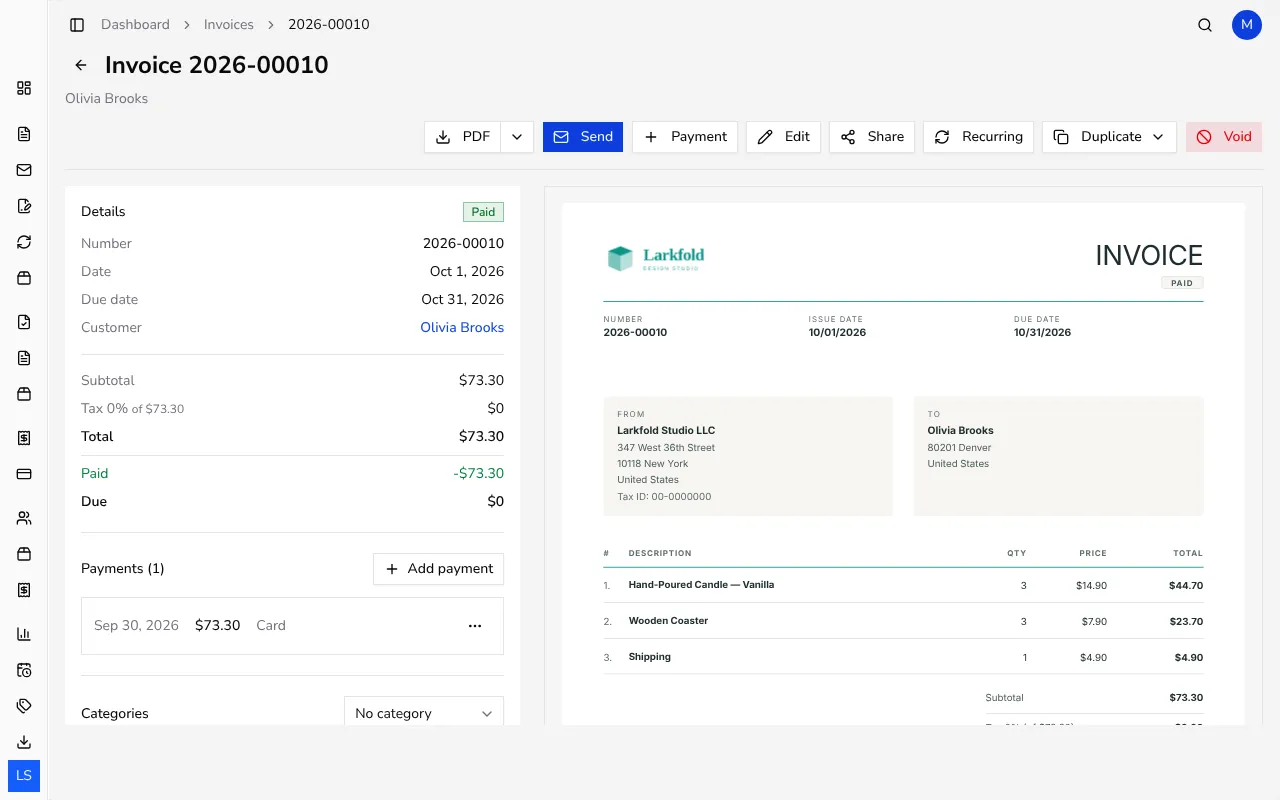
From Invoices in the sidebar, click the invoice you want to send. This opens the invoice's own page, which shows its status, totals, and an actions row along the top with PDF and Send.
![Invoice detail page with the PDF and Send buttons in the actions row]()
- 2
Click Send#
Click Send in the actions row. A dialog titled Send Invoice by Email opens, already carrying the customer's email address if you have one on file.
- 3
Check the recipient, subject and message#
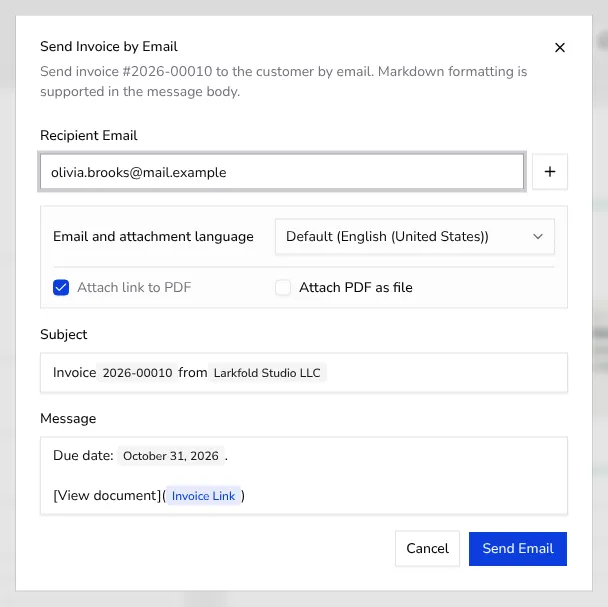
The Recipient Email field is pre-filled from the customer, but you can change it or click Add recipient to send to up to four addresses. Subject and Message come with sensible defaults that you can edit; the message box supports simple formatting such as bold, italic and links.
![Send Invoice by Email dialog with recipient, subject and message fields]()
- 4
Choose how the PDF is attached#
Toggle Attach PDF as file to send the invoice as a PDF attachment, or Attach link to PDF to send a link instead. Under Email and attachment language, you can pick a specific language for the email and the attached or linked document, or leave it on Default to match the invoice.
- 5
Send the email#
Click Send Email to deliver it right away. Apollo shows a confirmation once it's sent and records the send as an activity on the invoice, so you always know when and to whom it went out.
Tips
- You can resend the same invoice as many times as you like, for example when a customer says they never received it.
- If you'd rather download the file yourself and send it from your own mail client, use the PDF button next to Send instead.
- Editing the subject or message here only affects this email; it doesn't change your default note or payment terms on the invoice.
Frequently asked questions
Can I send an invoice to more than one email address?
Yes, click Add recipient in the Send dialog to add up to four email addresses for the same invoice.
Will the customer see a link or a PDF file?
That depends on which option you choose in the dialog: Attach PDF as file sends the document itself, while Attach link to PDF sends a link the customer can open instead.
Can I send an invoice in a different language than my account?
Yes, use the Email and attachment language option in the Send dialog to send the email and the attached or linked document in a specific language for that customer.
How do I know an invoice was actually sent?
After sending, Apollo confirms it on screen and adds a Sent entry to the invoice's activity history, so you can check back later.