How to create and invoice a delivery note
A delivery note lists what you're shipping or handing over to a customer, without necessarily billing for it yet — useful when goods go out before you invoice, or when whoever receives them needs a signed record of what was delivered. Apollo lets you create one quickly and, once the customer has everything, turn it straight into an invoice.
- 1
Open Delivery Notes and start a new one#
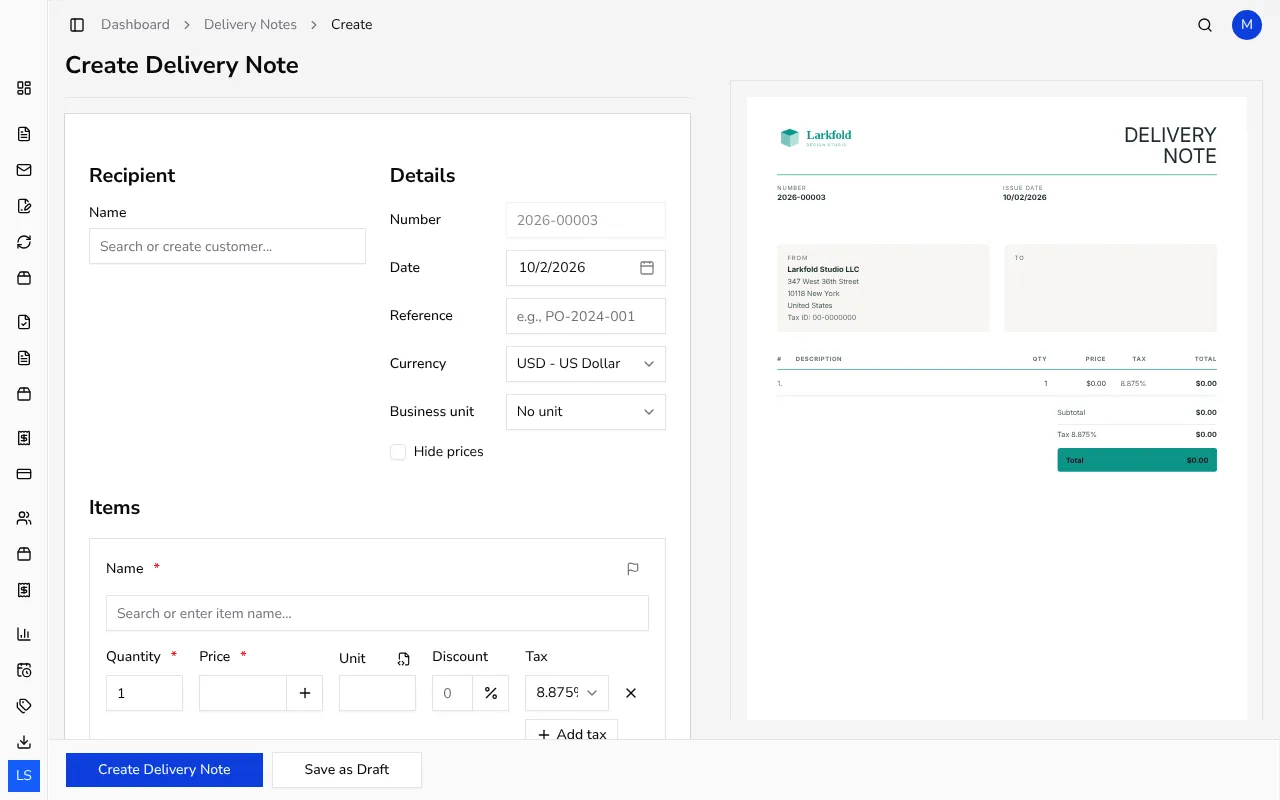
In the sidebar, under Other documents, click Delivery Notes, then click Create. A form opens for the recipient, items and details, much like an invoice.
![Blank delivery note form with recipient and items sections]()
- 2
Add the recipient and items#
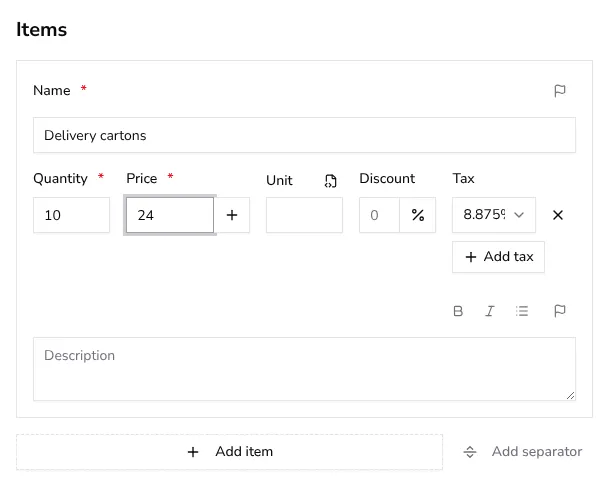
Under Recipient, search for or add the customer. Under Items, add each line with a Name, Quantity, Unit and Price, and a Tax rate if it applies — the same way you would on an invoice.
![Items section of the delivery note form with a line item's quantity and price filled in]()
- 3
Hide prices if this is a packing slip#
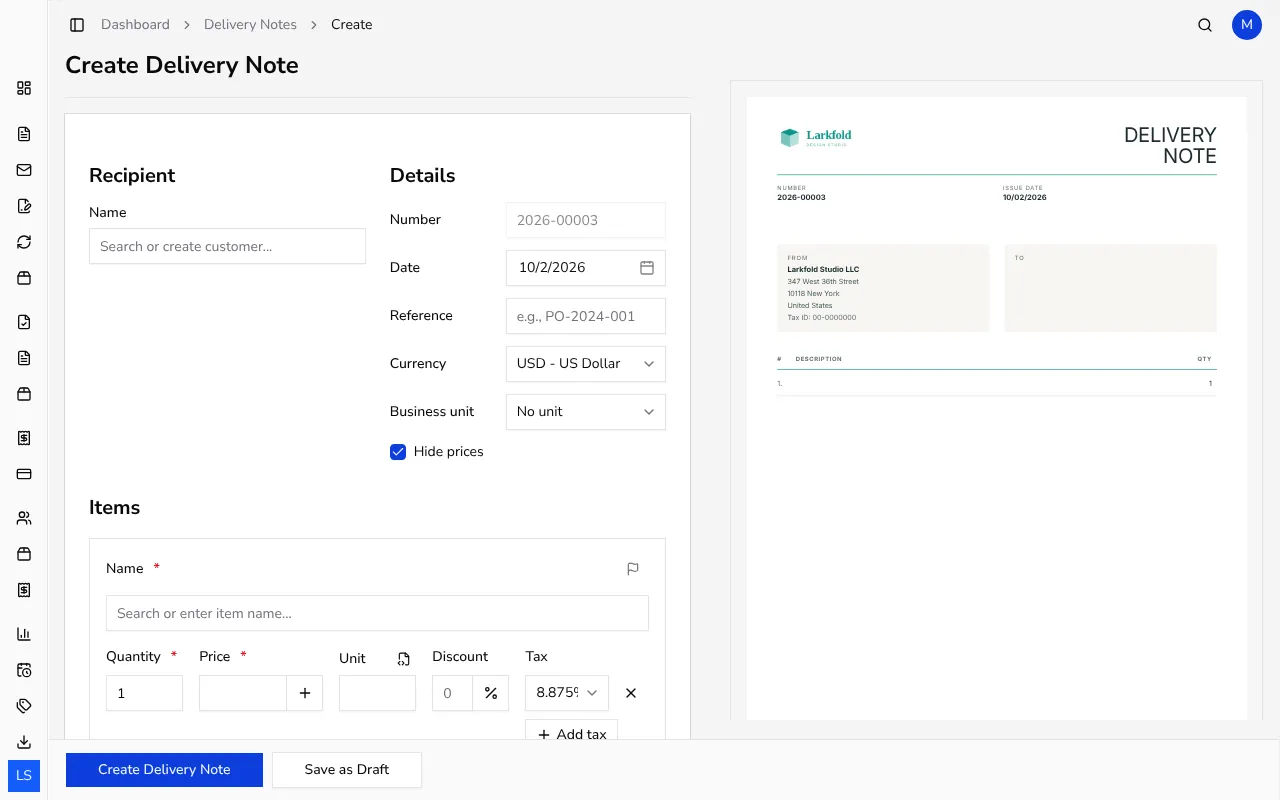
Turn on Hide prices if the delivery note is meant to travel with the goods as a packing slip rather than a priced document — the PDF then shows quantities and descriptions without any amounts. The prices are still stored behind the scenes, so nothing is lost when you invoice it later.
![Delivery note details section with the Hide prices toggle switched on]()
- 4
Add a note or signature (optional)#
The Note field is a good place for delivery instructions, and Signature lets you add a name or line for a driver or recipient to sign against.
- 5
Save the delivery note#
Click Save to issue it with its own number, or Save as Draft if you're not ready yet. Either way, it lands on its own page and appears in your Delivery Notes list.
- 6
Turn one or more delivery notes into an invoice#
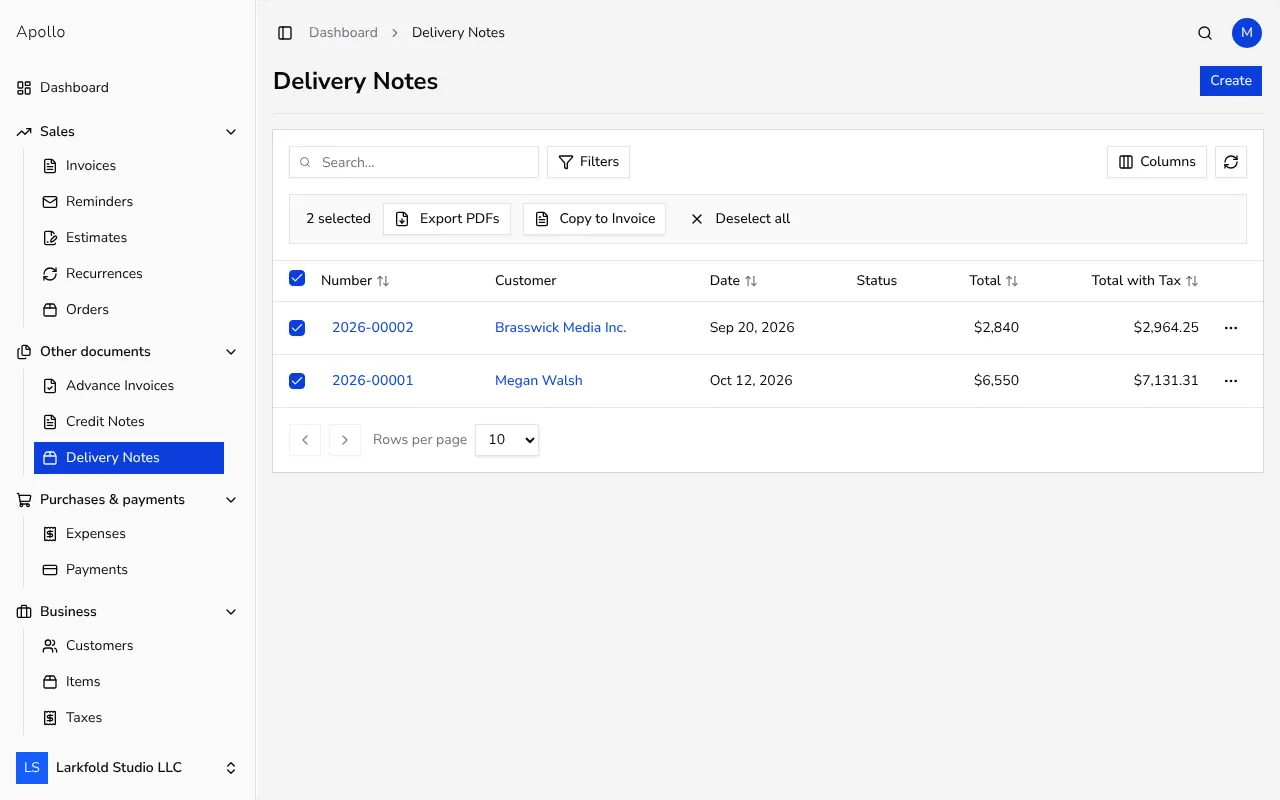
Once the goods are delivered, open a delivery note's menu and choose Create invoice, or select several delivery notes for the same customer and currency in the list and click Copy to Invoice. Apollo builds one new invoice from all their items; drafts and voided delivery notes can't be converted this way.
![Delivery note list with several rows selected and the Copy to Invoice button visible]()
Tips
- Hide prices is handy when the recipient is a warehouse or driver who doesn't need to see amounts; leave it off for a delivery note that also doubles as a priced document.
- You can select several delivery notes for the same customer and currency and merge them into a single invoice instead of billing each one separately.
- A delivery note you've already turned into an invoice stays linked to it, so you can always trace which invoice covers which delivery.
Frequently asked questions
Can I turn several delivery notes into one invoice?
Yes. Select delivery notes for the same customer and currency in the list and click Copy to Invoice; Apollo lines up all their items on a single new invoice.
Can I convert a draft or voided delivery note into an invoice?
No. Only delivery notes that are already issued and not voided can be turned into an invoice; finalize a draft first or start from a different delivery note.
Does hiding prices change what I can invoice later?
No. Hide prices only affects what prints on the delivery note's PDF; the quantities and prices are still stored and carry over correctly once you create an invoice from it.
Can I add a due date or payment terms to a delivery note?
No. Delivery notes don't have payment terms or a due date since they aren't billing documents on their own; those fields appear once you create the invoice from it.