How to connect your Shopify store to Apollo
The Apollo Invoicing app from the Shopify app store connects your Shopify store to Apollo. Apollo then imports the store's orders and issues invoices from them automatically, following the rules you set: by default each new order is processed as soon as Shopify creates it, the payment is recorded on the invoice once the order is paid, and the customer and line items come straight from the order. This guide shows how to connect the store, which settings to check and where to follow the imported orders in Apollo.
- 1
Open Integrations and choose Shopify#
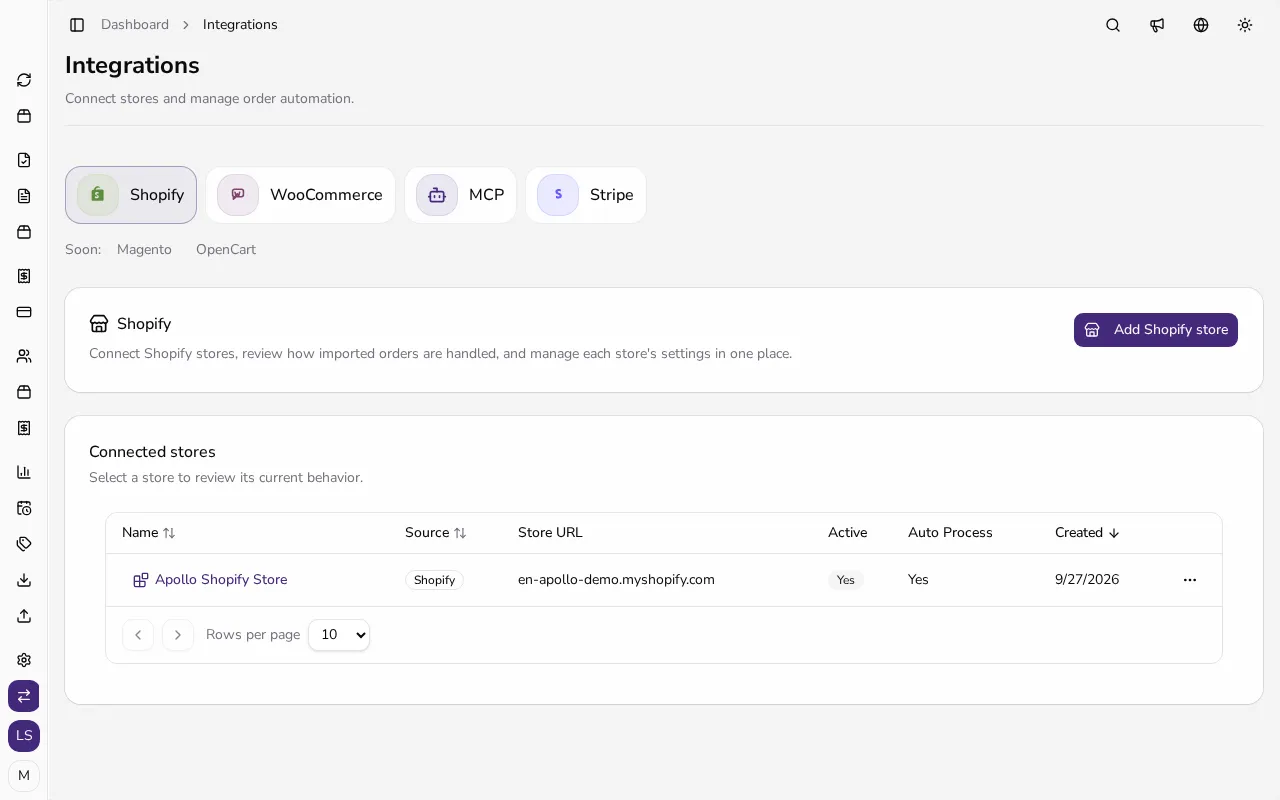
In the sidebar, under Entity, click Integrations and choose Shopify. The Connected stores list shows every store already connected to this company; each one has its own processing settings. Only company admins can add, edit or remove stores; other users see the settings read-only.
![Integrations page with the Shopify tab selected, the Add Shopify store button and a Connected stores list with one store]()
- 2
Start the connection in Apollo#
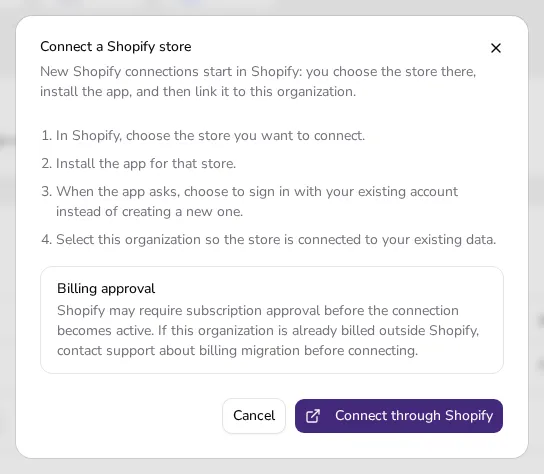
Click Add Shopify store. The Connect a Shopify store dialog lists the steps that follow in Shopify, and its Billing approval note explains that Shopify may ask you to approve a subscription before the connection becomes active. Click Connect through Shopify to open the Apollo Invoicing listing in the Shopify app store in a new tab.
![Connect a Shopify store dialog with the four connection steps, the Billing approval note and the Connect through Shopify button]()
- 3
Install the Apollo Invoicing app in Shopify#
In Shopify, choose the store you want to connect and install the Apollo Invoicing app for it. The app only asks Shopify for permission to read orders. Then approve the app's subscription in Shopify, which bills it; the prices are in the FAQ below.
- 4
Link the store to your company#
When the app asks, choose to sign in with your existing Apollo account instead of creating a new one, and select the organization you want to connect the store to, so the store's invoices are issued alongside your existing data. Once the connection is made, the store appears in the Connected stores list on the Integrations page under Shopify.
- 5
Check when orders become invoices#
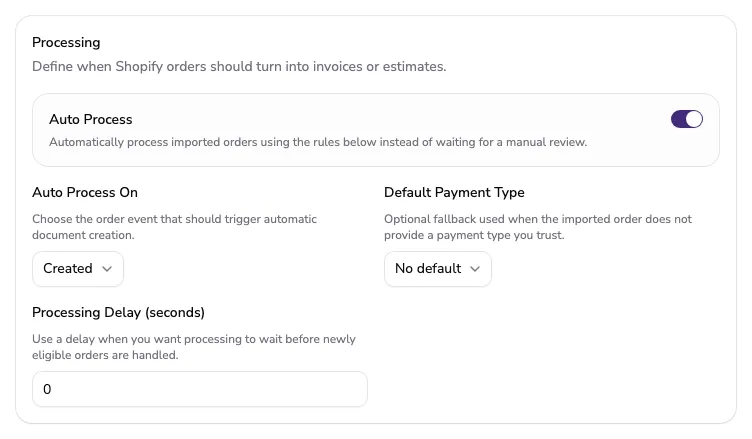
Click the store's name and then Edit integration in its details. Under Processing, Auto Process is selected and Auto Process On is set to Created, so Apollo processes each new order as soon as it arrives. An unpaid bank transfer order becomes an estimate, which Apollo converts into an invoice once it's paid — unless you select Issue invoices immediately for bank transfers under Document Behavior. A cash-on-delivery order that isn't paid yet when it arrives is processed once it's fulfilled in Shopify; if it's already paid, it becomes an invoice right away. An order with any other payment method becomes an invoice right away, even before it's paid, and Apollo records the payment on it once Shopify reports the order as paid. If you only want invoices for paid orders, choose Paid and click Save.
![Processing section of the Edit Integration dialog with Auto Process selected, the Created trigger and the default payment type]()
- 6
Know how Apollo fills in the invoice#
Apollo issues the invoice like any other, with the next number in your sequence and in the order's currency. It looks for the buyer among your customers by company tax number or email address; if there's no match, it creates a new customer from the billing address. Line items, quantities, prices and taxes come from the order, and shipping is a separate line. A line with a SKU is linked to the catalog item with the same SKU, and Apollo creates that item if it doesn't exist yet. Apollo picks the invoice language from the order's or buyer's language or the billing country, and otherwise uses your company's language.
- 7
Follow the imported orders#
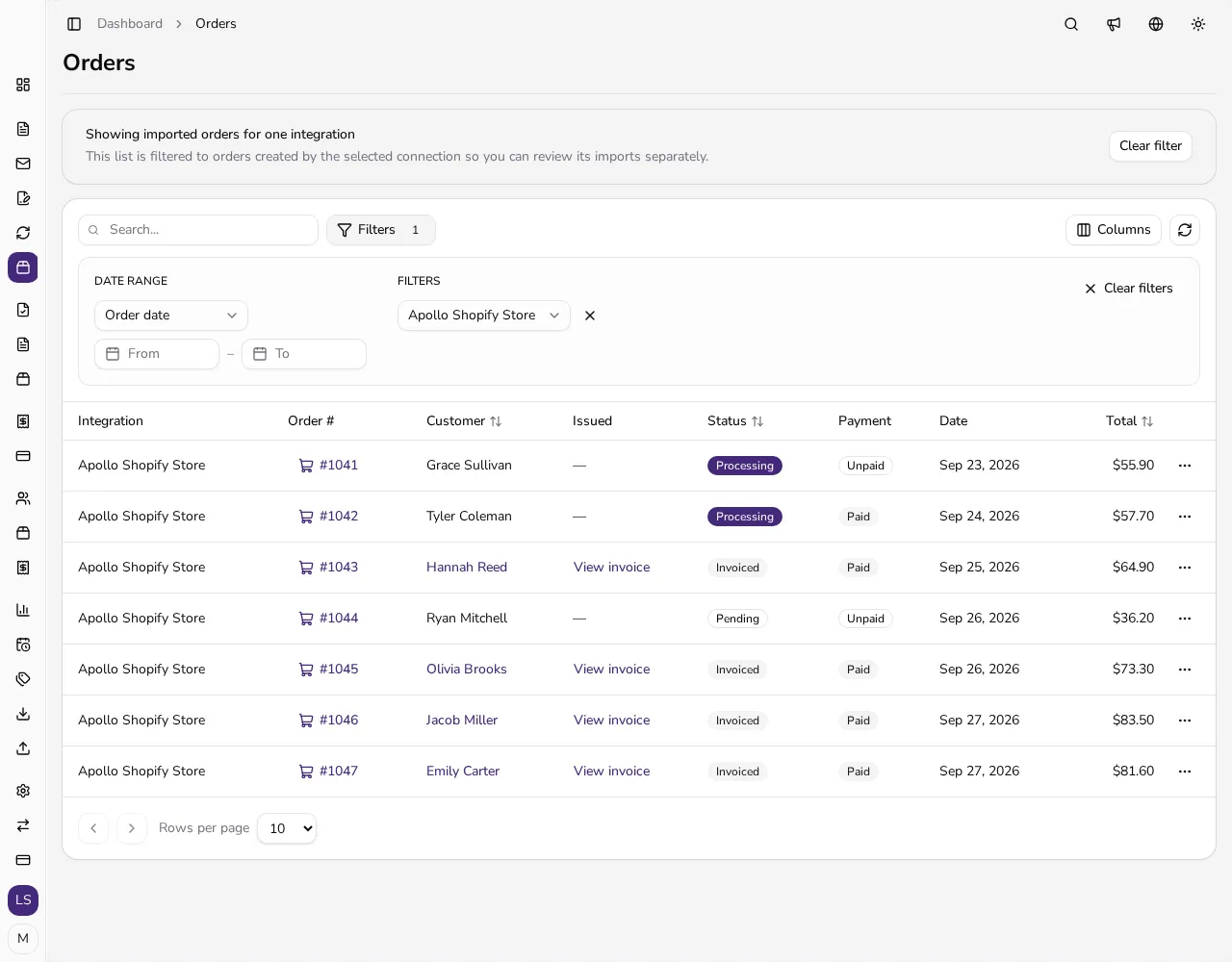
In the store's details, click View imported orders to open the Orders page filtered to that store; you'll also find every order under Orders in the sidebar. An order is Pending, Processing, Invoiced, Estimated, Cancelled or Failed, and the Issued column opens its invoice or estimate. For a failed order, the icon next to its status shows the failure reason; once you've fixed it, choose Reprocess order from the row's menu.
![Orders page filtered to the Shopify store, with orders in the Invoiced, Processing and Pending states and links to their invoices]()
- 8
Pause or disconnect the store#
To pause a store, clear Active in Edit integration. When you select it again, Apollo doesn't import the orders it missed by itself; its details offer Import missed store orders instead. To disconnect for good, uninstall the Apollo Invoicing app from the store in Shopify, and Apollo turns the connection off. A connection billed through Shopify can't be deleted in Apollo until you've uninstalled the app. Invoices already issued stay in Apollo.
Tips
- Customer emails start off for a new connection. If you want Apollo to email the invoice to the buyer, select Send Invoice Email under Communication. In Portugal, Apollo doesn't send documents by email, so these settings aren't shown there, and automatic reissuing after order changes isn't available either.
- If FURS fiscal verification is on, choose the Business Premise and Electronic Device for the store's invoices under Compliance Defaults; without a choice, Apollo uses the first active premise with a device. Also fill in the API Default Operator under Advanced Settings in the FURS settings, because store invoices are issued without a signed-in user.
- Apollo doesn't import orders placed before you connected the store. Import them from the store's details with Import recent store orders, for up to 90 days; keep in mind that those orders can create and send documents using the current settings.
Frequently asked questions
How much does the Apollo Invoicing app for Shopify cost?
Shopify bills the subscription. The first (primary) store is EUR 24.99 every 30 days and includes one 14-day trial and 1,000 invoices. Each additional store is EUR 5.99 every 30 days and adds 1,000 invoices. Invoices above the included monthly allowance are EUR 0.01 per invoice. If your organization already pays for Apollo outside Shopify, contact support about moving the billing before you connect.
Can I connect more than one Shopify store to one company?
Yes. Each store appears separately in the Connected stores list and has its own processing, email and default settings.
What happens to the invoice if I fully refund an order in Shopify?
When Shopify marks the order as fully refunded, Apollo voids the invoice the same way it does when you void one yourself. A partial refund doesn't void the invoice.
What does the Failed status on an order mean?
Apollo couldn't create a document from the order. The reason is shown next to the status on the Orders page; once you've fixed it, for example by adding a missing business premise, process the order again with Reprocess order.