How to save an invoice as a draft
Not every invoice is ready to go out the moment you start it. A draft lets you save your progress without assigning a final document number, so you can double-check details, wait for a missing price, or get a colleague's approval before it becomes an official document.
- 1
Fill in what you have so far#
Start a new invoice the usual way, from Invoices then Create, and add whatever you already know: the customer, a few items, or just a note to yourself. You don't need every field filled in to save a draft.
- 2
Save as a draft instead of issuing#
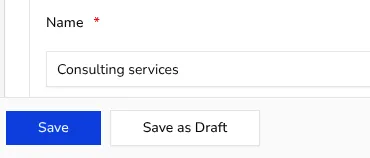
At the bottom of the form, click Save as Draft instead of Save. This stores everything you entered without assigning a document number or locking any details, so nothing here counts as an official invoice yet.
![Invoice form footer with the Save as Draft button next to Save]()
- 3
Find your draft again later#
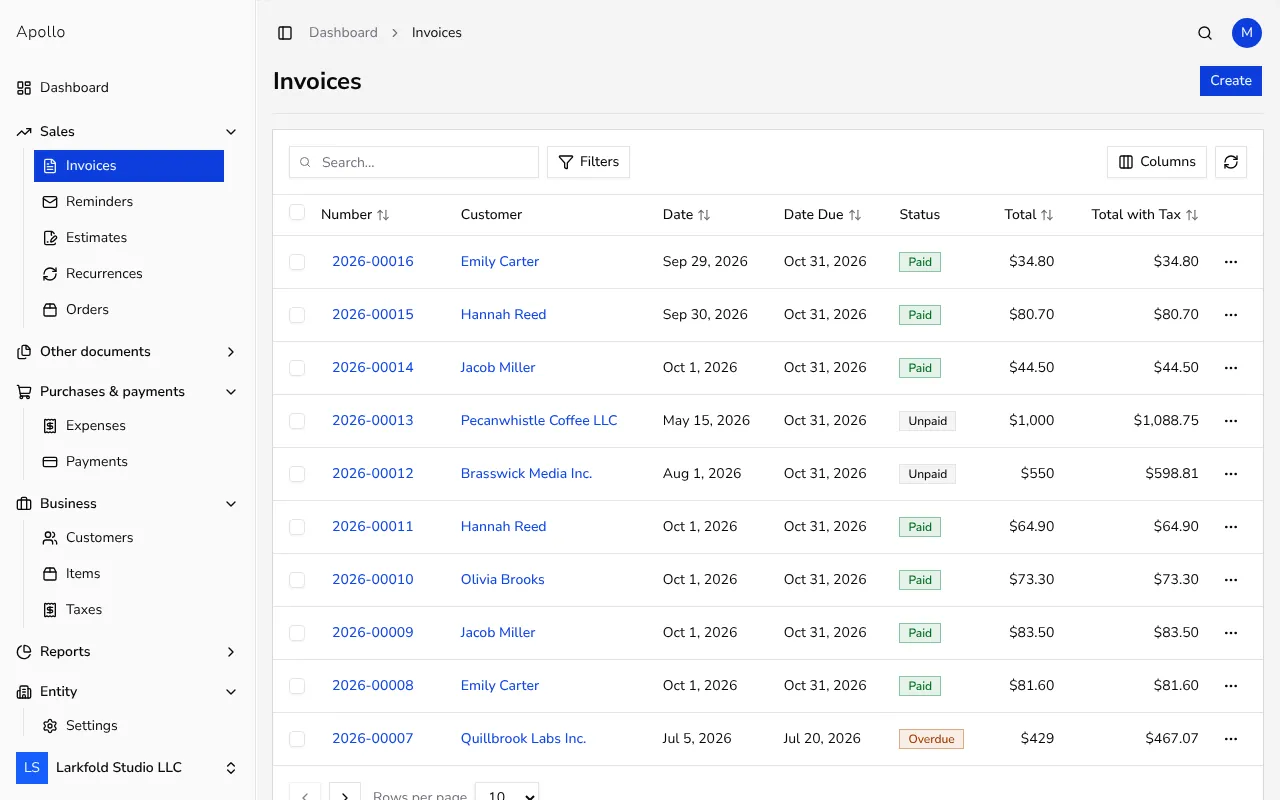
Your draft sits in the same Invoices list as every other invoice, in its Number and Status columns. Since it doesn't have a real number yet, it's shown with the label Draft where the number would normally appear, so it's easy to spot at a glance.
![Invoices list with its Number and Status columns, the same place a saved draft appears]()
- 4
Finish and issue it when ready#
Open the draft, fill in anything that was missing, and click Issue at the top of the page. Apollo asks you to confirm, then assigns the invoice its final number. Once issued, the document behaves like any other invoice and most fields lock in place.
- 5
Delete a draft you no longer need#
If a draft turned out to be unnecessary, open it and click Delete Draft. Because it was never issued, deleting it leaves no trace in your numbering sequence, unlike an issued document.
Tips
- A draft never uses up a document number, so starting and abandoning several drafts won't create gaps in your invoice numbering.
- You can keep editing a draft as many times as you like before you issue it; nothing about it is locked until then.
- If you're not sure whether to issue or keep drafting, it's safe to leave it as a draft — nothing is sent to the customer until you choose to send it.
Frequently asked questions
Does a draft invoice count toward my document numbering?
No, a draft only gets its official number once you issue it, so drafts you delete never leave a gap in your sequence.
Can I send a draft to a customer?
Issue it first. Once it has a final number, use the Send button on its page to email it, the same way you would any other invoice.
How is a draft different from an issued invoice on the list?
A draft shows the word Draft where the document number would normally be, and it can still be edited or deleted freely, unlike an issued invoice.
What happens to a draft's date once I issue it?
You can review and adjust the date and other details on the draft before issuing it, since none of the fields are locked until it becomes an official invoice.