How to create DPD labels for your orders in Apollo
Once your DPD EasyShip account is connected to Apollo, you create a DPD parcel straight from an order Apollo imported from your store, and you never retype the recipient's address into the DPD portal. This guide shows how to connect DPD, create and print a label, prepare labels for several orders at once, and where to follow a parcel and cancel it if needed. DPD is available to companies registered in Slovenia.
- 1
Connect DPD EasyShip#
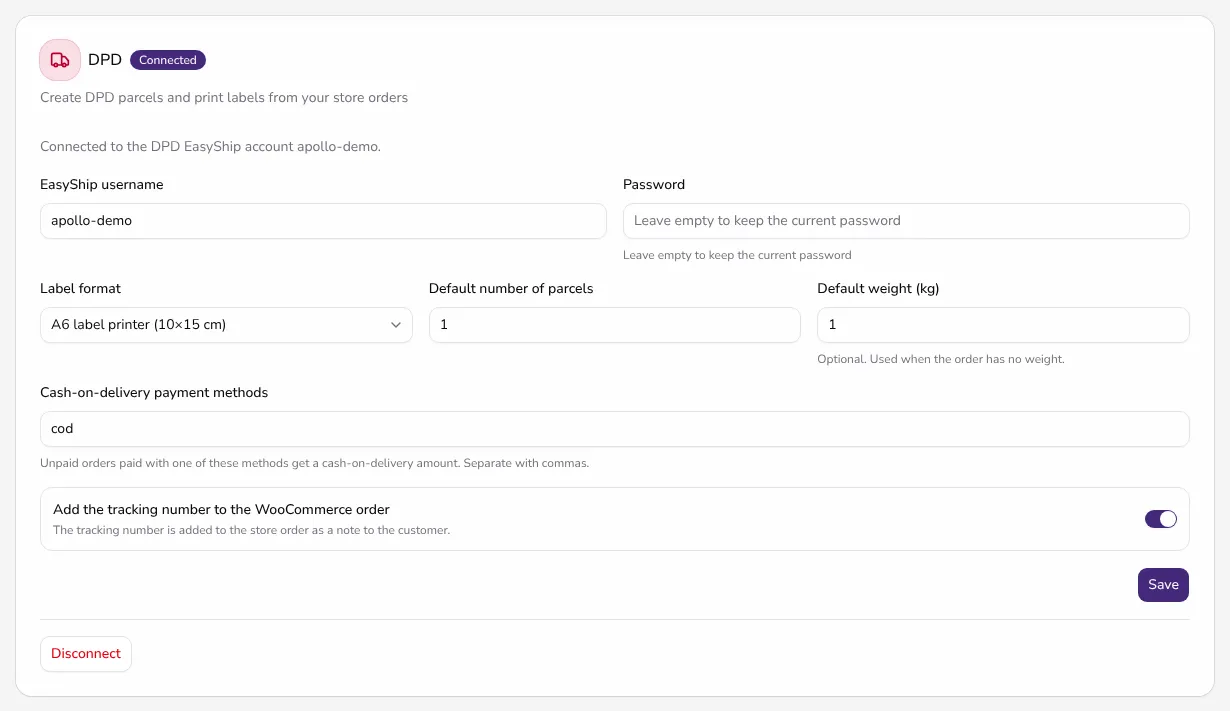
In the sidebar, under Entity, click Integrations and choose DPD. Enter the EasyShip username and Password of your DPD EasyShip account, then set the Label format (A6 label printer (10×15 cm) or A4 sheet), the Default number of parcels (1 to 30) and, if you like, the Default weight (kg), which is used when an order has no weight. In Cash-on-delivery payment methods, list the payment methods where the courier collects the money, separated by commas. Add the tracking number to the WooCommerce order is on by default. Click Connect DPD: Apollo checks the username and password with DPD before it saves them. Only users who can manage the company's settings can change the connection.
![Integrations page with DPD selected, the Connected badge and the settings for label format, default number of parcels, weight and cash-on-delivery payment methods]()
- 2
Create a label from an order#
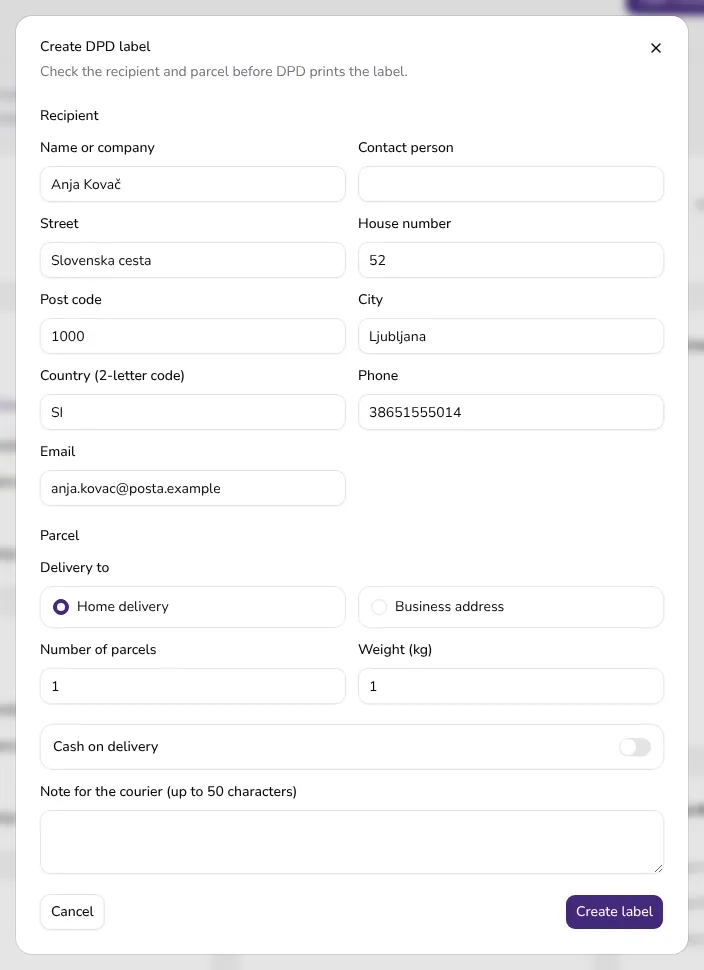
In the sidebar open Orders and click an order. On the Shipping card, choose Create DPD label. Apollo pre-fills the form: the recipient is the order's shipping address, or its billing address if the order has no shipping address. When the address has a company, the company is the recipient, the person's name is the Contact person and Delivery to is Business address; otherwise it is Home delivery. Check the recipient, the Number of parcels and the Weight (kg). For an unpaid order with a cash-on-delivery payment method, Cash on delivery is on and Amount to collect is the order total including VAT; cash on delivery is only available for orders in EUR. You can add up to 50 characters in Note for the courier. Click Create label. If Apollo notices a problem with a value, such as a missing house number or a phone number it couldn't read, it shows it under the field. It doesn't change the value, so you fix it yourself.
![Create DPD label dialog with the recipient, delivery type, number of parcels, weight, cash on delivery and note for the courier filled in]()
- 3
Download and print the label#
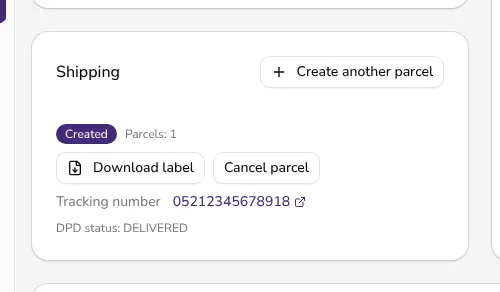
DPD prints the label as soon as the parcel is created, and Apollo stores it. When the parcel is created, the PDF downloads by itself; if it doesn't, click Download label on the Shipping card. If DPD can no longer provide the label, Apollo tells you and you download it in the DPD portal. An order that already has a parcel doesn't get a second one by accident: for another parcel, click Create another parcel, but only when the order ships in more than one package.
![Shipping card on an order with the Created badge, the number of parcels, the tracking number, the DPD status and the Download label and Cancel parcel buttons]()
- 4
Create labels for several orders#
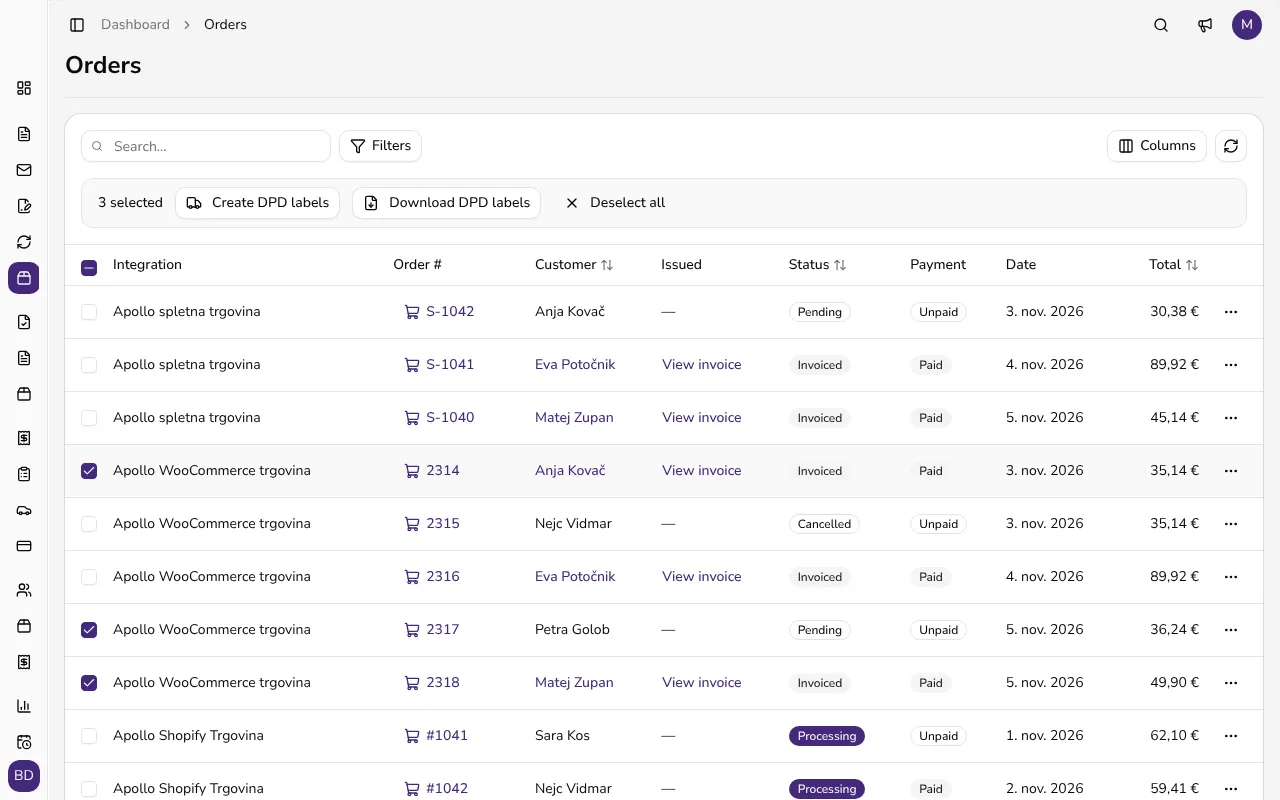
In the Orders list, tick up to 50 orders and click Create DPD labels. Apollo creates a parcel with the default values for each order, one after the other, and the DPD labels window then shows what happened: Label created, Already had a label, or Skipped when an order is cancelled or refunded. Orders that couldn't get a label are listed with the reason. Download labels gives you all the labels in one PDF. To download the labels of parcels you already created, click Download DPD labels.
![Orders list with three orders ticked and the Create DPD labels and Download DPD labels buttons in the selection bar]()
- 5
Follow the parcel and cancel it if needed#
The tracking number on the Shipping card links to DPD tracking. Apollo refreshes the DPD status from time to time on its own, for recent parcels, until DPD reports a final status. For WooCommerce stores, Apollo also adds the tracking number to the order as a note to the customer if Add the tracking number to the WooCommerce order is turned on. If that fails, the card shows Tracking number was not added to the store order. A parcel you won't ship is cancelled with Cancel parcel and a confirmation. If DPD didn't confirm a parcel when it was created, its status is Not confirmed by DPD: check the DPD portal and, if the parcel isn't there, click I checked the DPD portal – mark as cancelled.
Tips
- You create the DPD EasyShip account with DPD Slovenia and sign the contract yourself. Shipping prices are between you and DPD.
- Before you create labels for many orders, check the default number of parcels and the weight in the DPD settings: Apollo fills them into every new parcel.
- Users with operational write access create and cancel parcels. Other users can see the parcels and download stored labels.
- If you disconnect DPD, parcels and labels you already created stay.
Frequently asked questions
What do I need for DPD labels in Apollo?
A company registered in Slovenia and a DPD EasyShip account. Apollo checks your username and password with DPD and stores them encrypted. You agree the contract and the shipping prices directly with DPD.
Can I send several parcels for one order?
Yes. Set the Number of parcels in the form (up to 30), and for an order that ships in more than one package, create another parcel with Create another parcel.
What if the address in the order is incomplete?
The form warns you under the field, for example that the house number is missing or a value is too long, and it doesn't change the value. A label can't be created without the name, street, house number, city, post code and country. When you create labels for several orders, Apollo lists such an order as failed, with the reason.
Does Apollo send the tracking number to my Shopify store?
No. Apollo writes the tracking number only to WooCommerce orders, as a note to the customer, if Add the tracking number to the WooCommerce order is turned on. For other stores you see it on the Shipping card in Apollo.