How to issue a FURS-verified invoice in Apollo
Once FURS fiscalization is turned on in Apollo, most invoices paid by bank transfer go out without fiscalization, while cash, card and similar payments are always verified with FURS. This guide shows how to pick a business premise and device, what Apollo shows on the issued invoice and its PDF, and what happens to the date, drafts and voiding for a fiscalized invoice.
- 1
See which invoices get fiscalized#
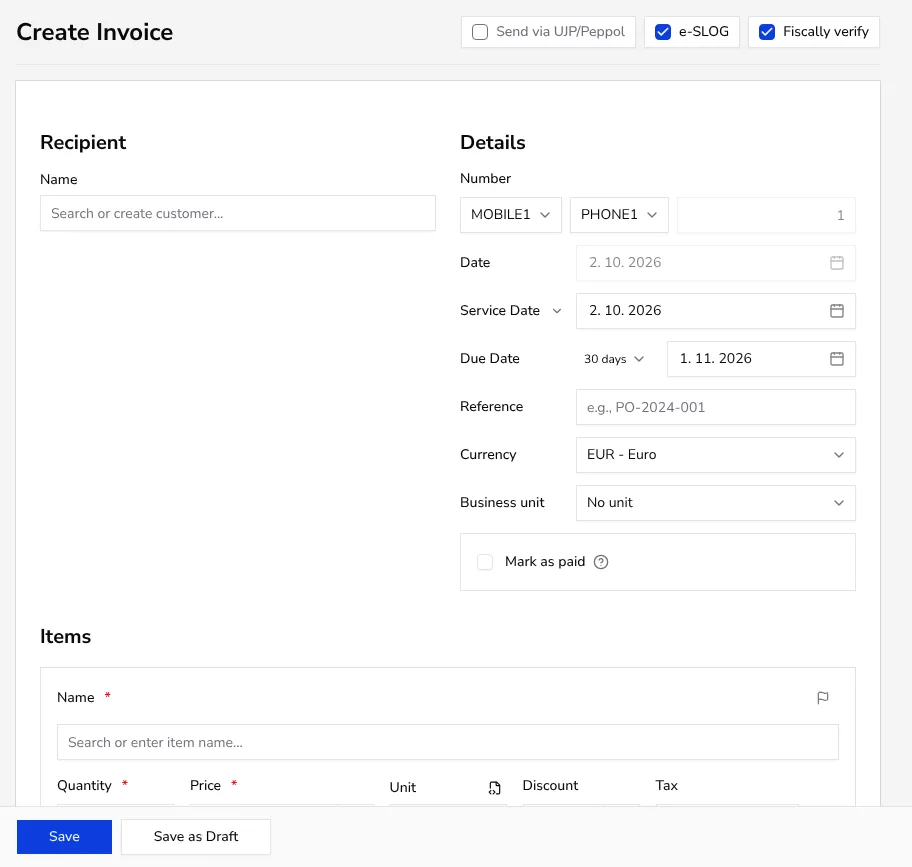
Apollo fiscalizes every invoice paid by cash, card, check or another direct method — for these payment types, fiscalization can't be skipped. If you pay by bank transfer or haven't set a payment yet, you can skip it for that invoice with the Fiscally verify toggle in the form header. In FURS settings, Skip Fiscalization by Default makes this the default for new invoices — choosing a non-bank-transfer payment always turns fiscalization back on.
- 2
Choose a business premise and device#
Once FURS is enabled and you have at least one registered business premise, Apollo shows extra Premise and Device selects next to the Number field on the invoice form — pick a registered premise and one of its electronic devices, and Apollo suggests the next invoice number for that combination. These selects disappear when editing an issued invoice, since fiscalization is decided at issue time.
![Invoice form with the Fiscally verify toggle in the header and Premise and Device selects next to the Number field]()
- 3
Know the date is always today#
With fiscalization selected, Apollo locks the date field to today (Slovenia time) when you issue the invoice — fiscalization requires the invoice date to match today's date. The same applies when you finalize a draft: Apollo sets the draft's date to today at that point, and only assigns its number then.
- 4
Check the status on the invoice view#
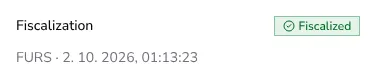
On an issued invoice's view page, the Fiscalization section shows a status badge (Fiscalized, Pending, Failed or Skipped) and the time it was successfully verified.
![Fiscalization section on an invoice view showing a Fiscalized status badge and the verification time]()
- 5
Find the ZOI, EOR and QR code on the PDF#
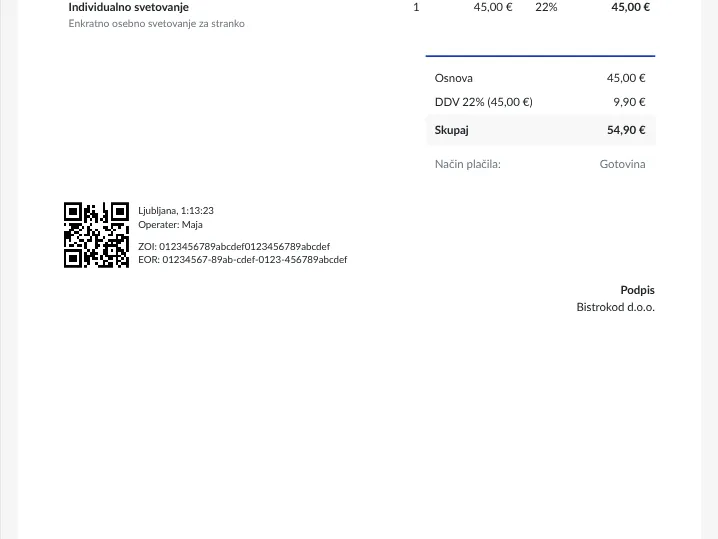
The EOR, ZOI and QR code print only on the invoice PDF, and only once fiscalization succeeds — not on the in-app view. The block also includes the premise city, issue time and operator label.
![FURS data block on the invoice PDF showing the ZOI and EOR codes and a QR code]()
- 6
Void a fiscalized invoice#
When you void a fiscalized invoice (Void), Apollo also fiscalizes the offsetting credit note it creates — reusing the same business premise and device as the original invoice where possible. See How to void an issued invoice for the full voiding steps.
Tips
- Check your operator details (tax number and label) in FURS settings before you issue your first cash invoice — without them, Apollo can't fiscalize it.
- You can skip fiscalization for bank transfers; Apollo never allows skipping it for cash, card, check or other payments.
- You can't change a fiscalized invoice's date after issuing it — void it and issue a new one instead if it's wrong.
Frequently asked questions
Which invoices does Apollo always fiscalize?
Any invoice paid by cash, card, check or another direct method — fiscalization can't be skipped for these payment types; for bank transfer or no payment yet, you can skip it.
Why is the date locked when I issue a fiscalized invoice?
FURS requires the invoice date to match today's date; the same applies to finalizing a draft — Apollo sets it to today automatically at that point.
Where do I see the ZOI, EOR and QR code on an invoice?
Only on the issued invoice's PDF, once fiscalization succeeds. The in-app view only shows a status badge and the verification time.
What happens when I void a fiscalized invoice?
Apollo creates an offsetting credit note and fiscalizes it with FURS too — the same way it fiscalized the original invoice.