How to submit a UJP package to a public-sector buyer
E-invoices to Slovenian public-sector buyers (budget users) travel through the Public Payments Administration (UJP), the single entry and exit point for their e-invoices. Apollo prepares the UJP package; sending it is up to you. This guide explains what's in the package, which sending routes UJP lists, how to check the files with UJP's own tool before sending, and what to do if an e-invoice isn't delivered or the buyer rejects it.
- 1
Download the UJP package from Apollo#
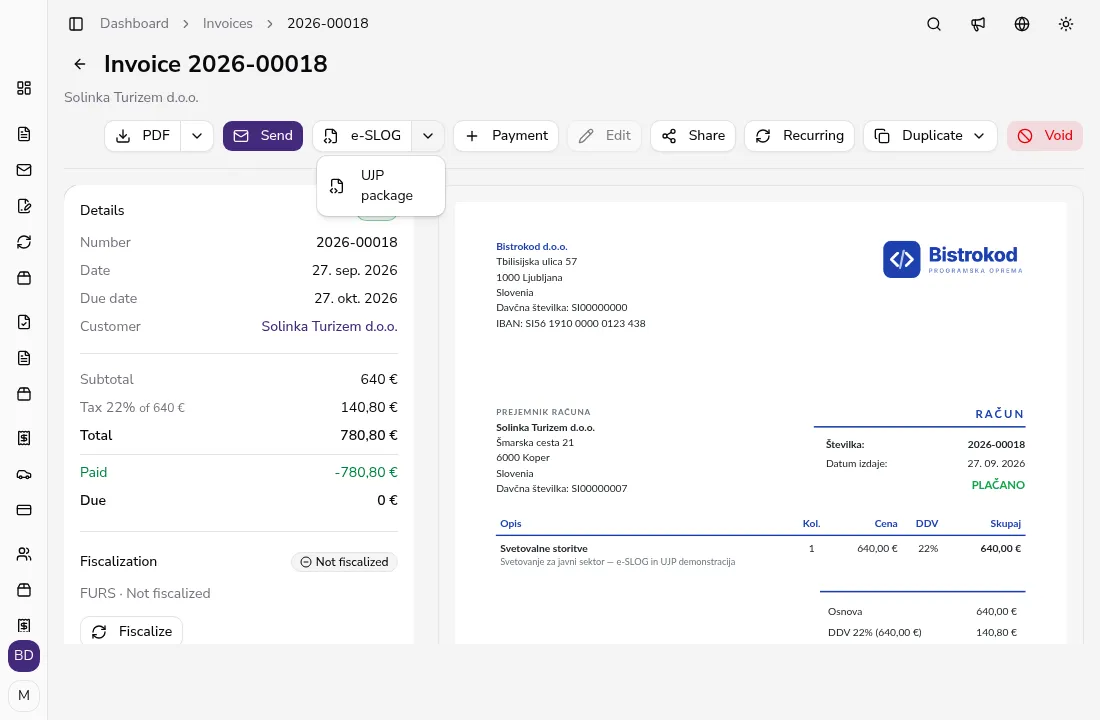
On an issued invoice or credit note, click the arrow next to the e-SLOG button and choose UJP package. You get a ZIP file with four files named like the invoice PDF: the e-SLOG 2.0 e-invoice (.xml), the UJP envelope (.env), an attachment package (.tar.gz) with the XML and the PDF, whose hash is written in the envelope, and the invoice PDF. If the option isn't available, Apollo shows UJP validation must be valid before downloading. next to it; the guide on e-SLOG e-invoices and the UJP package explains how to turn validation on.
![Document action bar with the open menu next to the e-SLOG button showing the UJP package option]()
- 2
Check the recipient details#
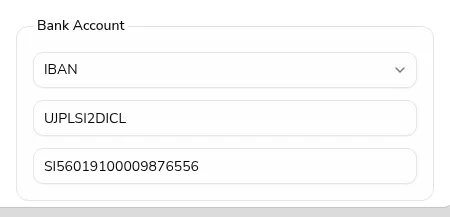
UJP's envelope instructions say that for a budget user the envelope must carry the buyer's tax number and the BIC UJPLSI2DICL as the recipient's bank; the recipient account is the buyer's transaction account in IBAN form. Apollo takes these from the customer details on the invoice — the tax number and the Bank Account section (BIC and IBAN) — and checks that the IBAN is a valid Slovenian IBAN before the download. UJP publishes a daily list of budget users with their tax numbers and sub-accounts.
![Bank Account section of the customer form with the BIC UJPLSI2DICL and a budget user's IBAN]()
- 3
Choose how to send it#
For legal entities, UJP lists three routes: e-invoice exchange service providers that have a contract with UJP (UJP publishes the list, and it includes banks), the UJPeRačun portal, and the PEPPOL network. Natural persons can send only through the UJPeRačun portal. An e-invoice for UJP consists of an envelope and attachments, the first being the e-SLOG 2.0 e-invoice — exactly what Apollo's UJP package contains. The provider you choose gives its own instructions and terms, so ask them how to hand over the files.
- 4
Or use the UJPeRačun portal#
The UJPeRačun portal (eracuni.ujp.gov.si) is free and meant for smaller issuers: you can send up to 100 e-invoices a year, each up to 1 MB with attachments, and only if you don't already send e-invoices to budget users through a contracted provider. Apply with the Vloga za novega uporabnika form on the entry page, and sign in with a qualified digital certificate or through SI-PASS. On the portal you enter the e-invoice by hand (the Vnos e-računa tab, Nov e-račun button) and the portal creates the envelope, XML and PDF itself; UJP's instructions don't describe importing ready-made files. Copy the details from your Apollo invoice, and attach the Apollo PDF with Izberite datoteko if you like. After the check with Shrani, click Zaključi, then Pošlji on the e-invoice in the list.
- 5
Check the file structure before sending#
UJP has a public tool, Preverjanje strukture datotek (storitve.ujp.gov.si/PreverjanjeStrukture). Choose E-račun z ovojnico and add each file from the package separately: the .env envelope, the .xml e-invoice and the PDF. The .tar.gz file isn't among the file types the tool allows. Enter your email address, and UJP replies there with whether the structure is correct and any warnings or errors. The tool only checks the files; it doesn't send them to the buyer.
- 6
Follow the e-invoice status#
On the UJPeRačun portal, follow sent e-invoices in the Izdani e-računi tab: Poslan (sent), Dostavljen (delivered), Nedostavljen (not delivered), Sprejet (accepted) or Zavrnjen (rejected). Clicking Nedostavljen or Zavrnjen shows the reason, and a rejection also shows its date and time. The portal emails you about undelivered and rejected e-invoices at the address from your application; change it in the Nastavitve tab. If you send through a provider, ask them how to follow the status, since the provider gives the sending instructions.
- 7
Act when an e-invoice isn't accepted#
An issued e-SLOG 2.0 e-invoice can't be cancelled and you can't send a copy of it; you and the buyer agree between yourselves whether they reject it and you send a new one. In Apollo, correct the details on the invoice, or void it and issue a new one, then download a new UJP package — Apollo always builds it from the invoice's current data. For questions about the portal, UJP lists portal.eracun@ujp.gov.si (content), podpora@ujp.gov.si (technical help) and the phone number 05 338 63 04, on working days from 8:00 to 15:00.
Tips
- Before your first submission, open UJP's list of budget users and check the buyer's tax number against the one on the customer in Apollo.
- E-invoices stay on the UJPeRačun portal for two months, and UJP doesn't keep them for you. Download copies in the Izdani e-računi tab with Shranjevanje e-računov and Pripravi datoteko.
- On the portal, an e-invoice's issue date can't be later than the day you send it, or it can't be sent.
Frequently asked questions
Does Apollo send the UJP package for me?
No. Downloading the UJP package is a file export. You send the package yourself through an e-invoice exchange provider, or you enter the details on the UJPeRačun portal.
Can I upload the UJP package to the UJPeRačun portal?
UJP's portal instructions describe only entering an e-invoice by hand, with the portal creating the envelope, XML and PDF itself, not importing prepared files. Use the package with an exchange provider or to check it with UJP's tool, and enter the details on the portal by hand.
Can I send an e-invoice to a budget user from Apollo over PEPPOL?
UJP is the PEPPOL access point for every Slovenian budget user. Apollo lets Slovenian companies send Peppol e-invoices once it's turned on in the E-invoicing settings; on the customer, fill in UJP's Peppol address with the Slovenian public-sector recipient (UJP) button. That's a separate route from the UJP package.
What do I need to sign in to the UJPeRačun portal?
A submitted new-user application (Vloga za novega uporabnika) with the issuer's tax number, the user's name and an email address, then a sign-in with a qualified digital certificate from a registered Slovenian issuer or through SI-PASS, for example with smsPASS or an ID card.