Invoice not fiscally verified: what to check?
When FURS doesn't verify an invoice, Apollo still issues it, marks its fiscal verification as failed and retries a few times automatically. Some problems, such as missing operator details or a closed business premise, stop the invoice from being issued in the first place. This guide shows where to see the status and the error message, what Apollo does on its own, how to retry by hand, and which settings to check: the certificate, the business premise and the operator.
- 1
Find the unverified invoices#
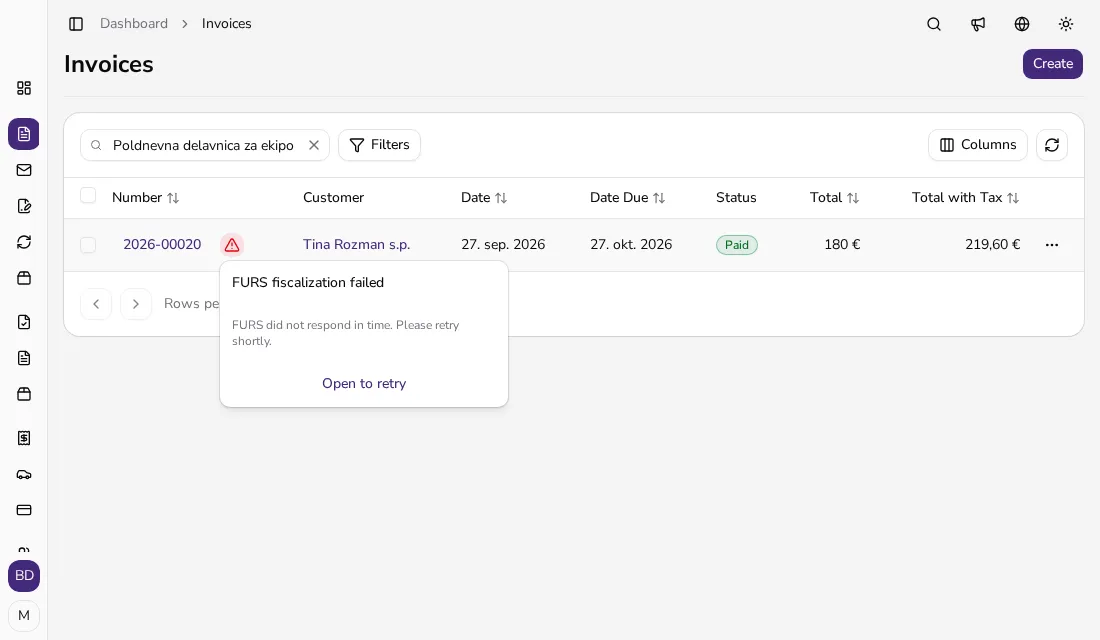
In the Invoices list, an invoice that FURS didn't verify has a red warning icon next to its number. Click it to see FURS fiscalization failed, the error text and an Open to retry link. If you select several such invoices, a Retry Fiscalization button appears in the action bar and retries them all at once.
![Invoice list with a red warning icon next to the number and the open FURS fiscalization failed panel with the error text]()
- 2
Read the status on the invoice#
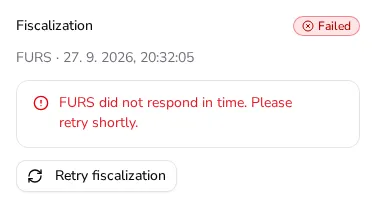
On the invoice page, the Fiscalization section shows a status badge. Fiscalized means FURS verified the invoice. Pending means FURS didn't answer within a few seconds and Apollo keeps going in the background. Failed also shows the error message. Skipped, with Skipped by user, means fiscal verification was turned off when the invoice was issued, and Not fiscalized means the invoice has no fiscal verification data. Until the invoice is verified, its PDF has no ZOI, EOR or QR code.
![Fiscalization section on the invoice page with the Failed badge, the FURS error message and the Retry fiscalization button]()
- 3
Know what Apollo does automatically#
Apollo sends a failed invoice to FURS again up to five times: first about 5 minutes after the failed attempt, then 15 minutes, 1 hour, 4 hours and 24 hours after the previous attempt. It also resends an invoice that has been pending for more than 5 minutes. If every attempt fails, the invoice stays Failed. Automatic retries cover invoices only — retry credit notes and advance invoices by hand.
- 4
Retry fiscal verification by hand#
On the invoice page, click Retry fiscalization; you don't have to wait for a manual retry. For a Skipped invoice, click Fiscalize — the Fiscalize document dialog asks for the business premise, electronic device and operator, and Apollo then submits the invoice to FURS subsequently. If FURS is unavailable at the moment (the message "FURS service is temporarily unavailable" or "FURS did not respond in time"), wait and try again later.
- 5
Check the digital certificate#
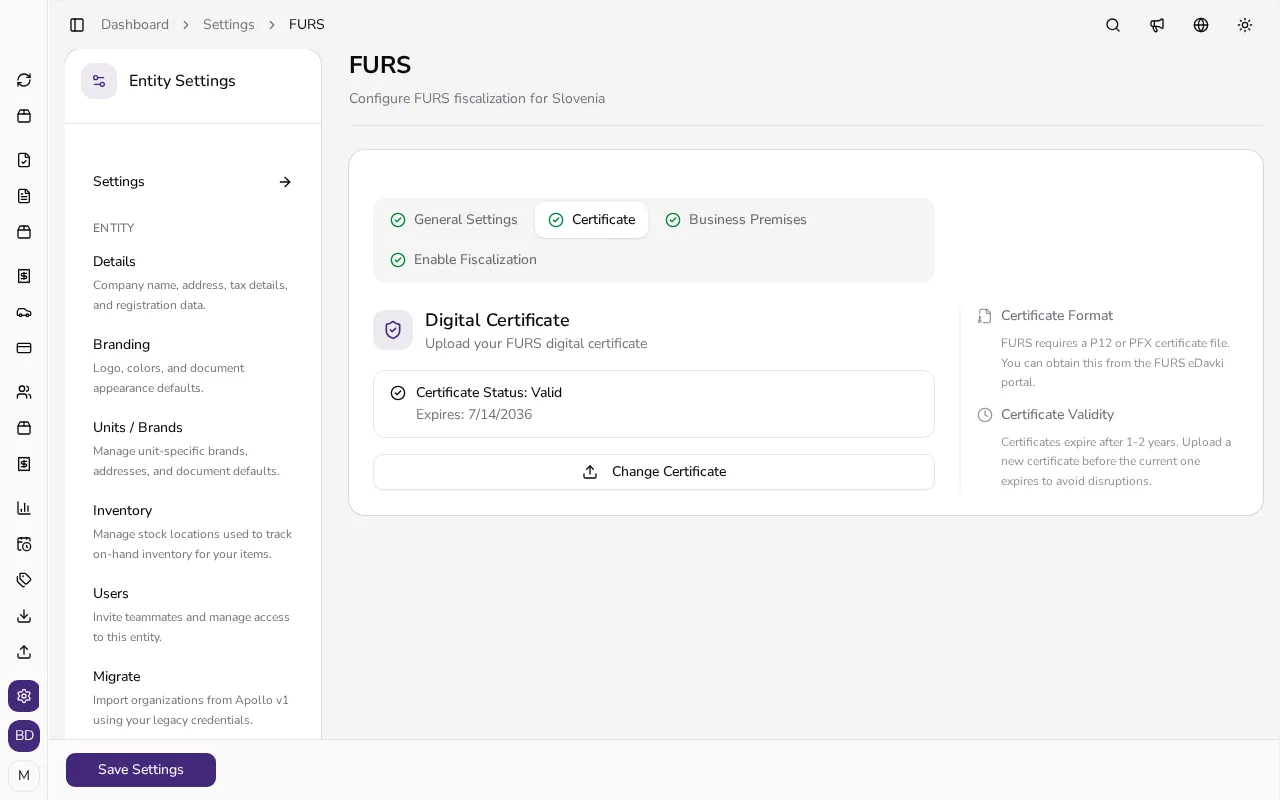
In the sidebar, click Settings, choose FURS under Compliance and open the Certificate tab. The Certificate Status is Valid, Expiring Soon (30 days or less), Expired or Missing, with the expiry date next to it. Apollo doesn't stop you issuing an invoice with an expired certificate, but FURS won't verify it. Upload a new certificate with Change Certificate; Apollo refuses a certificate if the password is wrong or if its tax number doesn't match your company's. When the certificate has 30 days or less left, Apollo emails a reminder to your company email address.
![Certificate tab in the FURS settings with the Valid certificate status and the expiry date]()
- 6
Check the business premise, device and operator#
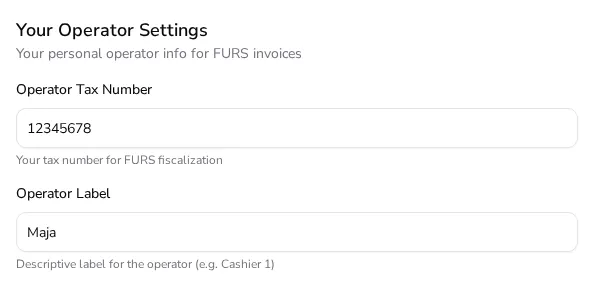
Apollo won't issue an invoice if the chosen business premise or electronic device isn't active or the premise is closed, or if the invoice date isn't today. If FURS says the premise isn't registered, check it in the Business Premises tab. Cash, card and other immediate payments also need the Operator Tax Number and Operator Label under Your Operator Settings; if they're missing, Apollo opens the FURS Operator Settings Required dialog when you issue the invoice, where you fill them in and click Save & Retry.
![Your Operator Settings section with the operator tax number and operator label filled in]()
- 7
Know when to contact support#
If an invoice stays Failed after you've checked the certificate, business premise, device and operator, and a manual retry doesn't work, contact Apollo support. Send the invoice number and the exact error text from the Fiscalization section — a message starting with "FURS returned an error" contains FURS's own reply and helps find the cause fastest.
Tips
- Once you've fixed the cause, retry fiscal verification before you print or send the PDF again, so it carries the FURS block.
- Note your certificate's expiry date and get a new one on eDavki in time — Apollo reminds you when it has 30 days or less left.
- For invoices from online stores, the API Default Operator under Advanced Settings in the FURS settings is used as the operator, so fill it in if you connect a store to Apollo.
Frequently asked questions
Is an invoice with the Failed status issued?
Yes. Apollo issues and saves it; FURS just hasn't verified it yet. Apollo retries up to five times on its own, and you can retry it by hand at any time with Retry fiscalization.
Why didn't Apollo issue the invoice at all?
Because it found the problem before sending anything to FURS: for example a missing certificate or operator details, an inactive or closed business premise, an inactive device or a date that isn't today. Fix the setting and issue the invoice again.
Does Apollo tell me when the automatic retries fail?
You can spot failed invoices by the red icon in the Invoices list and the Failed status on the invoice. Check the list regularly and retry them by hand.
Why wasn't a credit note retried automatically?
Automatic retries cover invoices only. Open the credit note or advance invoice with the Failed status and click Retry fiscalization.