How to set up FURS tax fiscalization in Apollo
Tax fiscalization is the process where FURS verifies your invoices in real time and returns an EOR, ZOI and QR code for each one. Before you turn it on, Apollo needs a few settings in place: your company and operator details, a FURS digital certificate, and at least one business premise with a device. This guide walks through the FURS settings page step by step, without ever uploading a real certificate or turning fiscalization on for you.
- 1
Open the FURS settings#
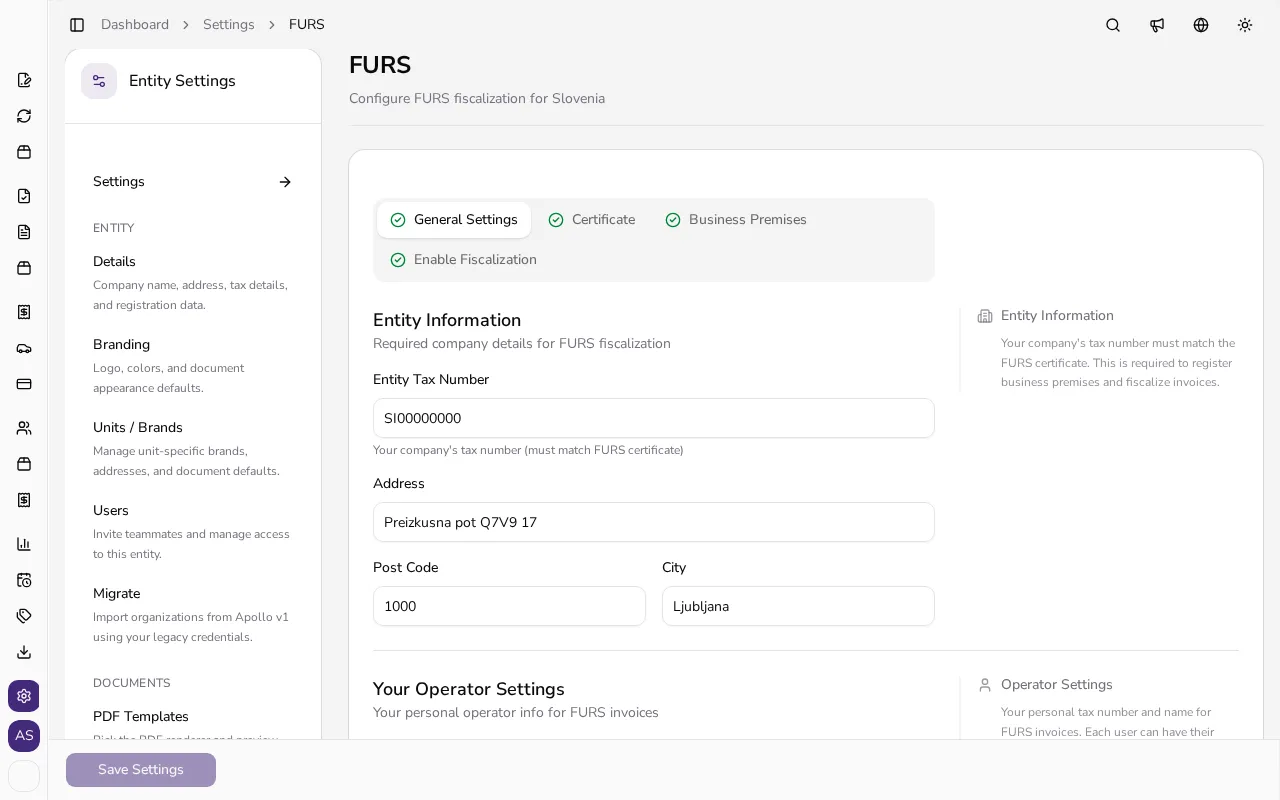
In the sidebar, click Settings, then choose FURS under Compliance. The page has four tabs: General Settings, Certificate, Business Premises and Enable Fiscalization. Each next tab unlocks once you complete the one before it — until then it shows a lock icon; once a tab is complete, it gets a checkmark in the tab bar.
![FURS settings page with all four tabs complete (General Settings, Certificate, Business Premises, Enable Fiscalization)]()
- 2
Check your company details#
In the General Settings tab, the Entity Information section shows your Entity Tax Number, Address, City and Post Code — the tax number must match your FURS certificate. In Numbering Strategy, choose Centralized (C) for one sequence per business premise, shared by all of its devices, or Device-Level (B) for a separate sequence for each device.
- 3
Enter your operator details#
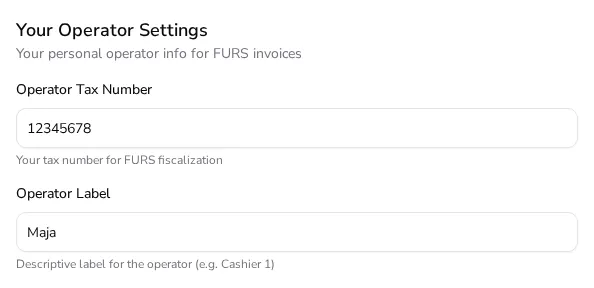
In Your Operator Settings, enter your own Operator Tax Number and Operator Label — this is your personal information that appears on invoices you issue (for example, tax number 12345678 and label Maja). Until you fill both in, Apollo shows a warning above the fields that they're required for FURS fiscalization, and the Certificate and Enable Fiscalization tabs stay locked.
![Your Operator Settings section with an operator tax number and operator label filled in]()
- 4
Upload your digital certificate#
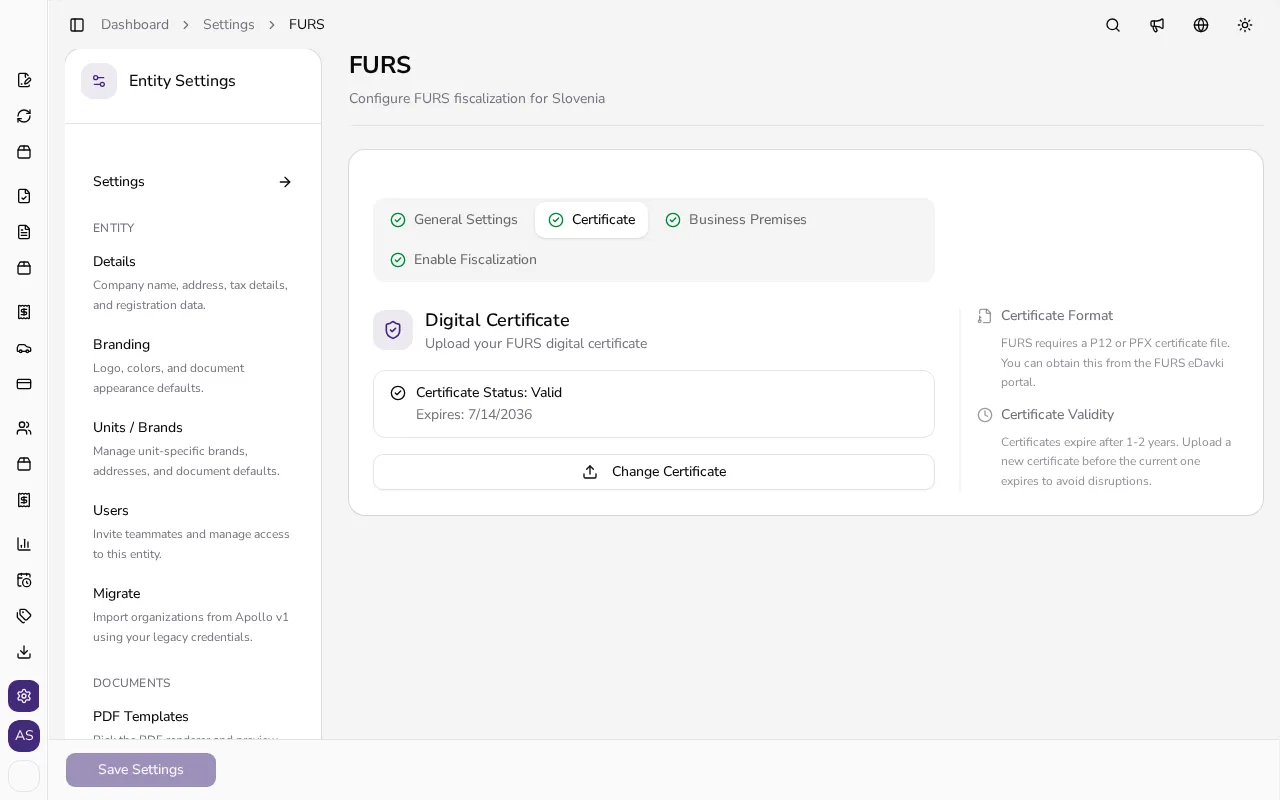
Once your company and operator details are complete, the Certificate tab unlocks. There you upload the P12/PFX certificate you obtain from the eDavki portal (see How to get your FURS digital certificate for Apollo for the full eDavki process); Apollo uses it to digitally sign fiscalized invoices. Once uploaded, Apollo shows the certificate's status (for example Valid) and expiry date, and a Change Certificate button lets you upload a new one. For security, Apollo never displays the certificate's contents, only its status and expiry date.
![Certificate tab showing status Valid, an expiry date, and a Change Certificate button]()
- 5
Register a business premise and device#
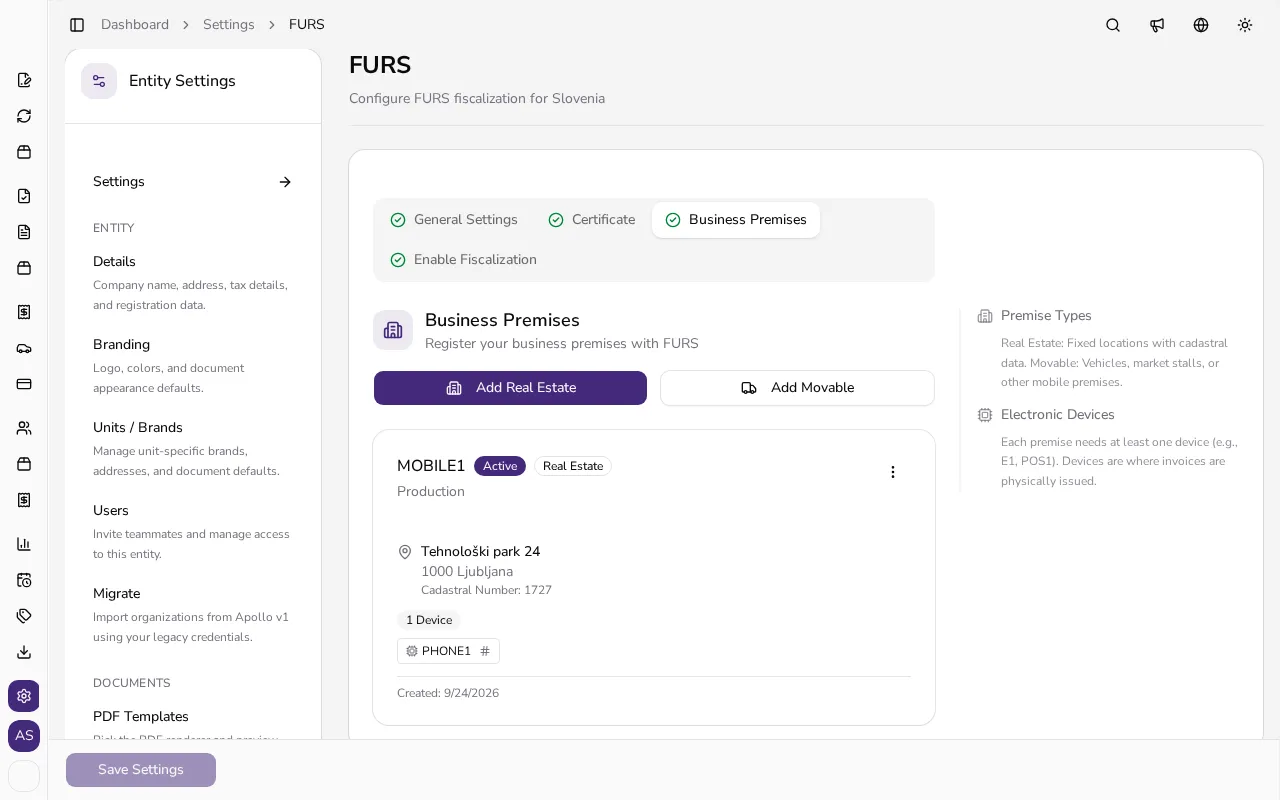
In the Business Premises tab, click Add Real Estate for a physical location or Add Movable for a vehicle or market stall. For a real-estate premise, Apollo also needs the cadastral number, building number and building section from the land register alongside the address — see How to find property data for your FURS business premise for where to look them up. Premise and device names can be 1 to 20 letters and digits, which Apollo also validates for you. Each registered premise shows its address or type, an Active/Closed badge and a Real Estate/Movable label, plus its device count; once a premise has at least one electronic device (a cash register or POS terminal), the tab gets a checkmark in the tab bar. Apollo only sends the device's name to FURS the first time you fiscalize an invoice with it.
![Business Premises tab with premise MOBILE1, Active and Real Estate badges, an address, and one registered device]()
- 6
Turn on fiscalization once everything is ready#
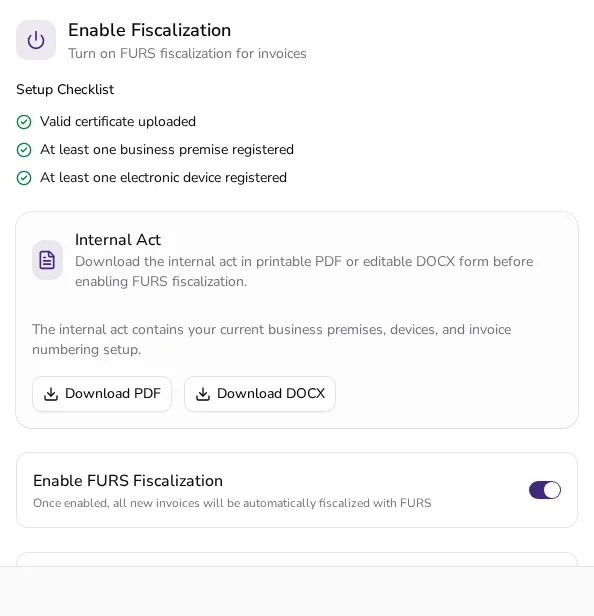
The Enable Fiscalization tab unlocks once your certificate is valid and at least one business premise has a device. It shows a Setup Checklist with a checkmark for each requirement met. Before switching on Enable FURS Fiscalization, download the document from the Internal Act section as a PDF or DOCX — it lists your business premises, devices and numbering setup, as FURS requires. Once the switch is on, Apollo automatically fiscalizes new invoices from then on; a warning under the switch reminds you that turning it back off leaves new invoices unverified.
![Enable Fiscalization tab with every setup checklist item met, the internal act download, and the Enable FURS Fiscalization switch turned on]()
- 7
Know when Apollo asks for operator details#
For invoices paid by cash, card, check or another immediate method, Apollo asks for your operator tax number and label before it can fiscalize the invoice. If you haven't filled them in yet, it prompts you the moment you try to issue that kind of invoice.
Tips
- Choose Centralized numbering unless you want each device in a premise, such as two cash registers, to keep its own sequence — then choose Device-Level. With either strategy, each premise has its own numbers.
- Download the internal act from the Enable Fiscalization tab before you actually turn fiscalization on, since FURS requires it as a record of your setup.
- Fill in your operator tax number and label as early as possible, since the Certificate and Enable Fiscalization tabs stay locked until you do.
Frequently asked questions
What happens if FURS is unreachable when I issue an invoice?
You can still issue the invoice. Apollo marks it as unverified and lets you submit it for later verification with one click once FURS is available again, following the FURS subsequent-submission procedure.
Why does Apollo ask for operator details before a cash invoice?
For invoices paid by cash, card, check or another immediate method, FURS requires an operator tax number and label before the invoice can be fiscalized; you set these in General Settings.
What happens when I void a fiscalized invoice?
Apollo creates an offsetting credit note that references the original invoice and fiscalizes it with FURS.
Where do I see the EOR, ZOI and QR code on an invoice?
The FURS block (EOR, ZOI and a QR code) is printed on the invoice PDF only once that invoice's fiscalization status is successful.