How to export KIR/KPR, VOD and miniMAX for your accountant
If your company is registered in Slovenia, Apollo prepares named exports for your local accounting alongside the general document export: the combined KIR/KPR VAT ledgers for FURS, and an accounting export of issued and received documents as a VOD ZIP or miniMAX XML for your bookkeeper. They live on the Export page, in sections shown only for Slovenian entities.
- 1
Open the Export page#
In the sidebar, click Reports, then Export. The KIR/KPR Export and Slovenian accounting exports sections only appear when your entity is registered in Slovenia.
- 2
Export the KIR/KPR VAT ledgers#
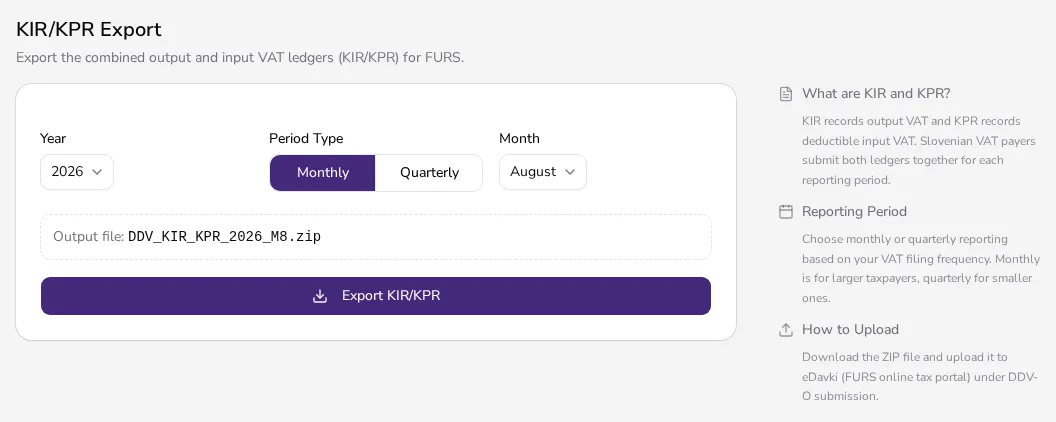
In the KIR/KPR Export section, choose the Year and a period type — Monthly or Quarterly — then the matching month or quarter. The output preview shows the file name (for example DDV_KIR_KPR_2026_M8.zip) before you click Export KIR/KPR. KIR records output VAT and KPR records deductible input VAT; Slovenian VAT payers submit both ledgers together.
![KIR/KPR Export section with year, monthly or quarterly period selection and a file name preview]()
- 3
Upload the KIR/KPR file to eDavki#
Download the ZIP file and upload it to eDavki (the FURS online tax portal) under the DDV-O submission. Apollo doesn't file it on your behalf — the export only prepares the ZIP, which you upload yourself.
- 4
Choose the accounting format#
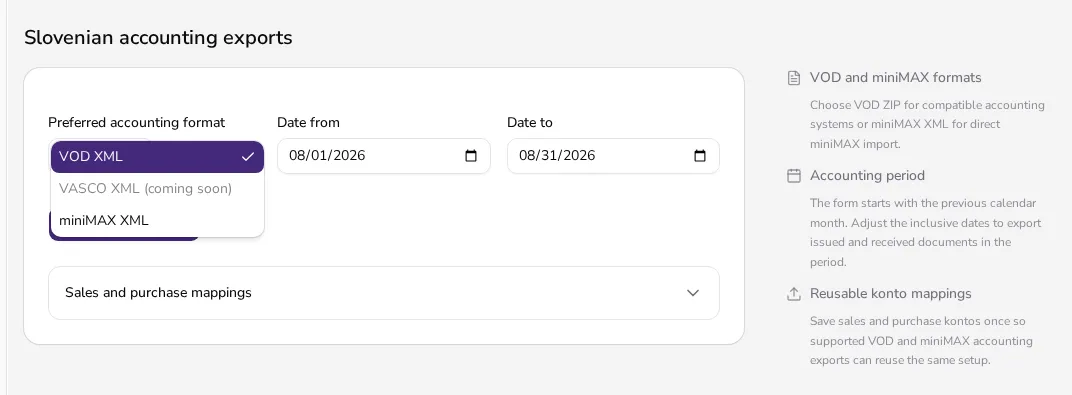
In the Slovenian accounting exports section, open the Preferred accounting format dropdown. Choose VOD XML for compatible accounting systems, or miniMAX XML for a direct import into miniMAX. VASCO XML is listed as 'coming soon' and isn't available yet. Both formats include the issued and received documents from the chosen period.
![Open accounting format dropdown with VOD XML and miniMAX XML, and VASCO XML marked coming soon]()
- 5
Set the period and download the VOD ZIP#
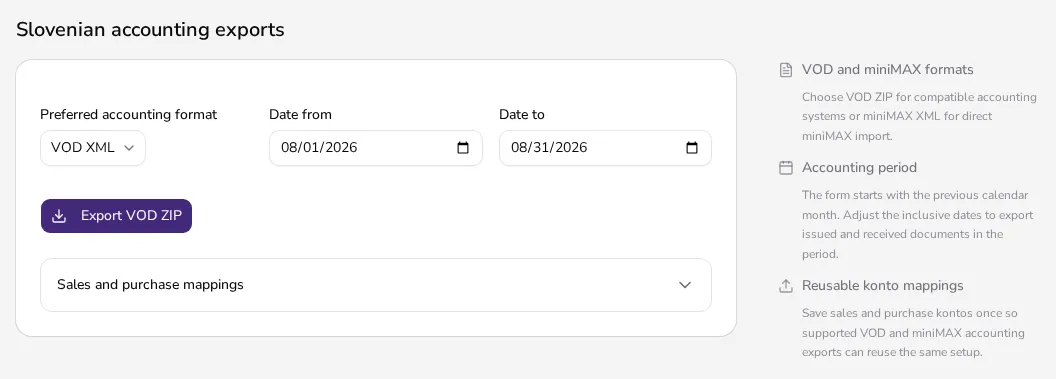
The form starts with the previous calendar month. Adjust Date from and Date to if needed — both dates are included — then click Export VOD ZIP. In Sales and purchase mappings, save your sales and purchase kontos once; Apollo reuses them for every later VOD and miniMAX export.
![Slovenian accounting exports section with VOD XML selected, date from and date to fields, and an Export VOD ZIP button]()
- 6
Export miniMAX XML#
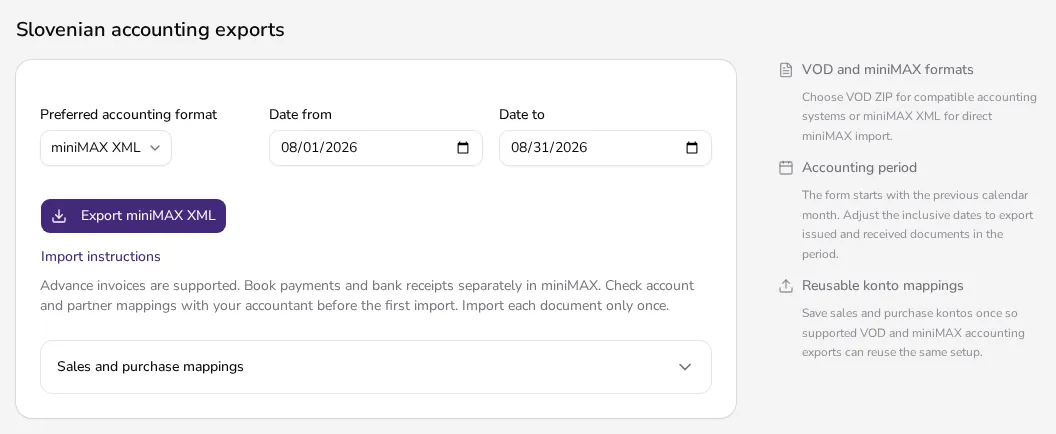
If your accountant works in miniMAX, choose miniMAX XML. Click Import instructions to show them: advance invoices are supported, while payments and bank receipts are booked separately in miniMAX. Check the account and partner mappings with your accountant before the first import, and import each document only once. Then click Export miniMAX XML.
![Slovenian accounting exports section with miniMAX XML selected, the Export miniMAX XML button and the import instructions opened]()
Tips
- Choose monthly or quarterly reporting based on your actual VAT filing frequency — monthly for larger taxpayers, quarterly for smaller ones.
- Save your konto mappings once in the Sales and purchase mappings section so you don't have to re-enter them for every future VOD or miniMAX export.
- Neither export changes your documents, so you can re-run the same period as many times as you need.
- The KIR/KPR export isn't available when your Slovenian VAT profile is set to Non-VAT subject — non-VAT subjects don't file these ledgers.
Frequently asked questions
Does Apollo submit the KIR/KPR file to FURS for me?
No. Apollo prepares a ZIP file for download, which you then upload yourself to eDavki under the DDV-O submission.
Can I export for miniMAX or VASCO instead of VOD?
For miniMAX, yes: choose miniMAX XML and import the file directly into miniMAX. VASCO XML is listed as 'coming soon' and isn't available yet.
Does the VOD export include received (purchase) documents too?
Yes. The VOD and miniMAX exports include both issued and received documents from the chosen period, and book received documents to your saved purchase kontos.
Why don't I see the KIR/KPR and Slovenian accounting export sections?
Those sections only appear for entities registered in Slovenia. The Export page doesn't show them for other countries.